How to Deposit and Withdraw on Hyperliquid (Beginner's Guide)
A step-by-step guide to depositing and withdrawing on Hyperliquid: which USDC networks work, the minimum deposit, the withdrawal fee, and what to do when a deposit doesn't show up.

Hyperliquid doesn't take card payments or bank transfers. The only way in is to send crypto you already own to a Hyperliquid deposit address.
Perps are margined in USDC, so if you've got USDC sitting on another exchange or in a personal wallet, send it over and you're ready to trade. No USDC? Send BTC, ETH, or SOL instead and swap it for USDC once it's in.
This guide covers how to deposit USDC, how to deposit other coins, and how to withdraw.
💡 Before you start!
- Haven't made a Hyperliquid account yet? 👉 [How to Sign Up for Hyperliquid]
- New user bonus + fee discount 👉 [Check the Hyperliquid referral code]
1. Before You Deposit
The minimum deposit is 5 USDC. Send less than that and it won't credit — and you're not getting it back. The sending side usually takes a withdrawal fee off the top, so make sure at least 5 USDC actually lands once that fee comes off.
USDC deposits are accepted on Arbitrum, Ethereum, Base, and Polygon. Pick one on the exchange or wallet you're sending from, then select that same network on the Hyperliquid deposit screen. No preference? Go with Arbitrum — the fees are the lowest.
2. How to Deposit USDC
2-1. Get your deposit address
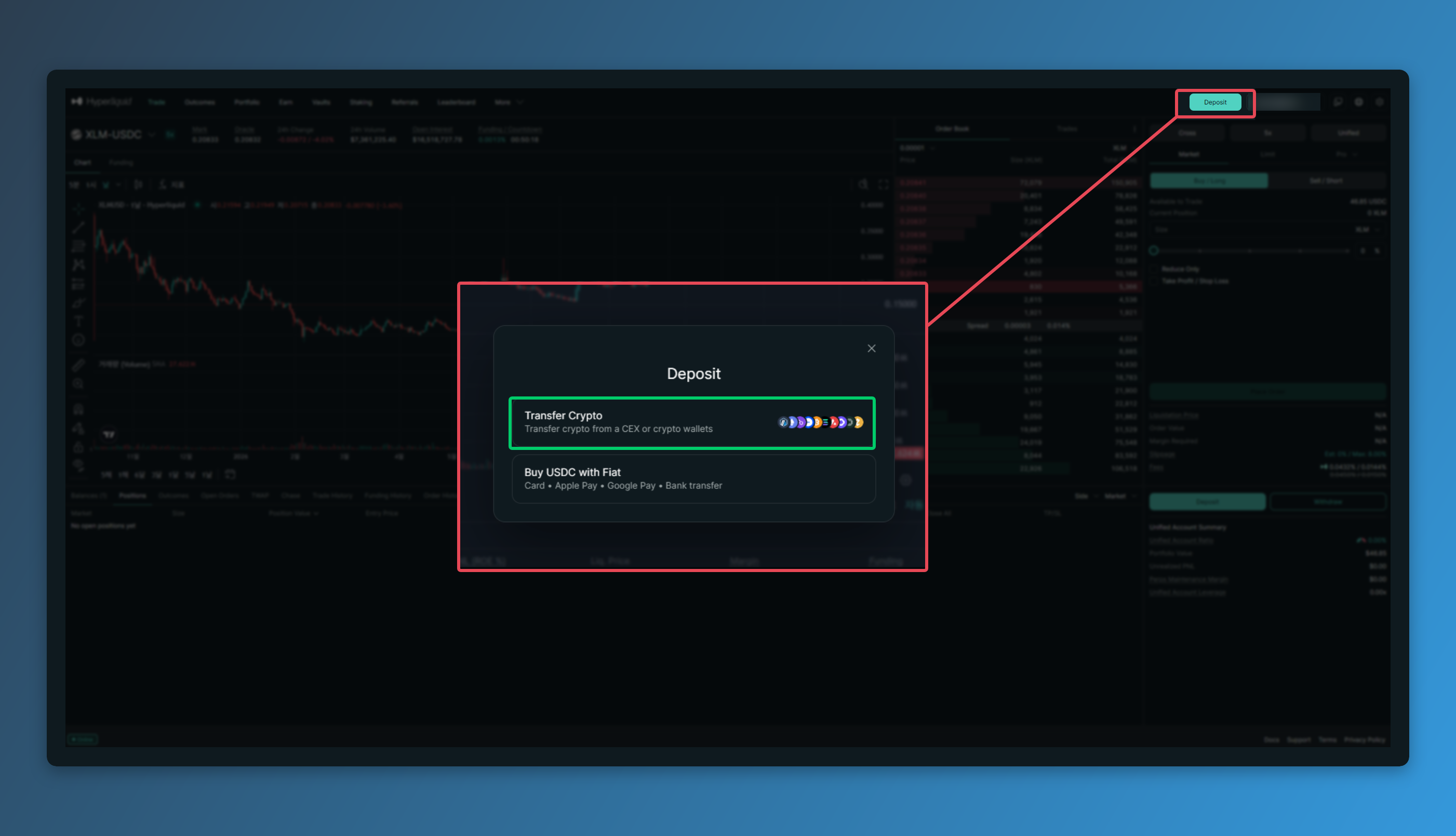
Log in to Hyperliquid and hit the [Deposit] button in the top right.
Two options pop up: [Transfer Crypto] and [Buy USDC with Fiat]. Most people are moving funds in from another exchange or a personal wallet, so go with [Transfer Crypto].
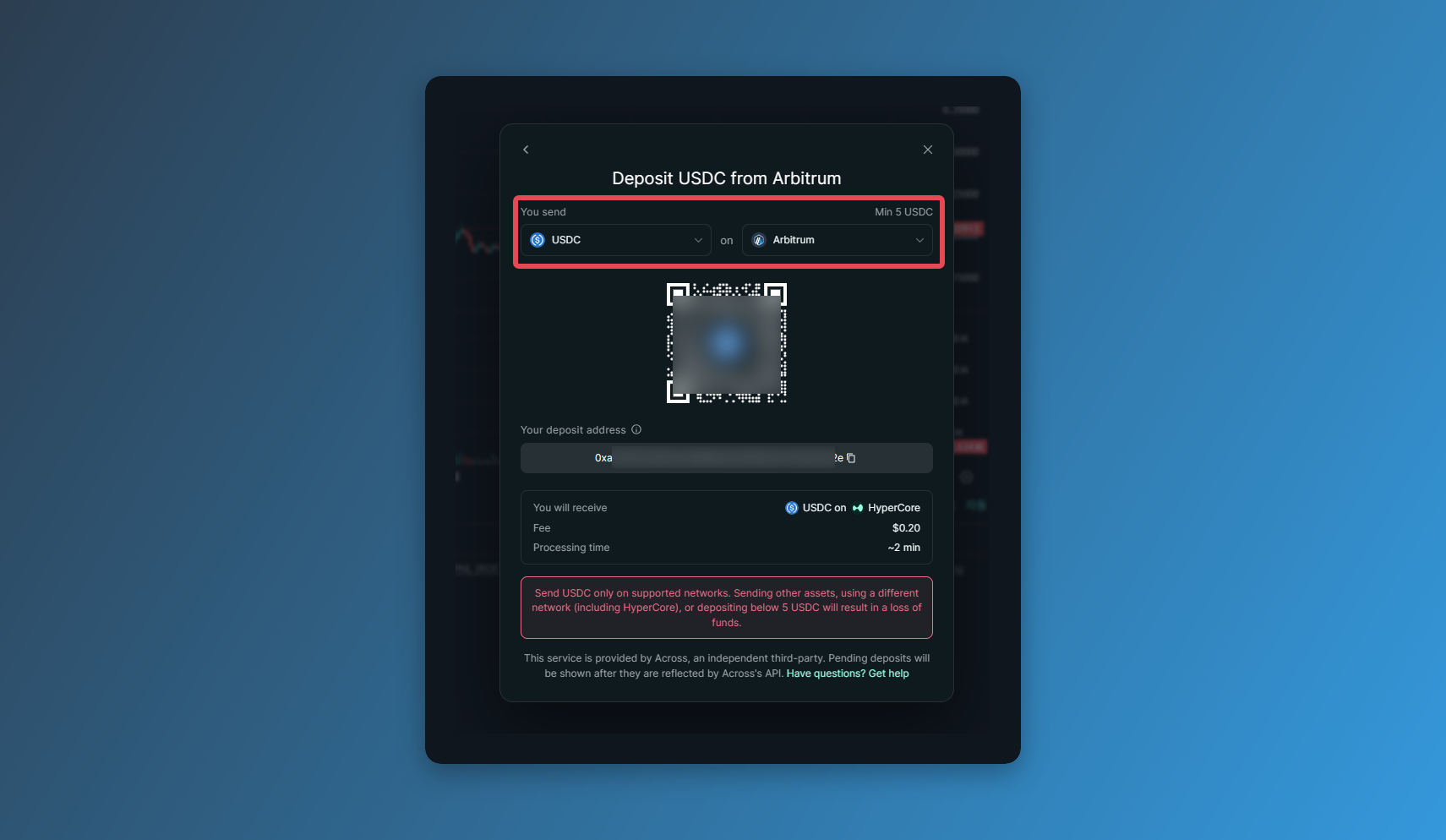
Pick USDC as the Asset, then choose the network (chain) you'll send it on. Hyperliquid supports Arbitrum plus a handful of other networks. Whatever you pick on the sending side — the exchange or wallet you're withdrawing from — has to match what you pick here. Once the network is set, a unique deposit address appears. Copy it.
(💡What is [Buy USDC with Fiat]?:
It's a fiat on-ramp. Instead of routing through a centralized exchange like Binance, you buy USDC right inside the Hyperliquid app with a credit card, Apple Pay, or Google Pay, and it lands straight in your balance. Convenient if you're new, but payments get declined a lot in countries that restrict crypto purchases, and the fees are steep.)
2-2. Send USDC from your exchange or wallet
Head to the withdrawal screen on whatever exchange or wallet your USDC is sitting in.
Paste the Hyperliquid deposit address in as the destination and pick the same network you chose in step 1 (Arbitrum). Get the network wrong and the deposit never credits.
2-3. Confirm the deposit
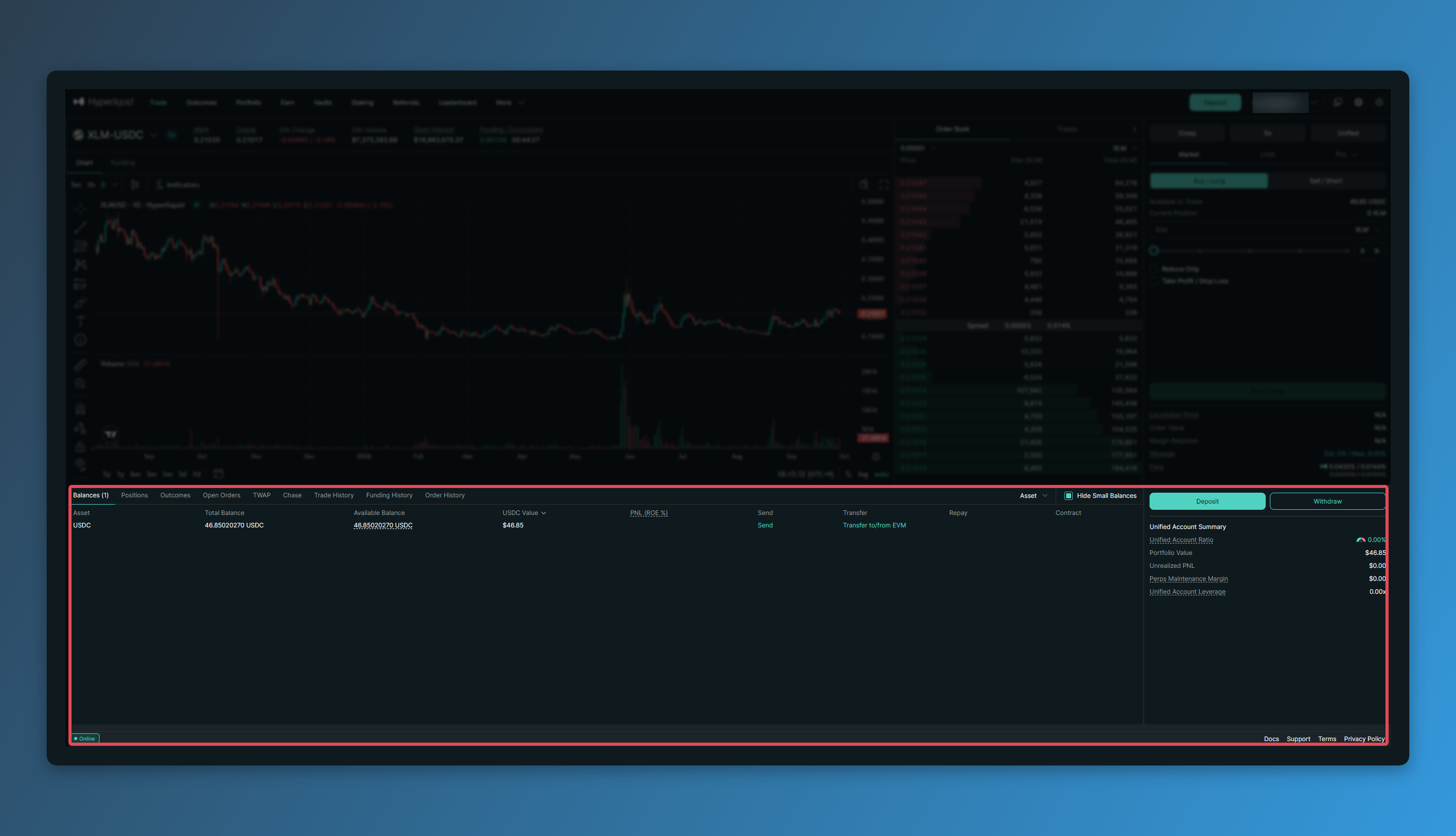
Once it credits, the USDC shows up in your Hyperliquid balance.
Usually a few minutes, though a slow withdrawal queue on the sending exchange can drag it out.
3. Depositing Other Coins
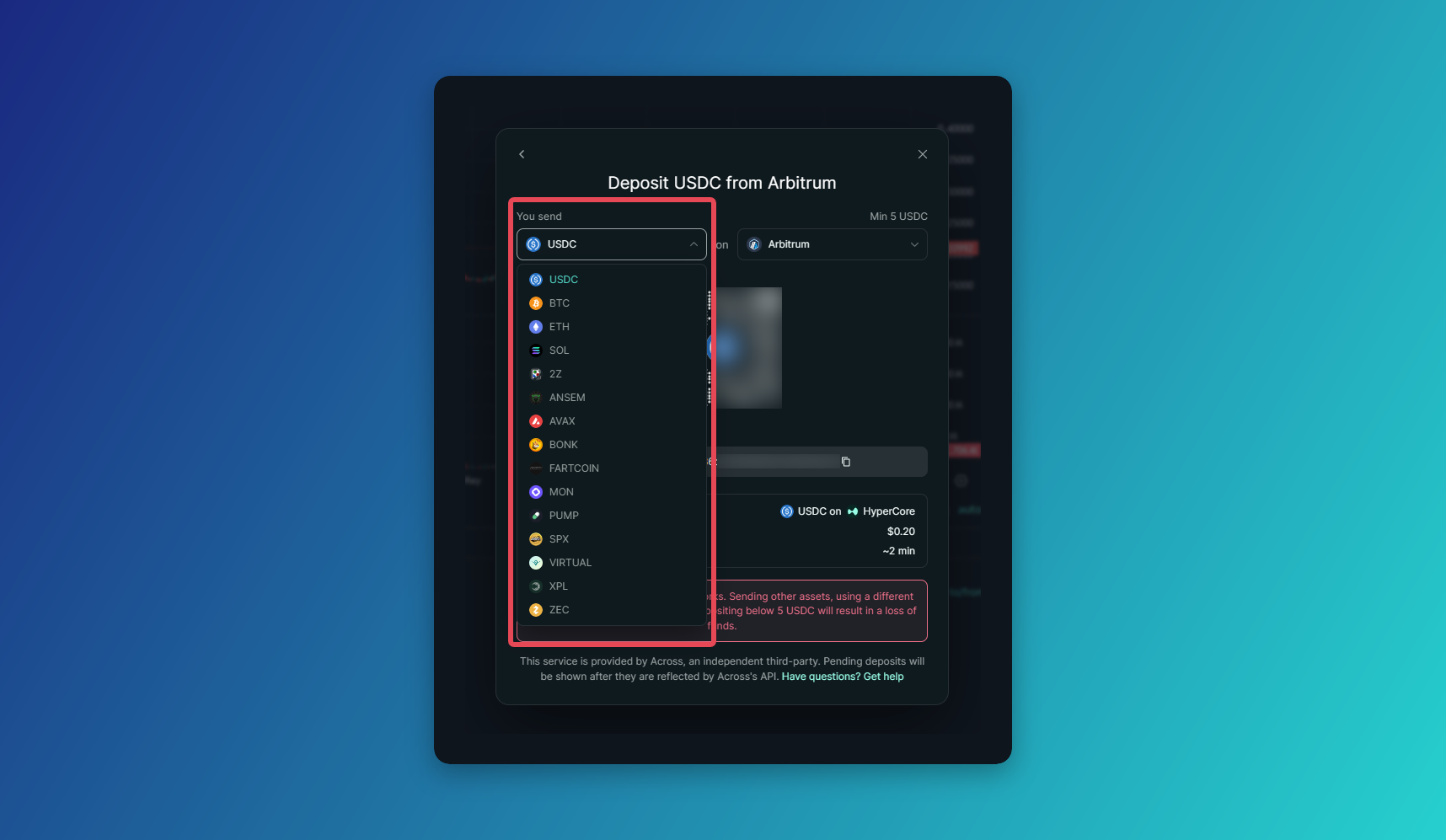
No USDC? Send whatever you're already holding.
Hyperliquid takes BTC on the Bitcoin network, ETH on Ethereum, SOL on Solana, and a few others. Pick the coin on the deposit screen and you'll get a dedicated address to send to.
One catch: anything that comes in this way has to be swapped into USDC before it counts as margin for perps. And if you're starting with no crypto at all, buy USDC on whatever exchange you use and run through step 2.
4. How to Withdraw
4-1. Click the withdraw button
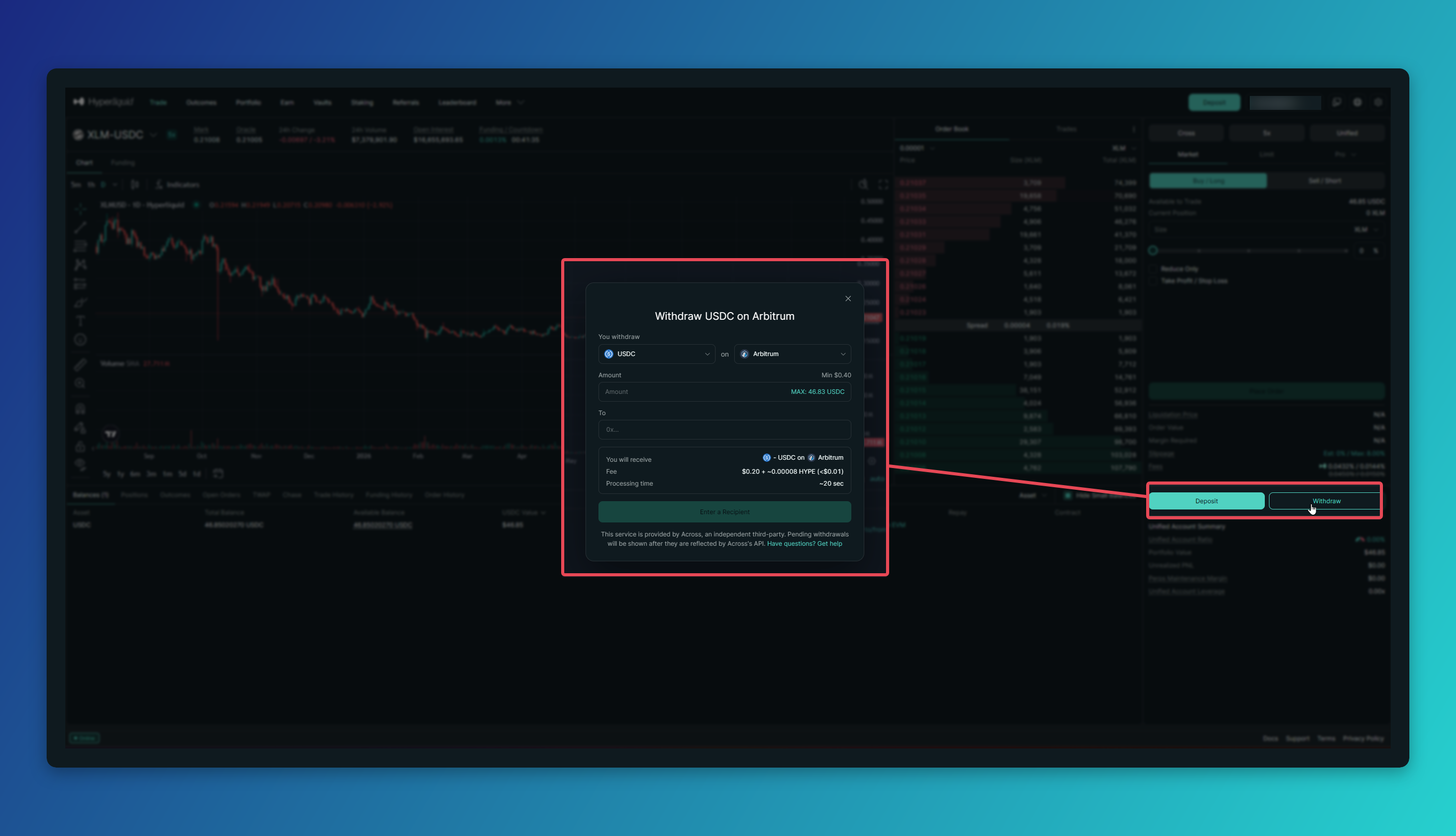
Hit the [Withdraw] button at the bottom right of the trading screen.
4-2. Enter the destination address and amount
Generate a deposit address on the receiving exchange, then punch in that address and the amount and send.
Sending to an exchange? Make sure you select Arbitrum as the network when you copy the USDC deposit address over there. Hyperliquid pushes USDC out over Arbitrum by default, so the receiving address has to be an Arbitrum address for the funds to land.
The withdrawal fee is 0.2 USDC. The final amount after the fee shows at the bottom.
4-3. Confirm the withdrawal
Over Arbitrum, withdrawals usually arrive in 3~4 minutes.
Check the deposit history on the receiving exchange or wallet to confirm it landed.
When Deposits or Withdrawals Don't Work
- You sent less than 5 USDC: Anything under the minimum won't credit, and you're not getting it back. Always send more than the minimum plus the fee.
- Deposit sent, nothing in your balance: Check the status in the withdrawal history on the sending side. If it's already gone through and still nothing shows, double-check that the network you picked on the deposit screen is the one you actually sent on.
- Wallet-connected account and the deposit won't approve: You're out of ETH for gas on Arbitrum. Send a little ETH over first.
- Withdrew but nothing showed up at the exchange: Check whether the deposit address you copied was an Arbitrum address. If it was on another network, you'll have to contact that exchange's support.
Deposit sorted? Next up: learning your way around the trading screen. Walk through [How to Use Hyperliquid].