How to Use Hyperliquid: Trading Screen Guide for Beginners
A walkthrough of the Hyperliquid trading screen: reading the order book, long vs short, leverage and liquidation, cross vs isolated margin, and how to place your first order and manage the position.

Hyperliquid has one of the cleaner trading screens out there. Still, if perps are new to you, an order panel full of number fields is enough to freeze you up. So let's go through the screen piece by piece and sort out what each part actually does. You'll only end up using a handful of buttons anyway.
Haven't signed up or connected a wallet yet? Start with [How to Sign Up for Hyperliquid]. Entering a referral code at signup gets you 4% off trading fees.
1. Changing the Language
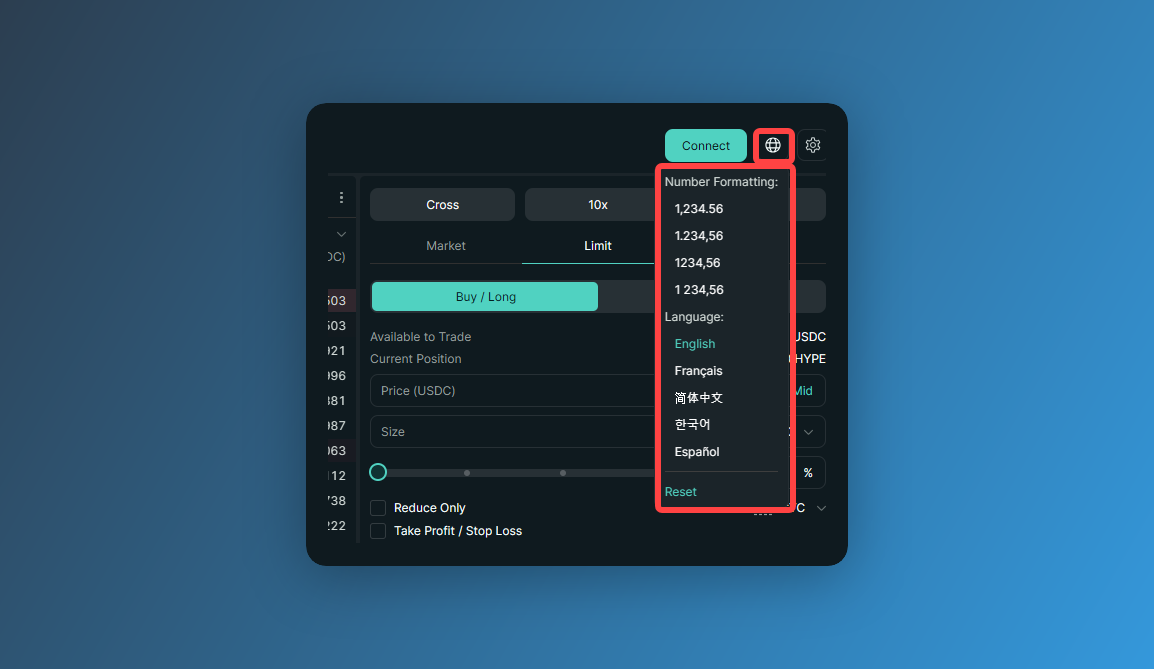
First, make life easier for yourself: hit the globe icon in the top right and set your language. English, French, Chinese (Simplified), Korean and Spanish are supported.
2. How the Trading Screen Is Laid Out
Click [Trade] in the top menu and this is what you get. Before we touch anything, here's a quick rundown of how it's all put together.
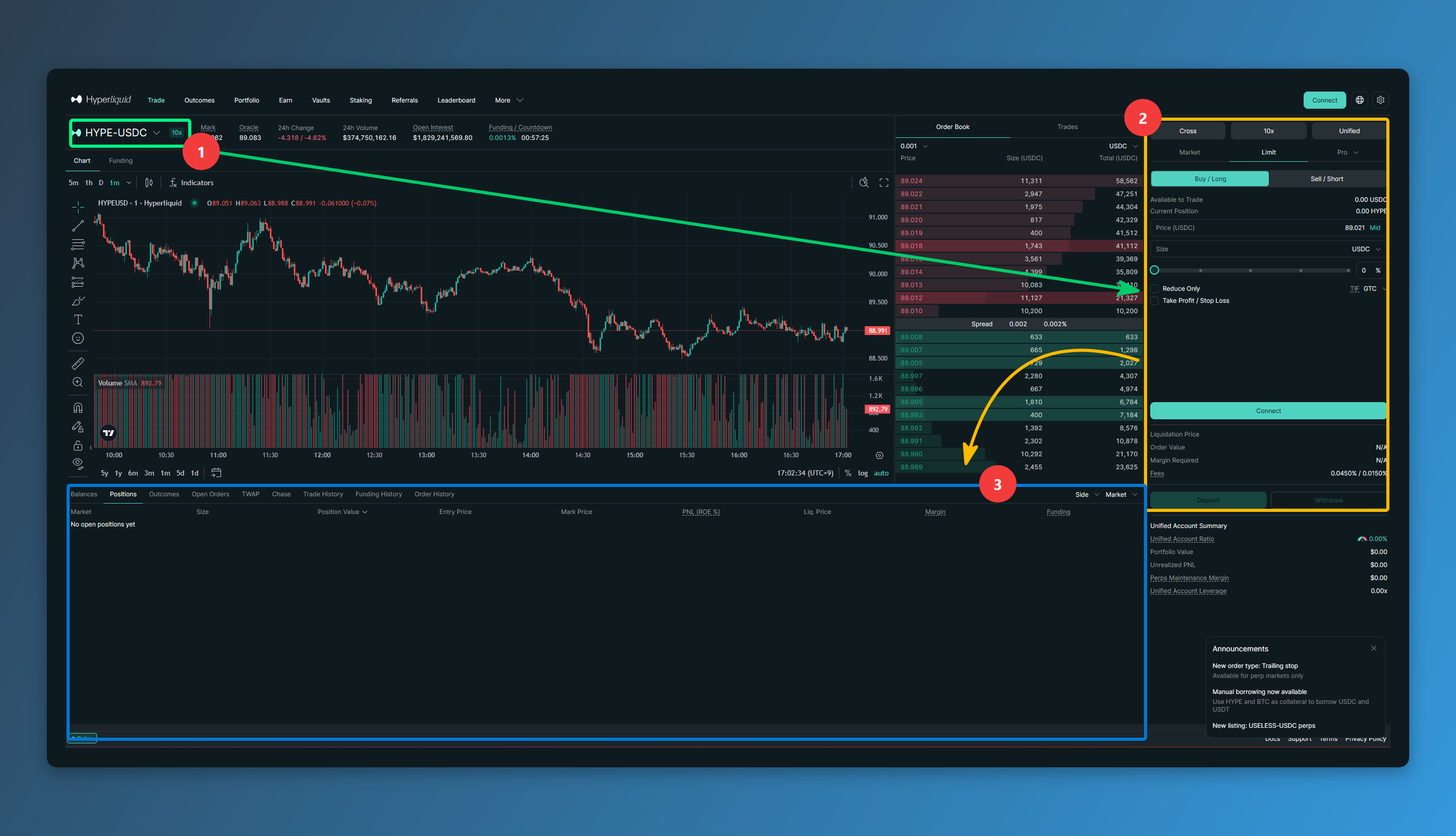
Pick the coin you want to trade at the top left, then place your order in the panel on the right. Once it fills, your position shows up at the bottom of the screen.
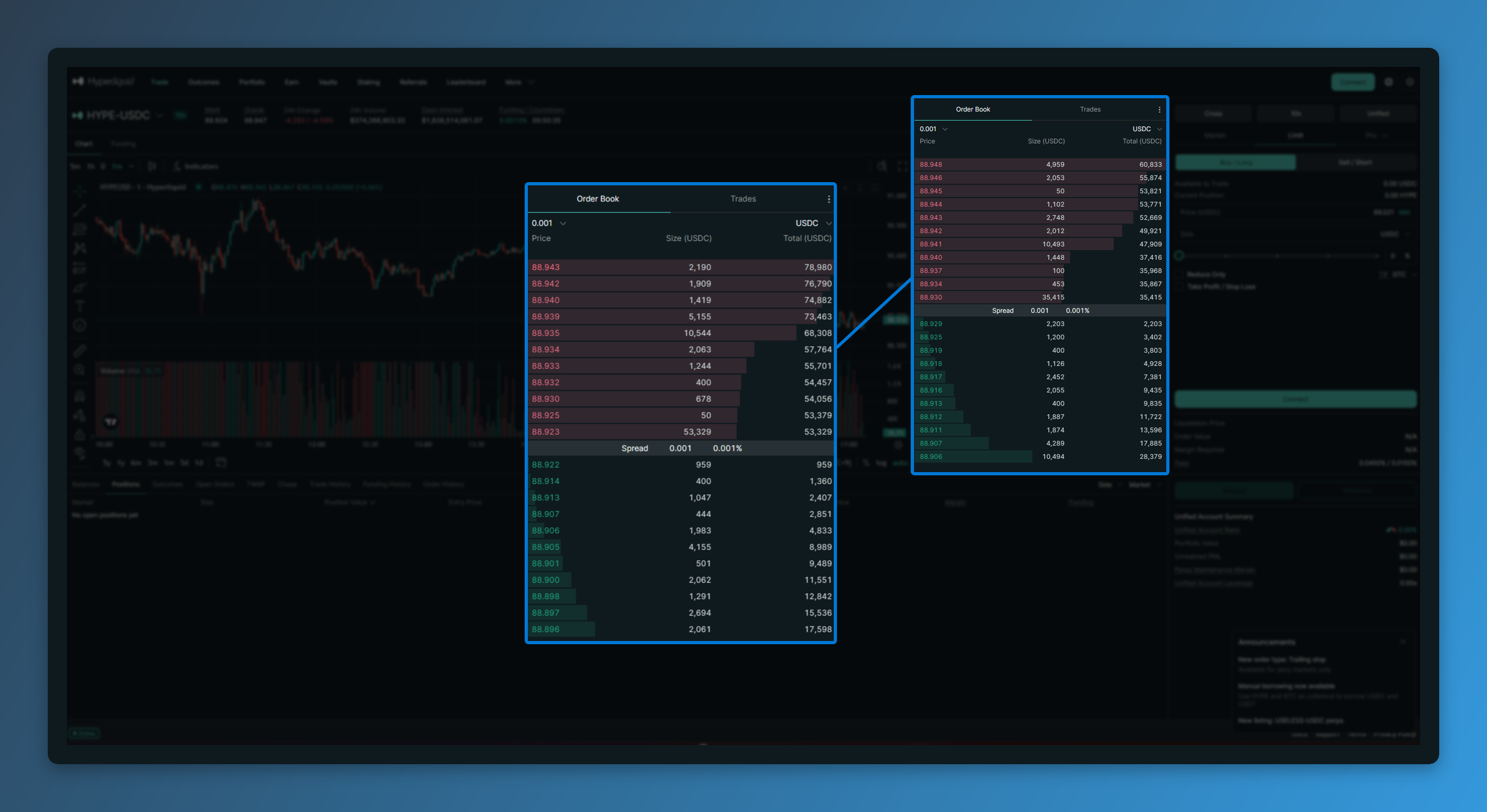
The chart in the middle and the order book next to it are where you read price. The order book is simply every bid and offer sitting on the market right now. Red up top is what's for sale, green down below is what people want to buy, and the point where the two meet is the current price.
3. Long and Short
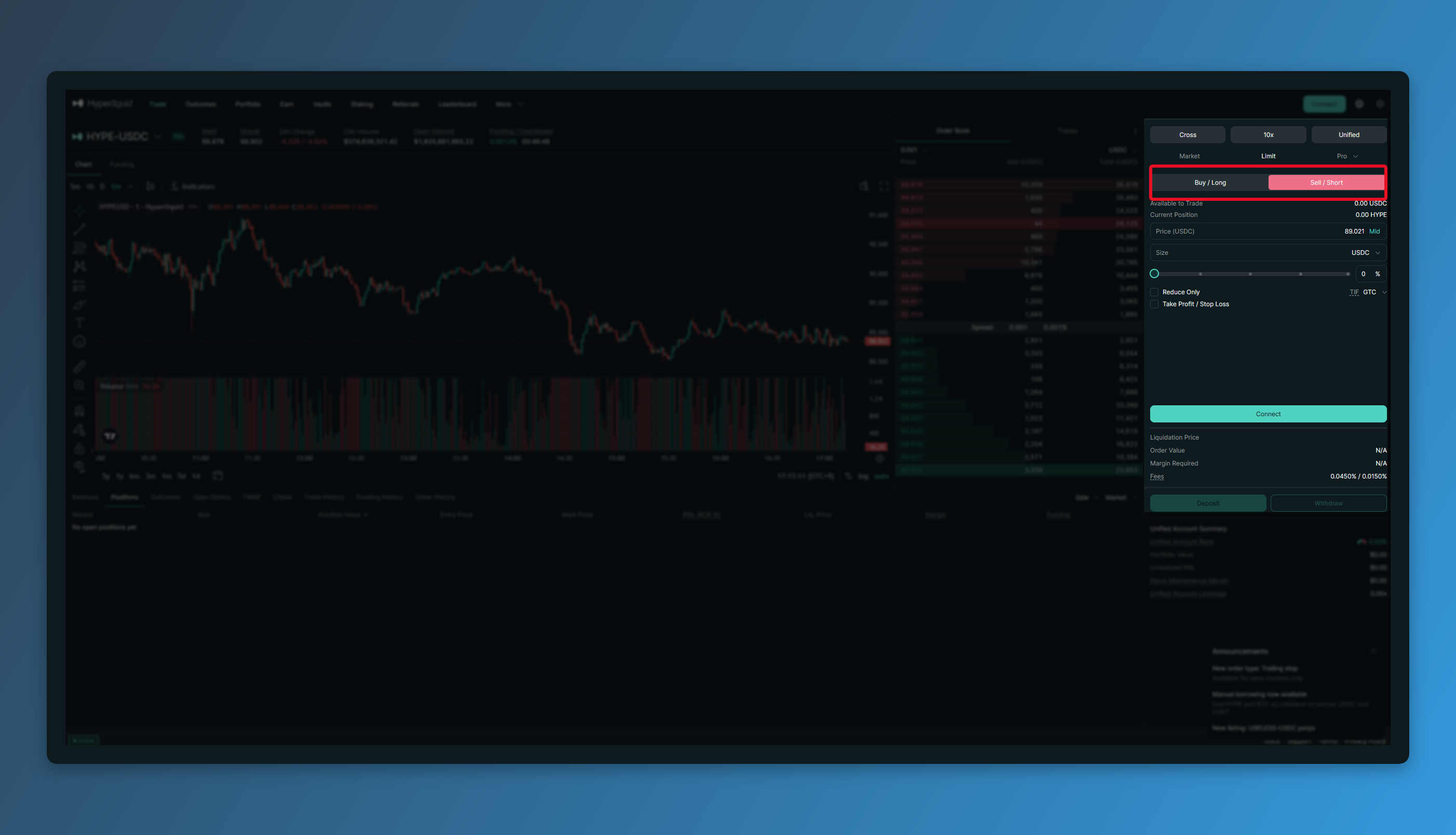
The [Buy/Long] and [Sell/Short] buttons at the top of the order panel set your direction.
Long pays you when price goes up, short pays you when it drops. On spot, buying and hoping is the only play you have. Perps never put the coin in your hands — you're taking a position on direction, which means you can make money in a downtrend too.
4. Setting Leverage
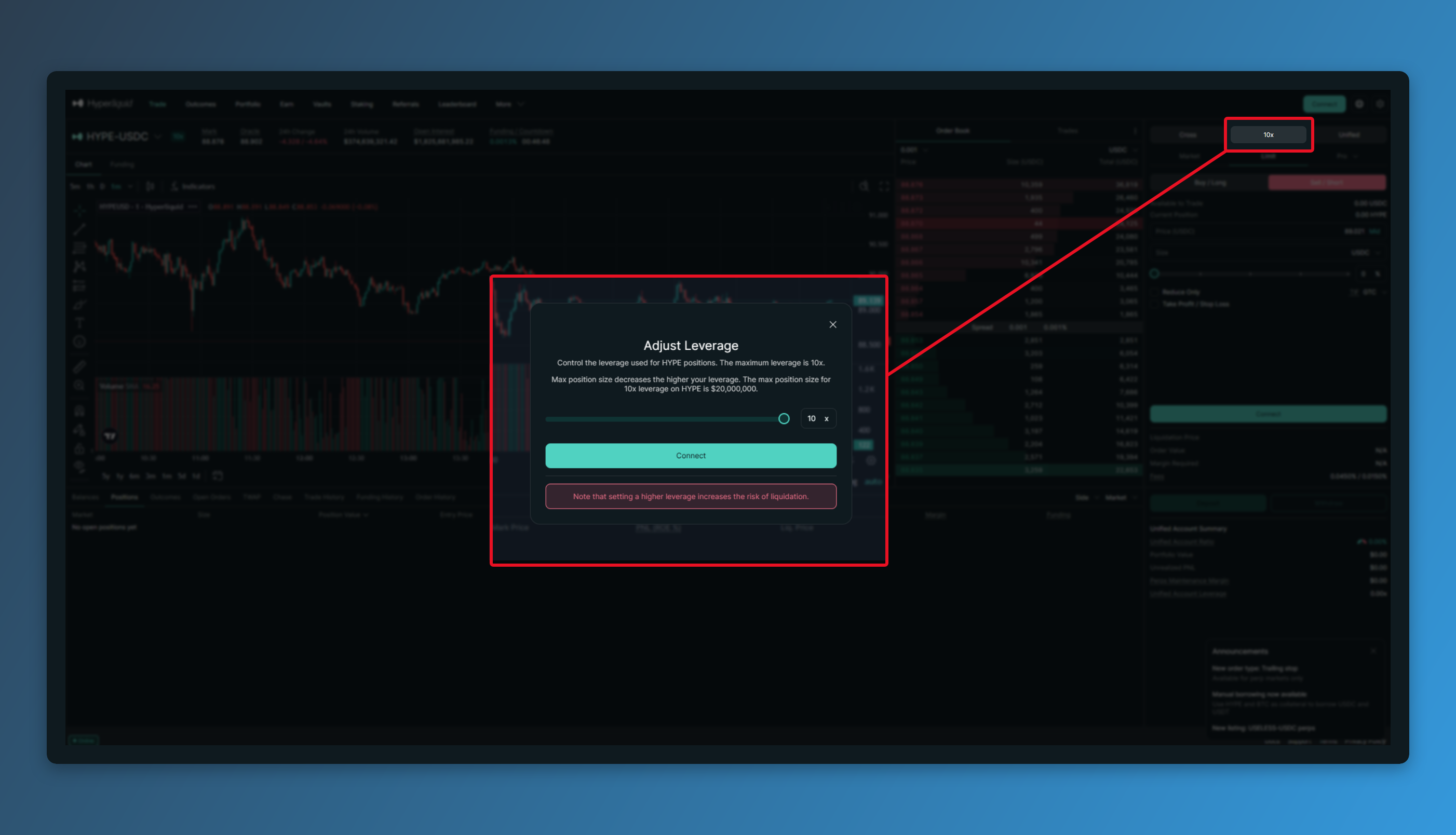
Tap the multiplier in the order panel and a slider comes up.
Leverage decides how big a position you run relative to your margin. Put up $100 at 10x and you're holding a $1,000 position. From there, a 1% move in price is a 10% move on your margin. Your gains get 10x bigger — so do your losses.
Max leverage varies by coin, anywhere from 3x to 40x.
5. Cross and Isolated
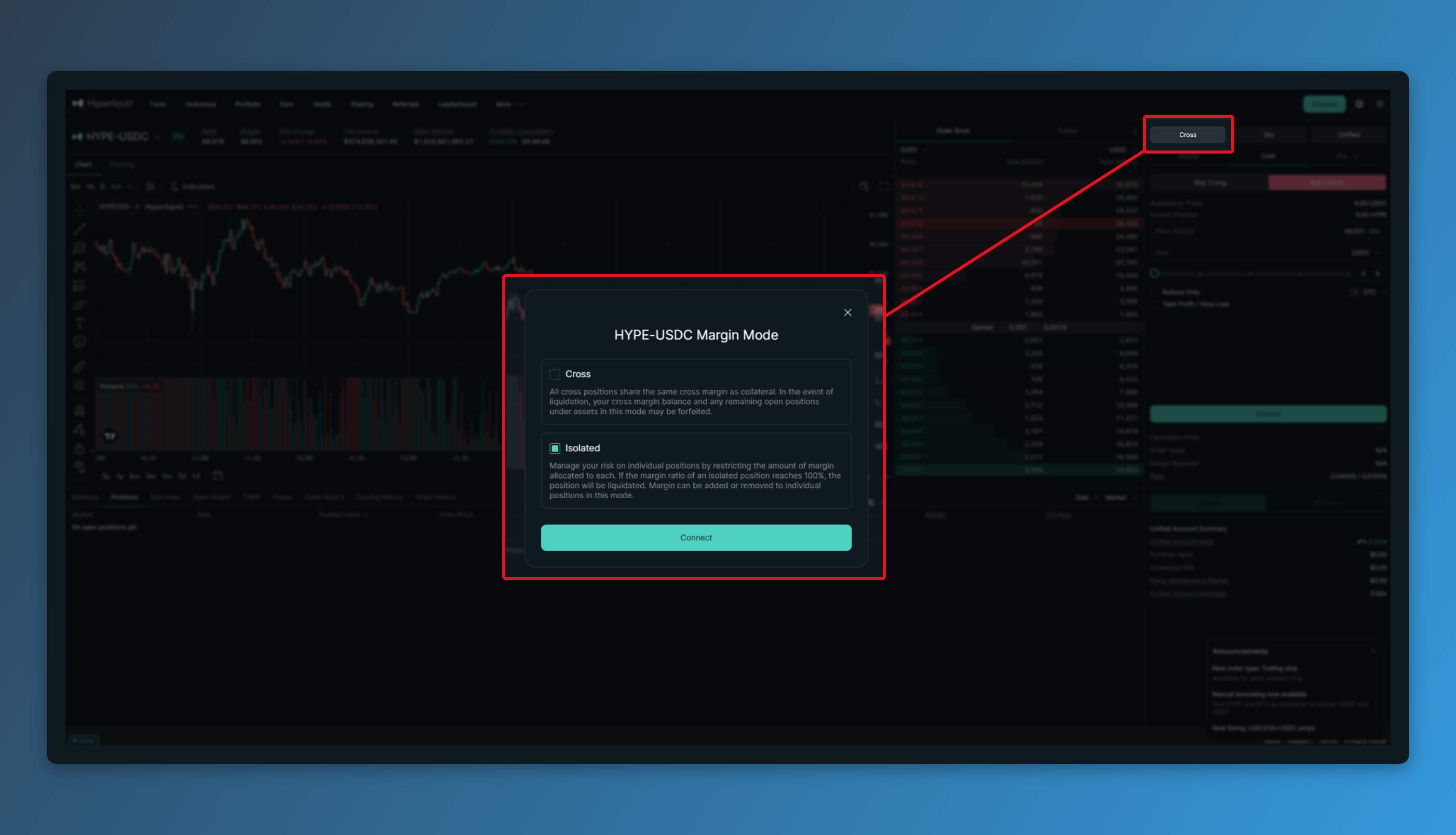
Right next to the leverage setting you choose between [Cross] and [Isolated].
With isolated, the only margin at risk is what you put into that one position. Get liquidated and that's all you lose — the rest of your account balance stays untouched.
Cross puts your entire account balance to work as margin. With the whole balance backing the trade you get far more room before liquidation, but once losses pile up, your entire account balance is on the line. And if you've got several cross positions open, they all share PnL with each other.
6. Placing an Order
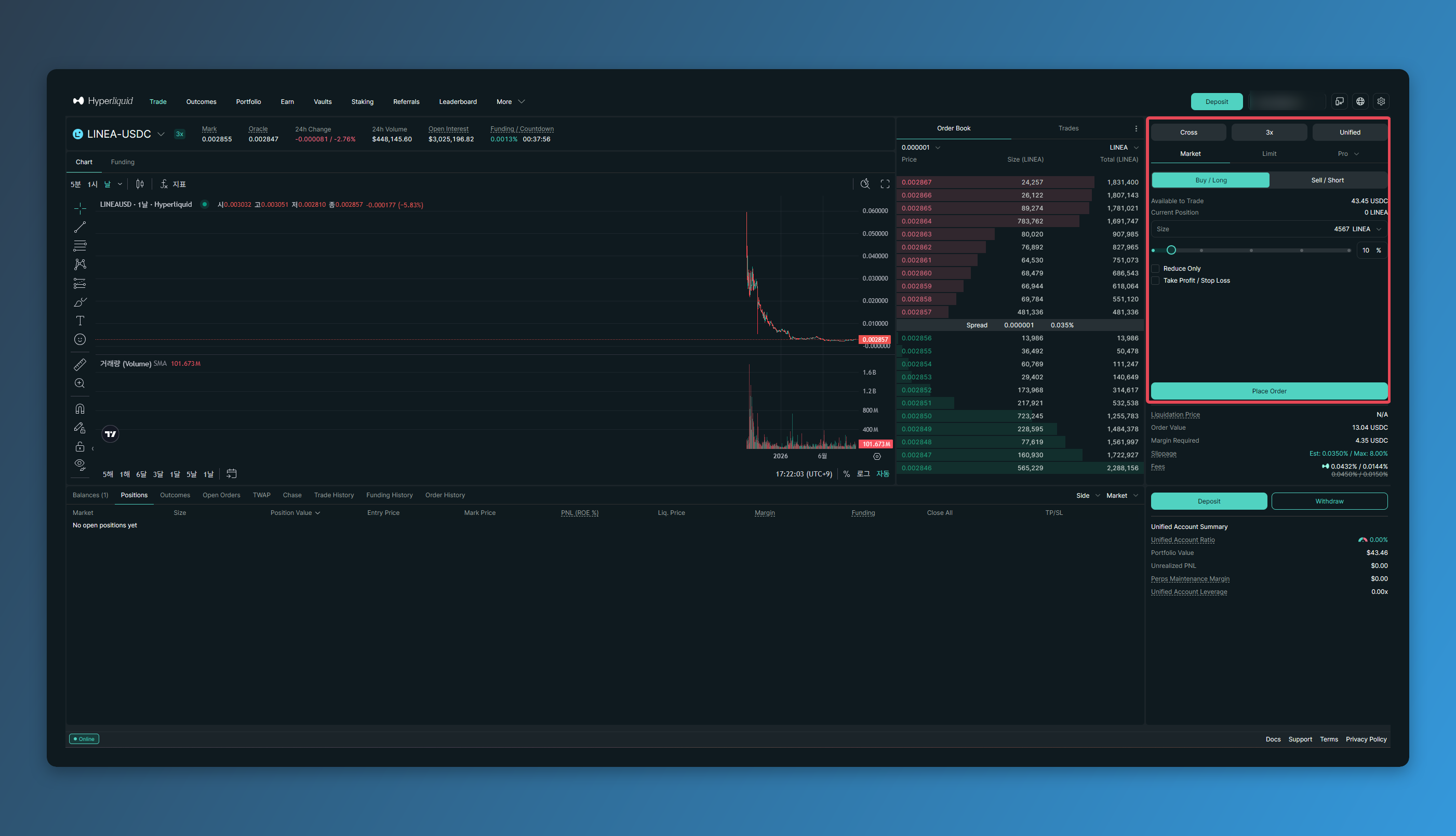
Direction and leverage sorted? Now the order type and size.
There are two order types: [Market] and [Limit]. Market fills at whatever the price is right now. Limit lets you name your price and waits for the market to come to you. Limit orders are cheaper on fees.
You can enter size as a USDC amount or as a number of coins, and the slider lets you dial in what % of your balance to use.
Flip on [TP/SL] before you send the order and you can set your take profit and stop loss up front. If price hits either level, the position closes itself — no sitting there watching the screen.
Once it's all filled in, hit the order button and you're done.
7. Checking and Closing Positions
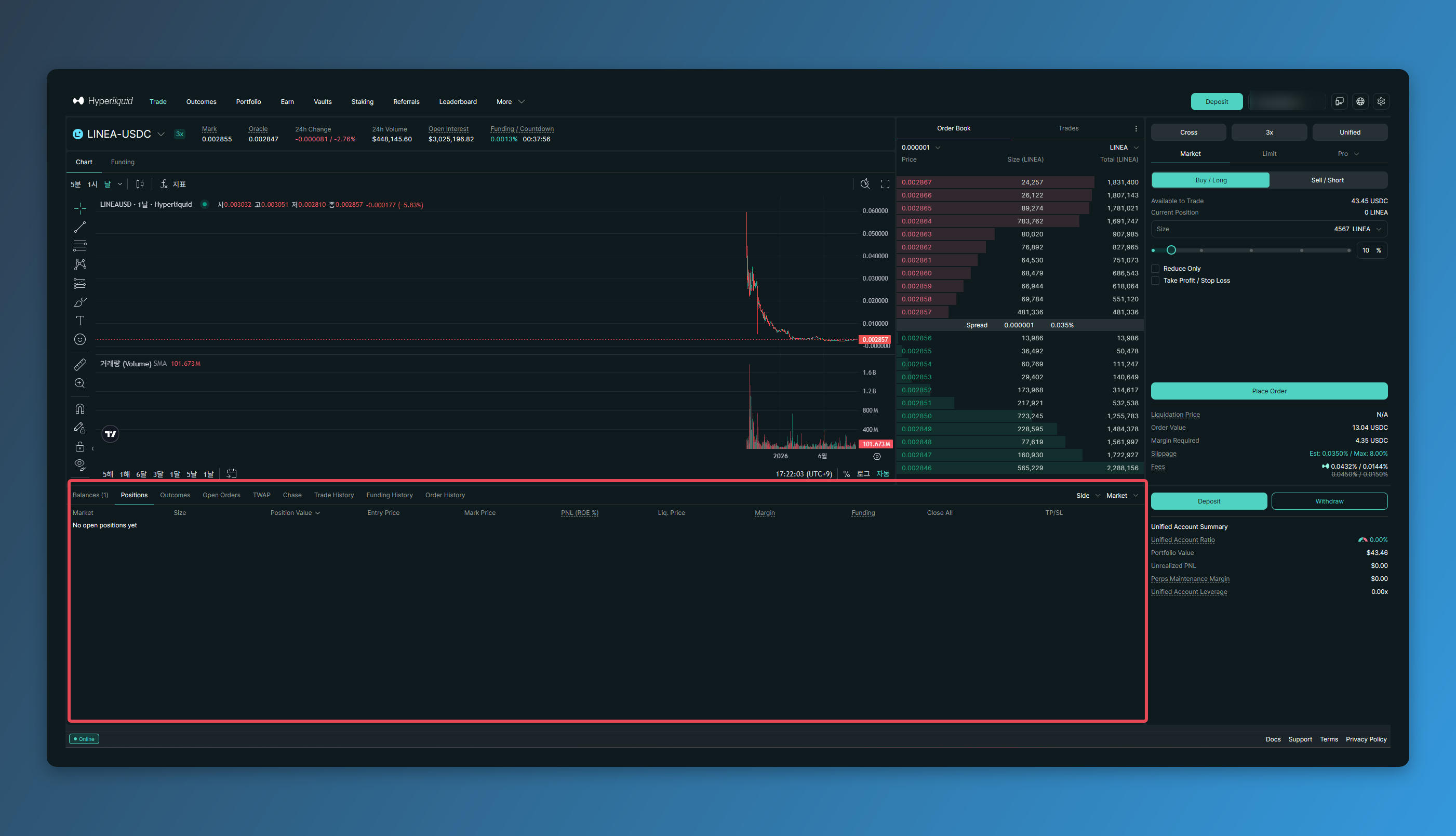
Filled orders turn up in the [Positions] tab at the bottom.
That's where you'll find your entry price, unrealized PNL and liquidation price. While a trade is running, unrealized PNL and liquidation price are the only two numbers you really need to keep an eye on. If price is creeping toward your liquidation level, add margin or close part of the position to push that level further out.
When you're closing, [Market] clears the position at the current price and [Limit] parks a closing order at the price you want. [Reverse] closes your current position and opens a new one in the opposite direction, in one click. Hit it while you're long and you come out short.
When Something Won't Work
- Order button does nothing: either your balance is empty, or your size is below the minimum order amount. Start with deposits — see [How to Deposit and Withdraw on Hyperliquid].
- Limit order isn't filling: price simply hasn't reached the level you set. Cancel it in the [Open Orders] tab and re-enter it closer to the current price.
- Leverage won't go any higher: every coin has its own cap, and some only go up to 3x.
- Can't find your position: you're on a different tab at the bottom — switch back to [Positions].
- Fees look higher than expected: your referral code may not have applied. Check the [Referrals] page to see whether it's registered.