How to Set Up Google Authenticator 2FA on OKX (Step by Step)
Link Google Authenticator to OKX in a couple of minutes. A screen-by-screen walkthrough, the backup key step most people skip, and what to do when your codes get rejected.

Setting up 2FA on OKX takes one QR scan and a 6-digit code. The part that actually matters isn't the setup itself — it's saving the setup key OKX shows you along the way.
This guide covers linking an authenticator app to OKX on the web. If you haven't opened an account yet, the OKX sign-up guide walks through that part. For current sign-up bonuses, check the OKX referral code benefits page.
REWARDOC EXCLUSIVEOKX Signup RewardsSign up through the Rewardoc link and claim your rewardsFee discountSignup bonusGet bonus

1. Setting up 2FA on OKX
1. Open security settings
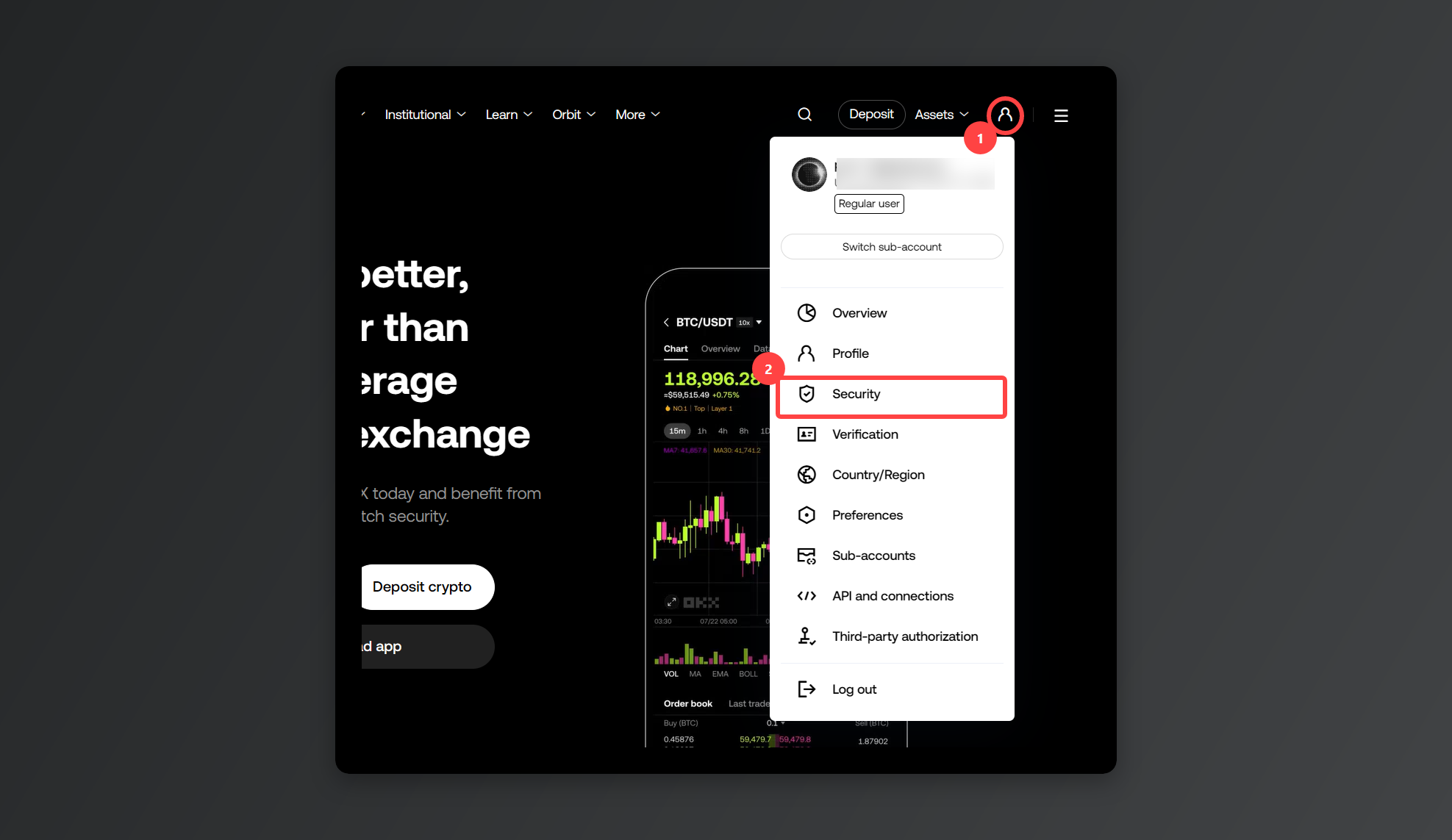
Log in, click the profile icon in the top right, and choose [Security].
2. Start the setup
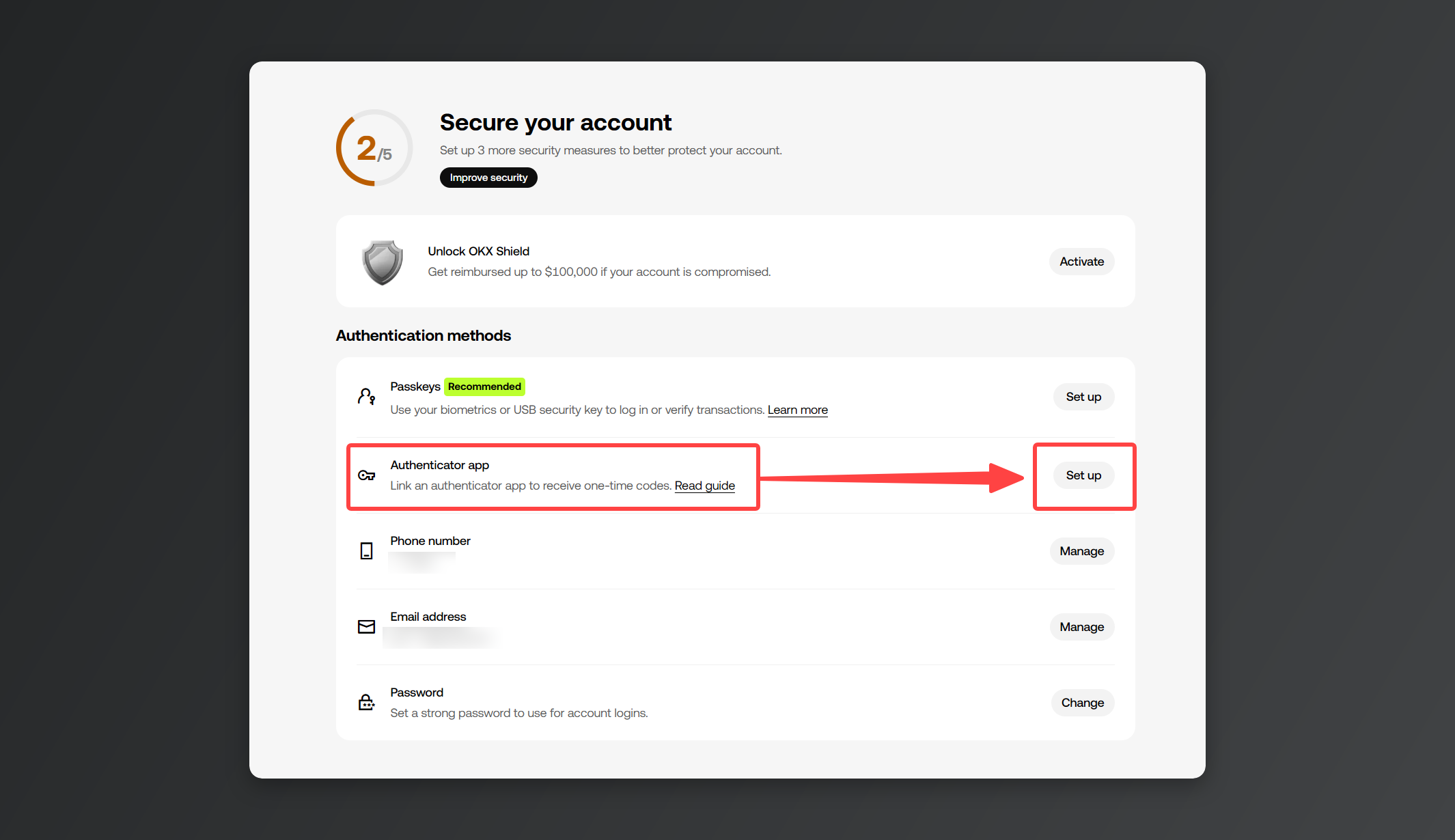
Under [Authentication methods], find [Authenticator app] and click [Set up].
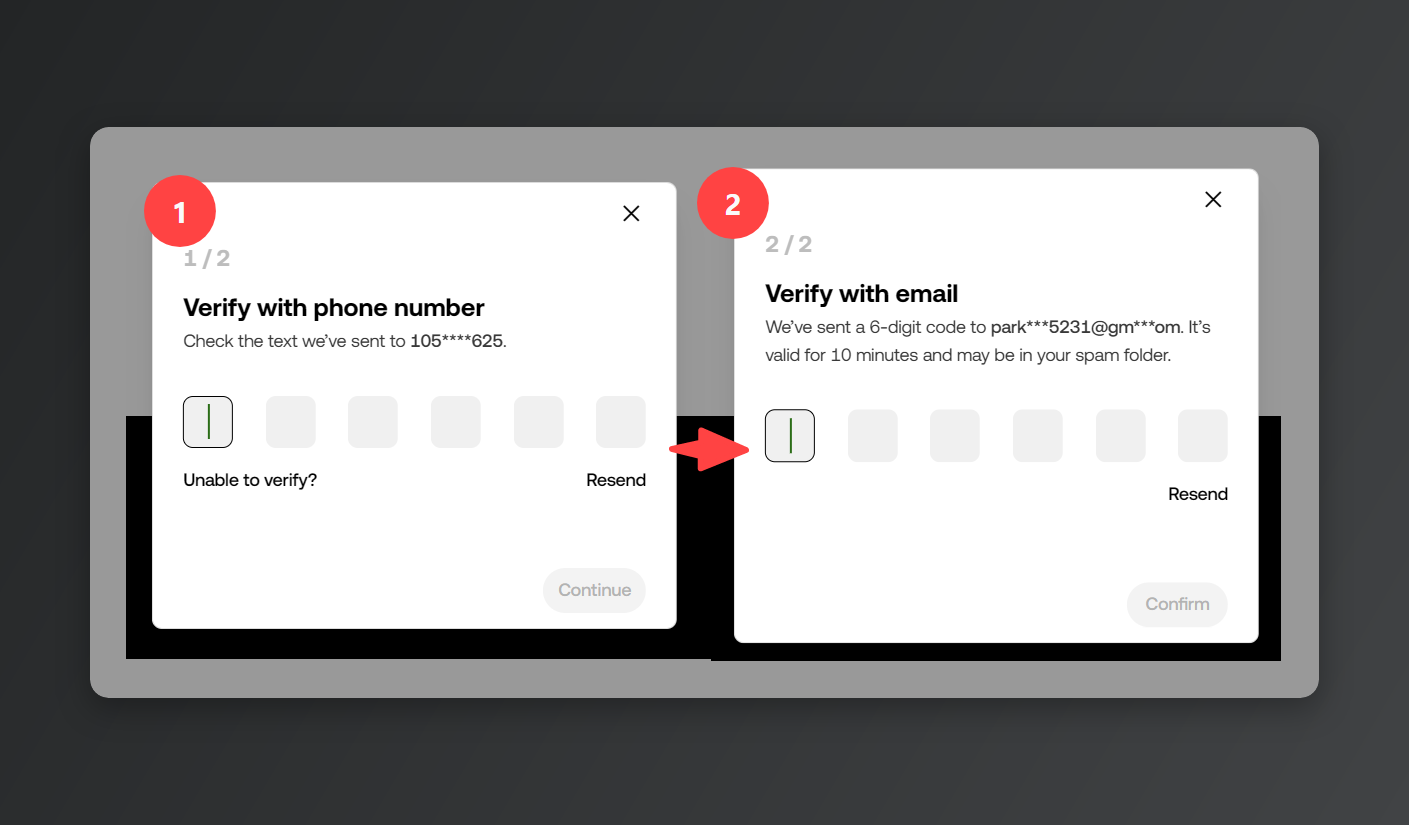
Click [Set up] and OKX asks you to verify your identity first — it won't touch your 2FA settings until you do. You'll need to confirm both: the phone number and the email you signed up with.
3. Install an authenticator app
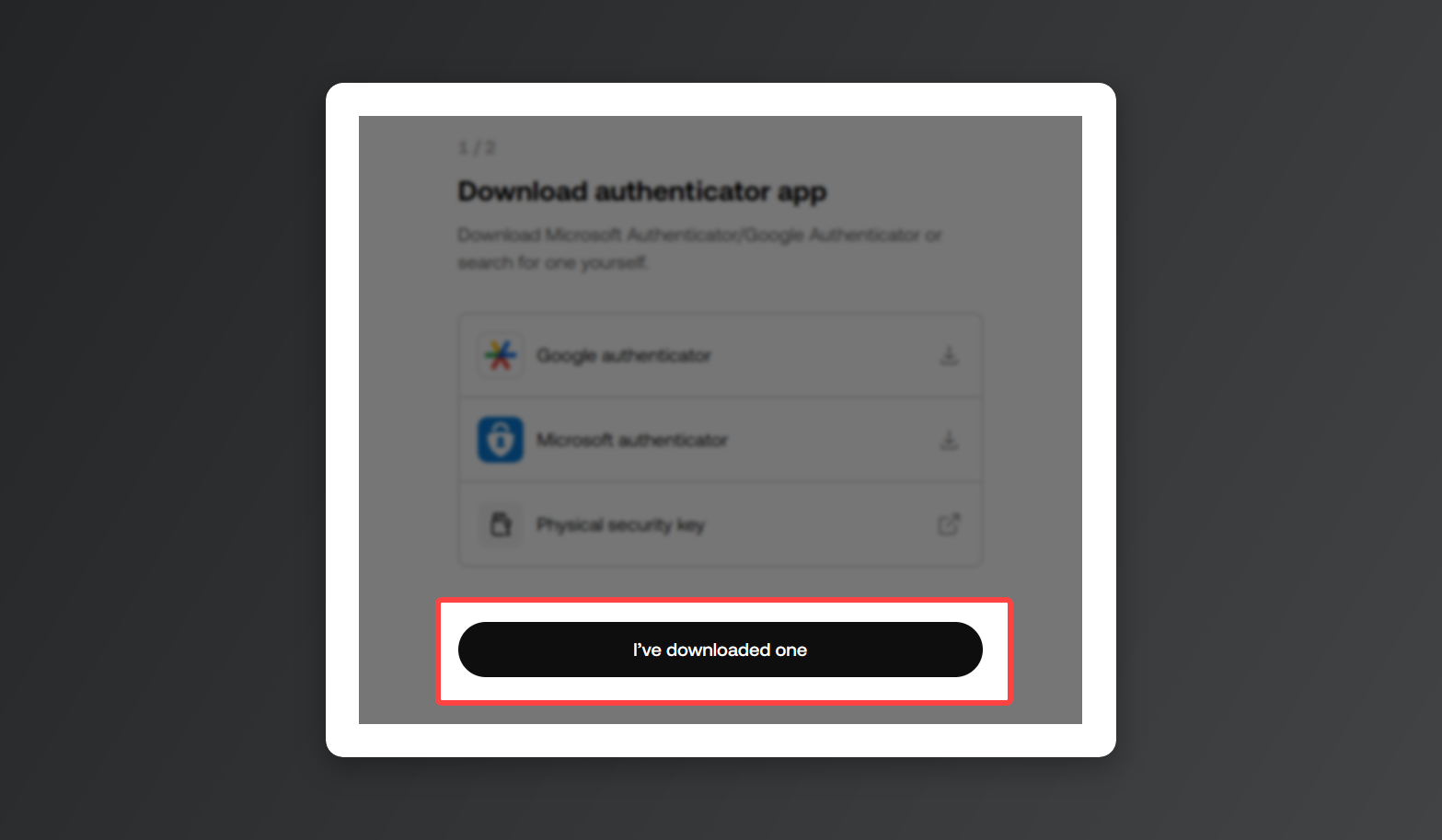
Ignore the download links on the screen and just install an authenticator app on your phone — Google Authenticator or Microsoft Authenticator both do the job. Already using one? Stick with it.
Once it's installed, click [I've downloaded one].
4. Scan the QR code and add the account
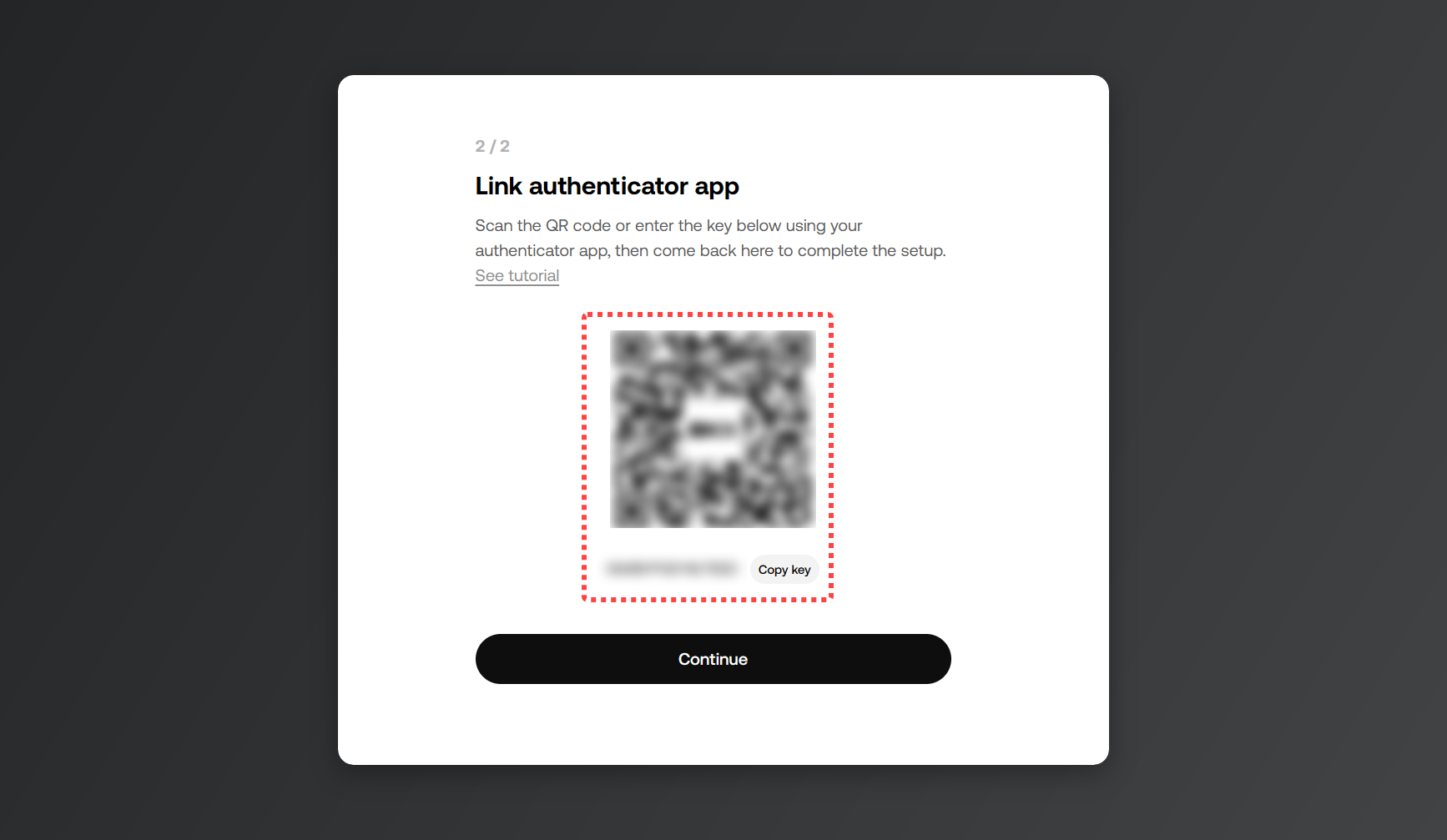
Save the key printed under the QR code somewhere safe. (If you switch phones or lose yours, that key is what gets you back in — without it you may not be able to log in at all.)
Open Google Authenticator, tap add account, and scan the QR code on the screen. If the camera won't pick it up, copy the setup key under the QR code and type it into the app by hand.
Once the OKX account shows up in your authenticator, hit [Continue].
5. Enter the code
Type the 6-digit code from the app, press [Confirm], and you're linked. The code changes every so often, so use whichever one is on screen right now.
6. Turn off cloud sync (optional)
If your authenticator app has a cloud backup option, you're safer with it switched off. If someone gets into that synced account, your 2FA codes go with it.
When OKX 2FA won't work
- Your code keeps getting rejected: check that your phone's clock is set to automatic. A clock that's drifted means codes that don't match.
- The QR code won't scan: copy the setup key under the QR code and type it into the app by hand.
- Withdrawals blocked after changing your authenticator: swapping authenticator apps locks withdrawals and P2P trading for 24 hours. It lifts on its own after that.
- Lost phone: punch the setup key you saved into an authenticator app on the new phone and you're back on the same codes. No key? Ask the support chatbot to reset your 2FA.
※ All images in this post were captured and produced by Rewardoc.com. Unauthorized reproduction or redistribution is prohibited.