OKX Sign Up: Account Registration and KYC Verification Guide
Every screen of OKX sign-up and KYC, in order: where the referral code goes, how to photograph your ID and selfie, and what to do when verification gets rejected.

Creating an OKX account takes a few minutes — an email, a phone number, and you're in. KYC is where people get stuck. One bad photo and you're back in the review queue.
And you can't put it off. Until verification clears, your account can't do anything that matters — no buying, no selling, no deposits, no withdrawals, not even internal transfers. Below is the full walkthrough, from creating your OKX account to submitting KYC, based on the web interface. (The app follows the same order; one or two button names differ.)
REWARDOC EXCLUSIVEOKX Signup RewardsSign up through the Rewardoc link and claim your rewardsFee discountSignup bonusGet bonus
1. OKX account sign-up
1. Open the sign-up page
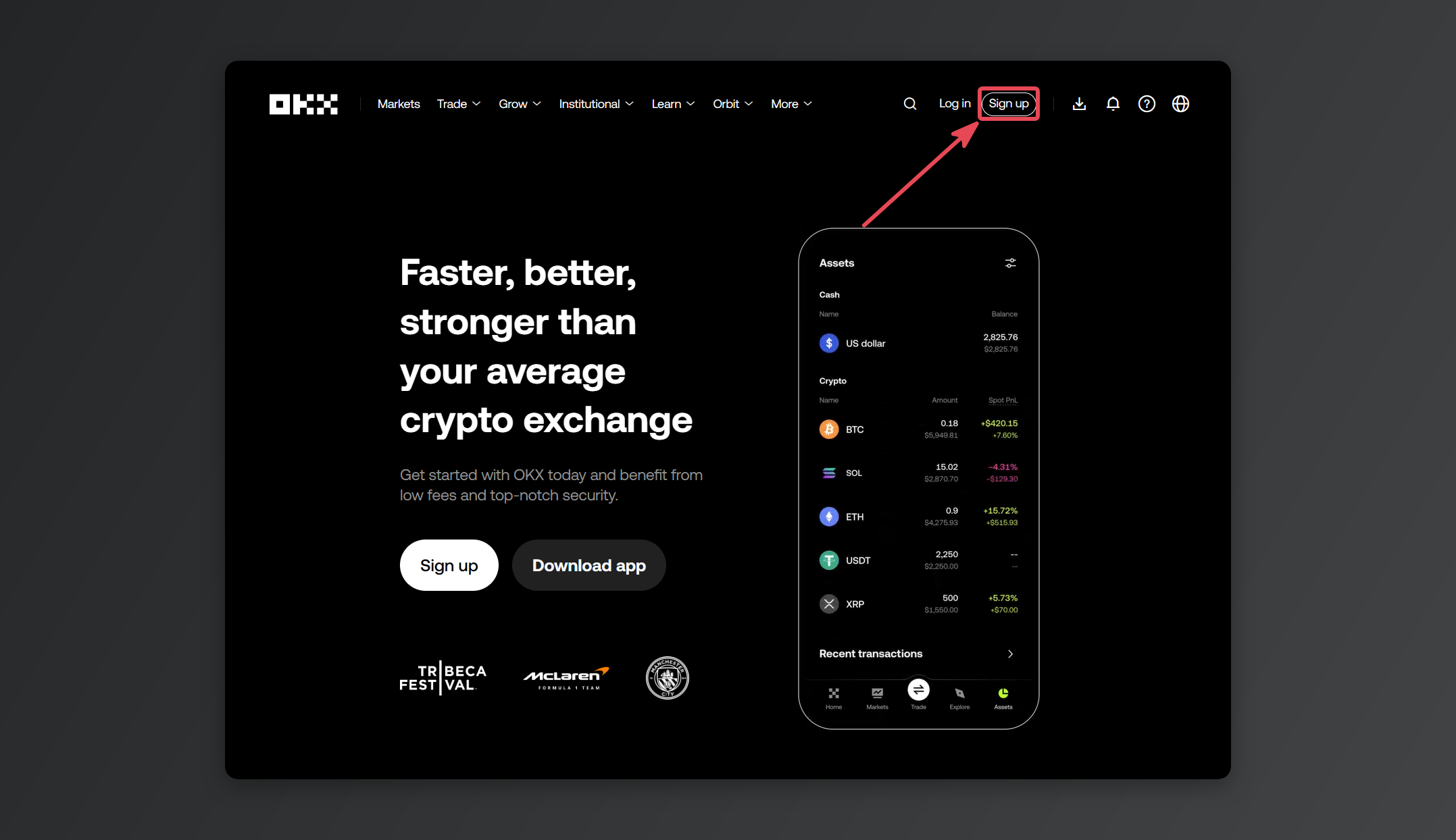
Go to the official site (okx.com) and click [Sign up] in the top right.
Type the URL in yourself rather than clicking a sponsored search result. Phishing sites clone the OKX login page pixel for pixel. (OKX sign-up bonus link)
2. Country and terms
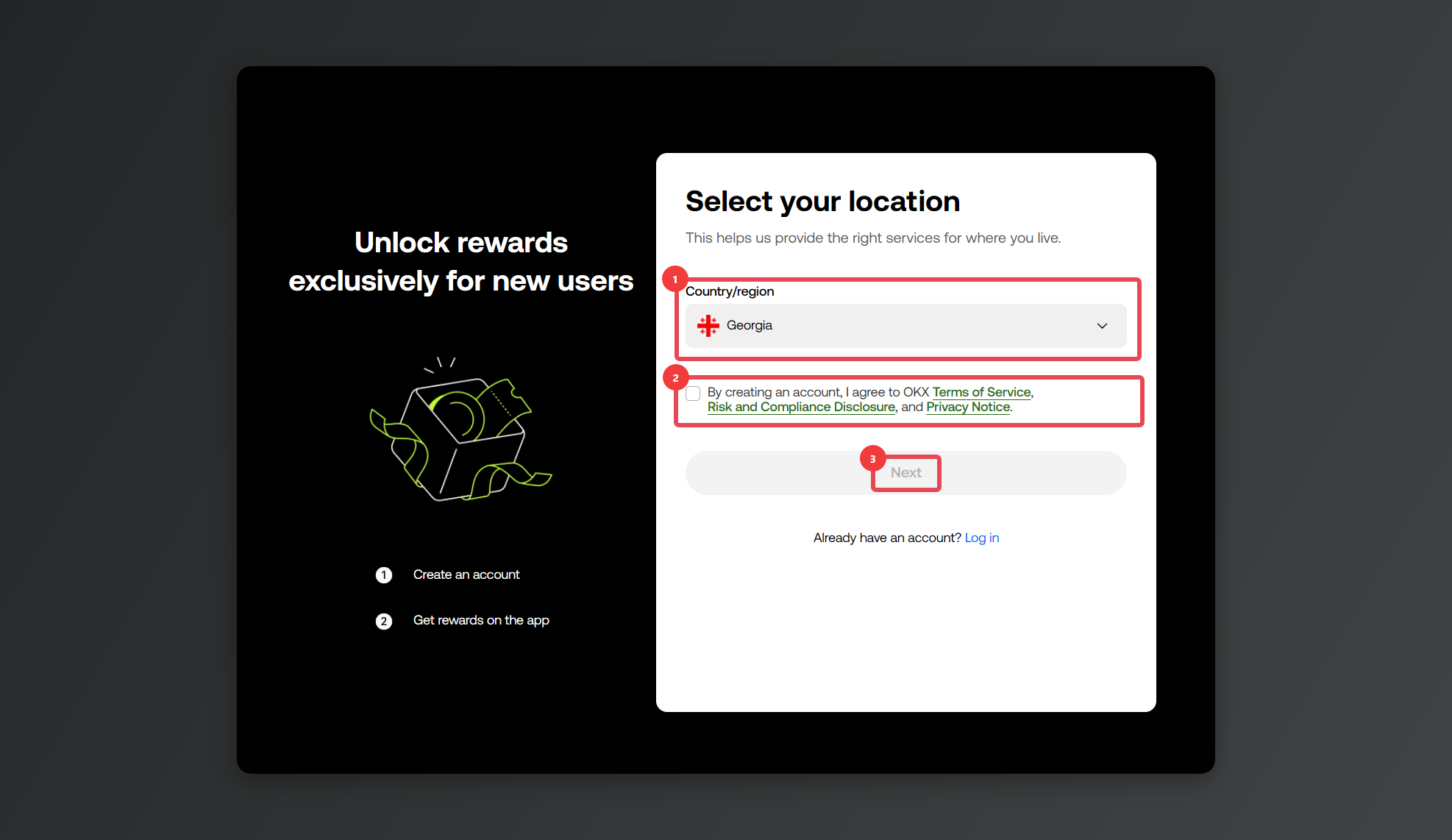
Pick your country of residence under [Country/region], tick the terms checkbox, then press [Create account].
3. Email and referral code
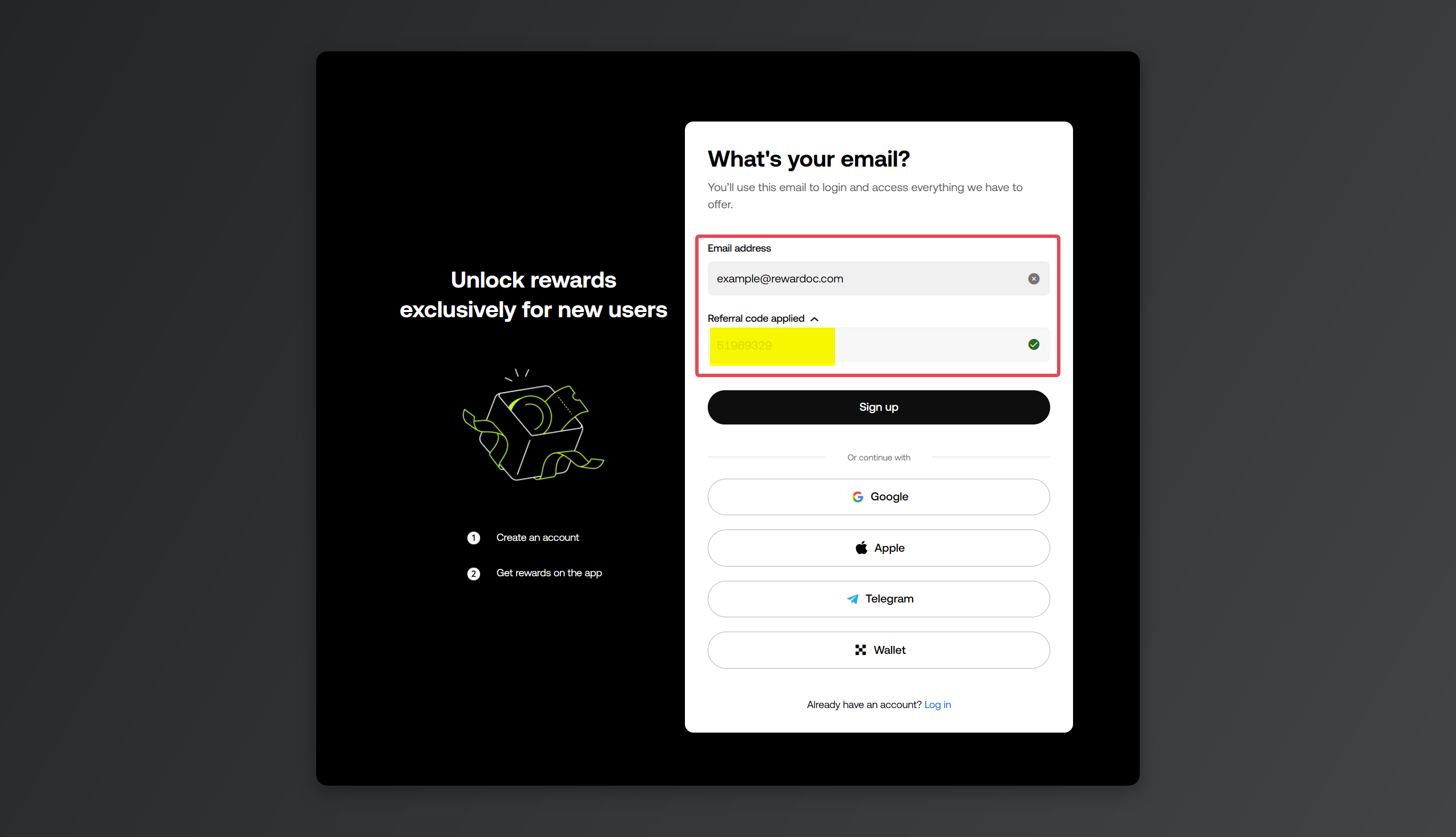
Enter your address in [Email], drop your referral code into [Referral code (optional)], and hit [Sign up]. If you came in through an invite link, check that the code is already filled in; if you typed it yourself, scan it for typos before you move on.
(Take a look at our OKX referral code comparison and rebate breakdown.)
Your fee rebate is tied to this code, so it's the one screen in the whole sign-up worth double-checking.
4. Email verification
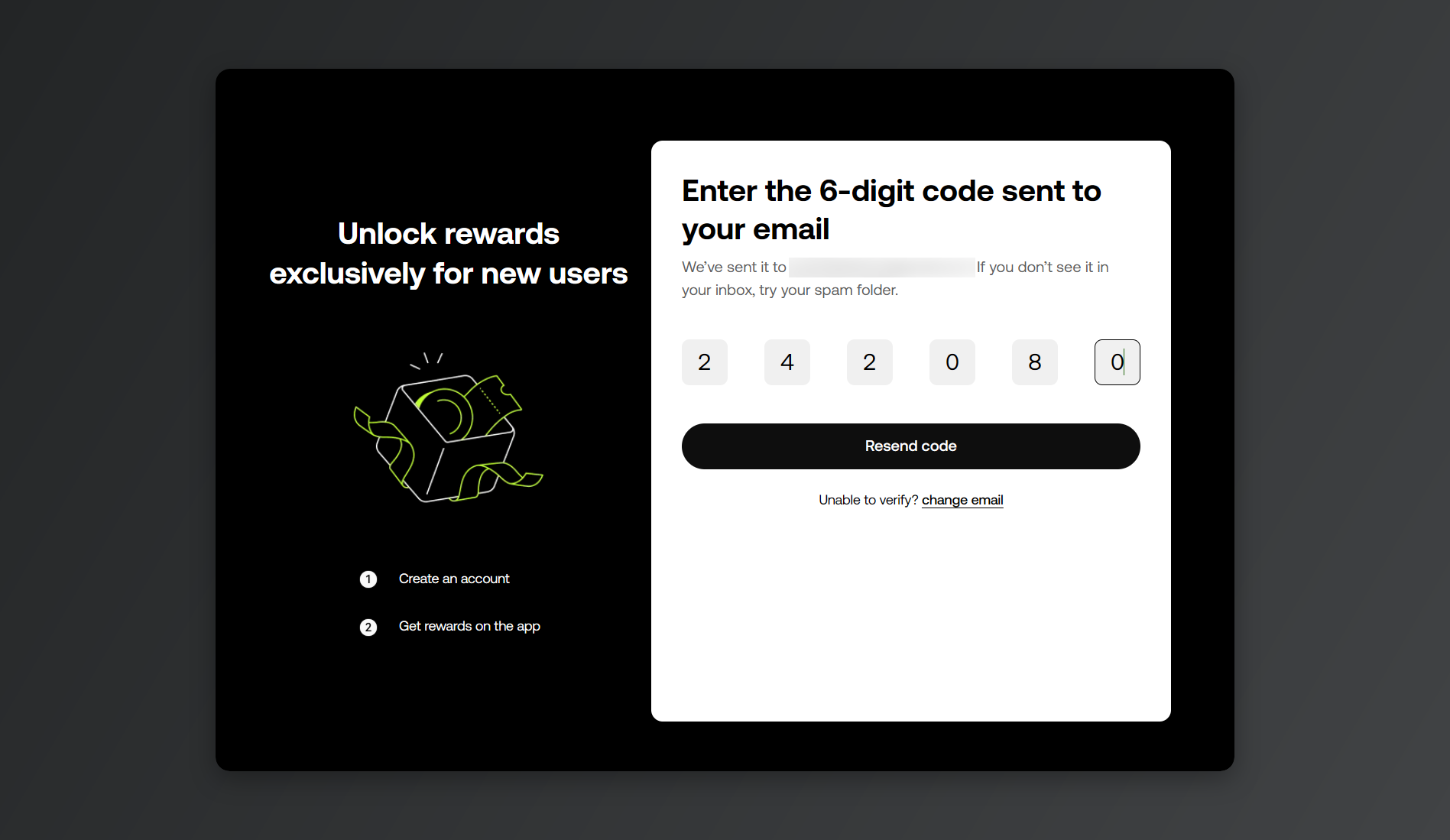
Enter the verification code OKX emails you.
5. Phone number
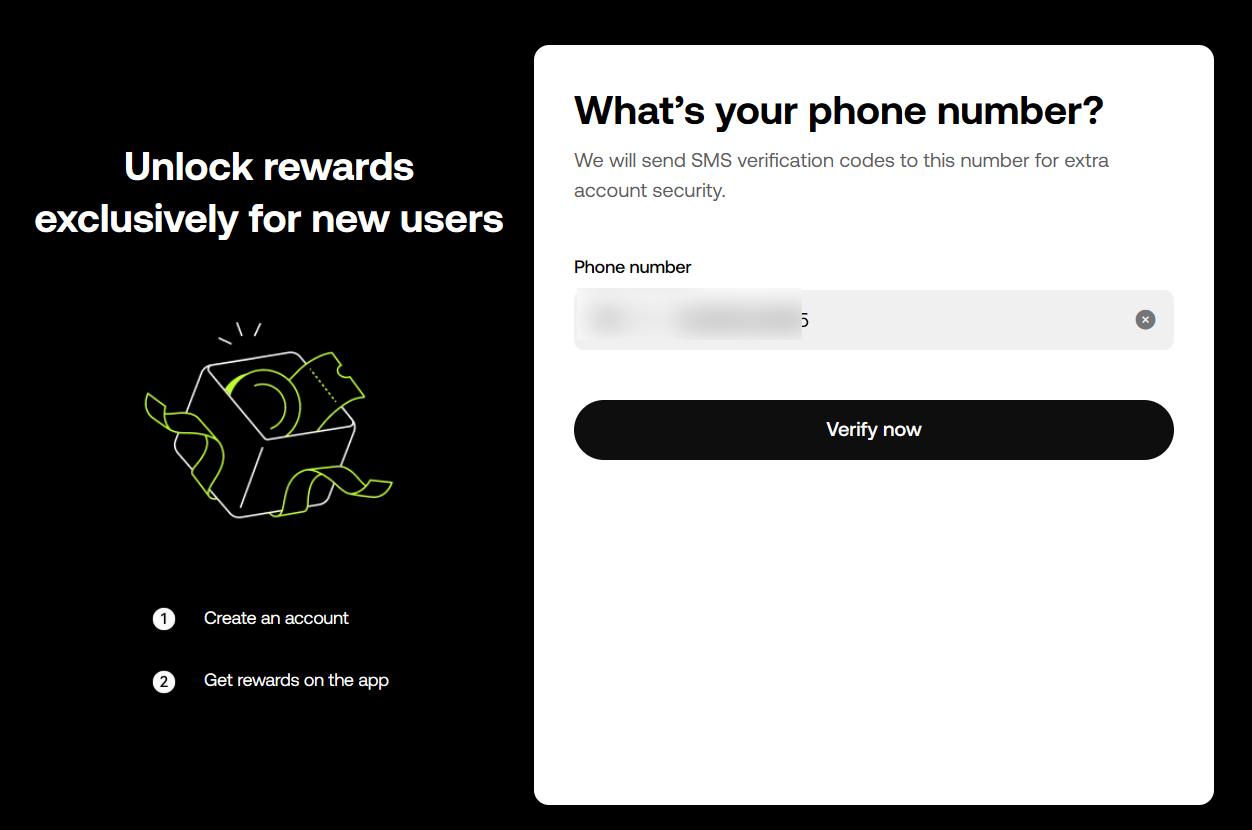
Select your country code, enter your phone number, and hit [Verify now] ([Next] in the app). Punch in the code from the SMS and your number is verified.
If the country code doesn't match your number, the text never arrives.
6. Create your password
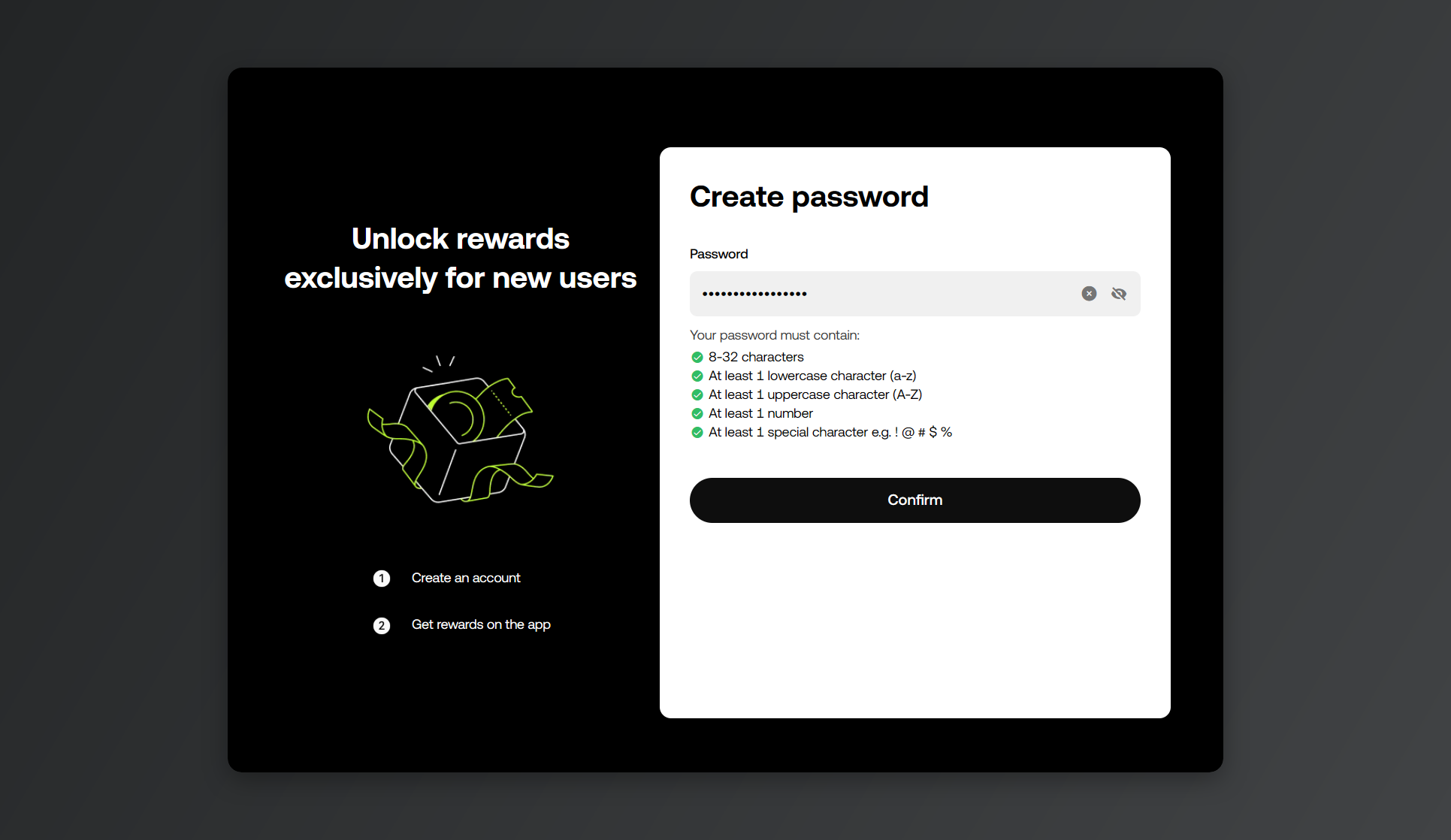
Last step: set your password.
If the form throws an error, run back through the requirements below — every one of them has to be met.
- 8~32 characters
- At least 1 lowercase letter (a~z)
- At least 1 uppercase letter (A~Z)
- At least 1 number
- At least 1 special character (e.g. ! @ # $ %)
2. Identity verification (KYC)
1. Open the verification page
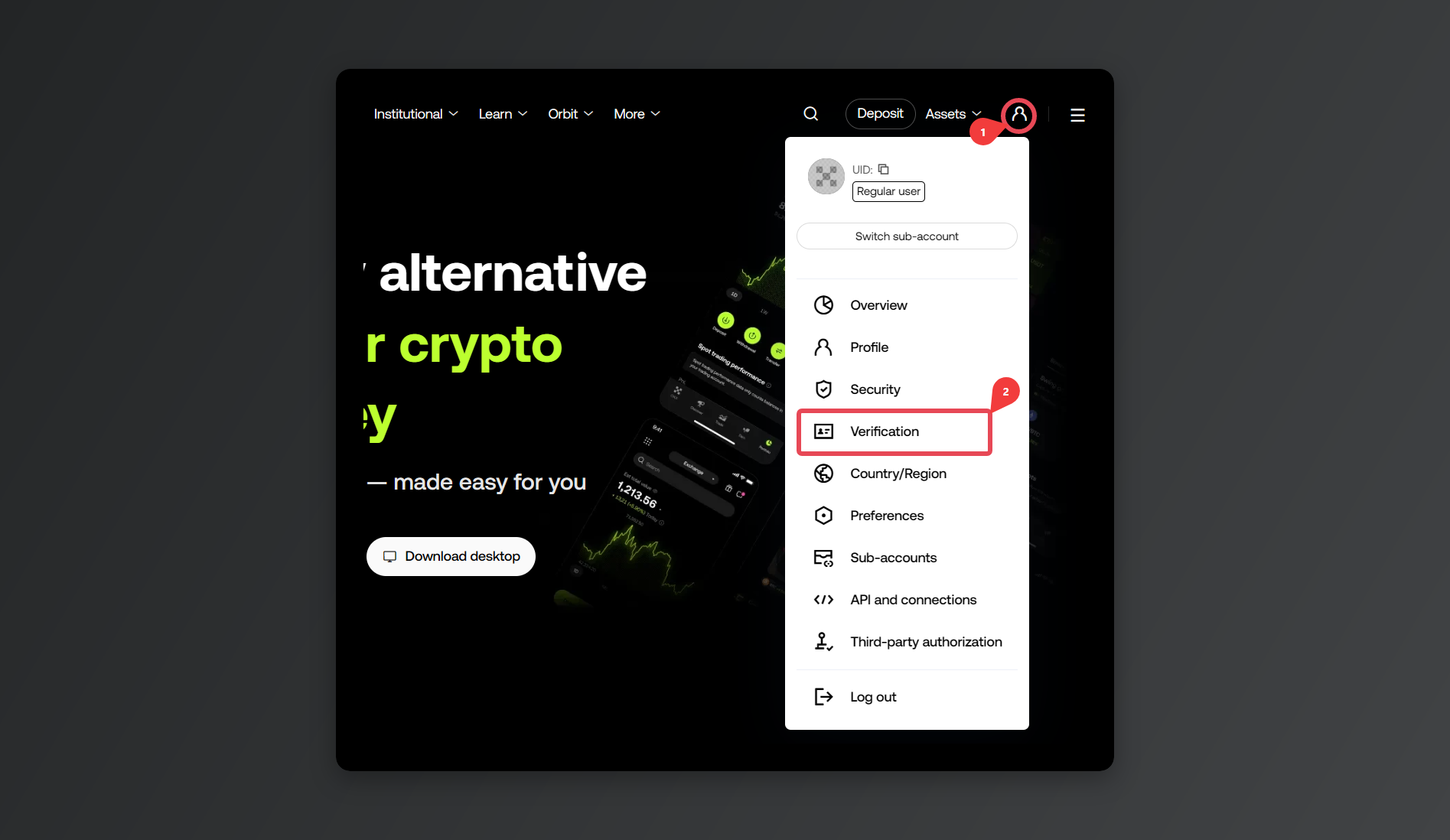
Click the profile icon in the top right and select [Verification].
In the app, the path is [Menu] → [Account settings] → [Identity verification]. Can't find the menu? Update the app to the latest version.
2. Pick a personal account
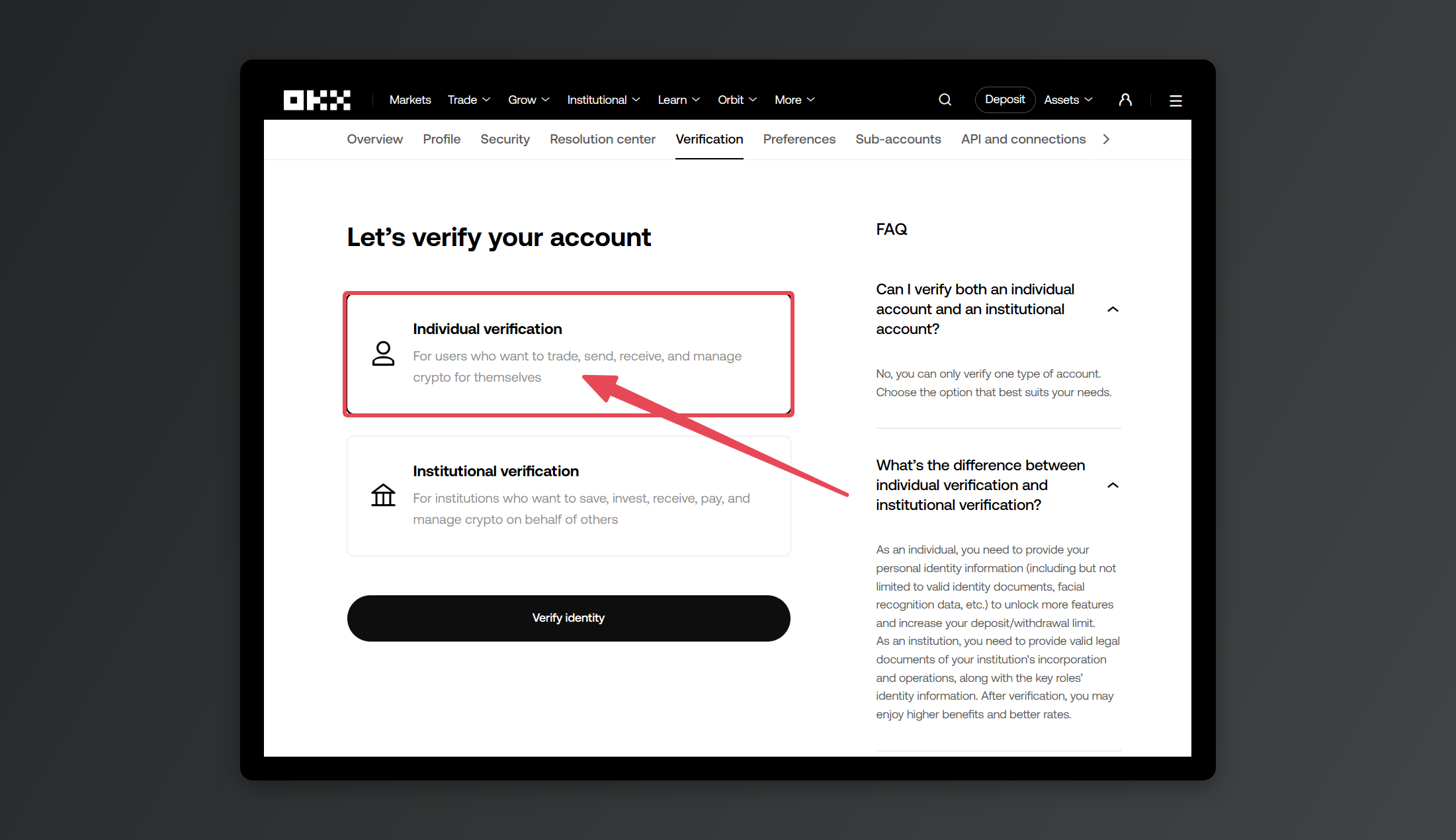
When the account type screen comes up, retail traders go with Individual Account. (Institutional Account is reserved for corporate and business clients.)
3. Choose your document type
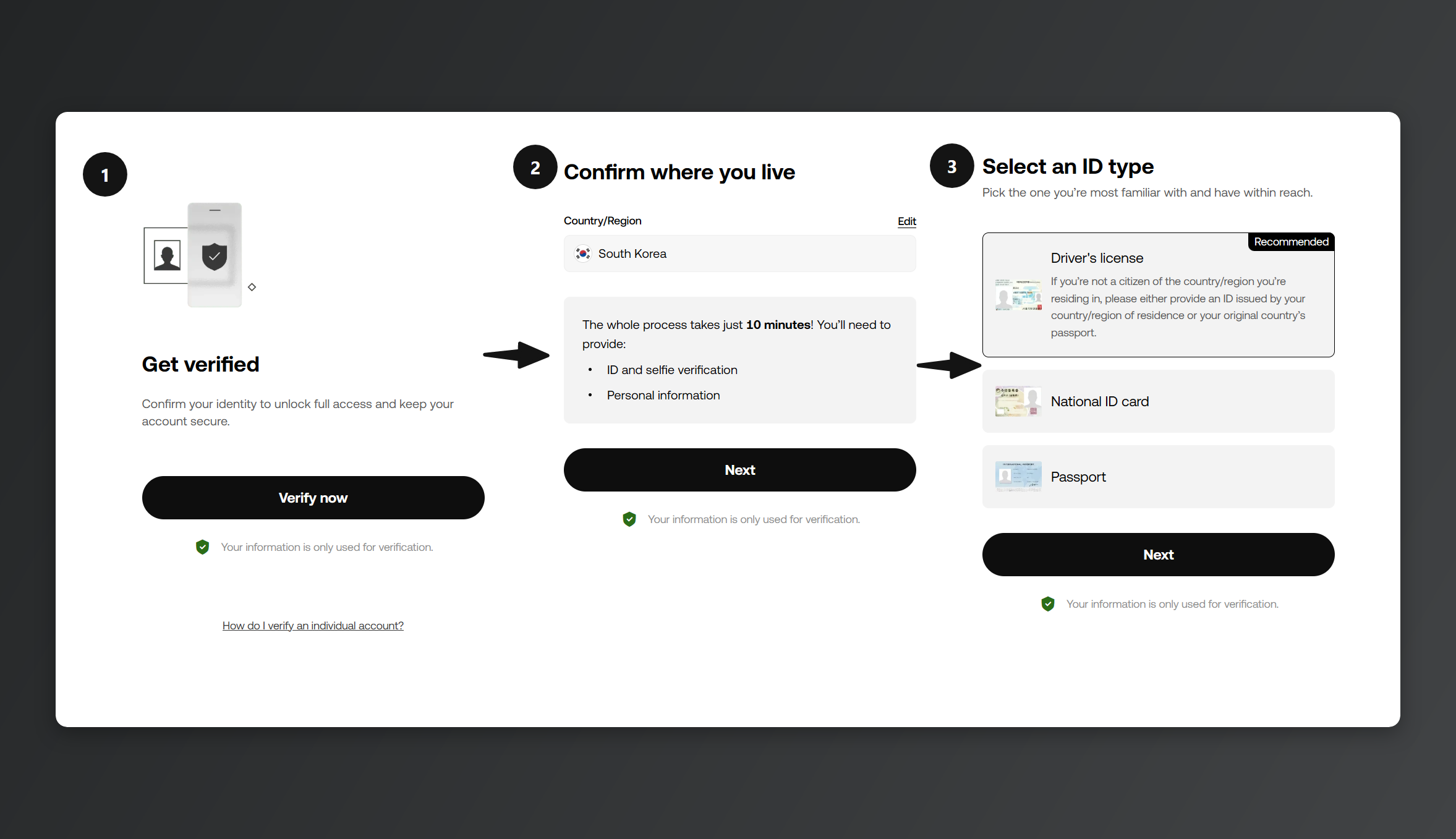
Choose which document you'll verify with.
If you're signing up on desktop, only the photo steps need your phone: scan the QR code at the [Use phone camera to verify] step and take them there.
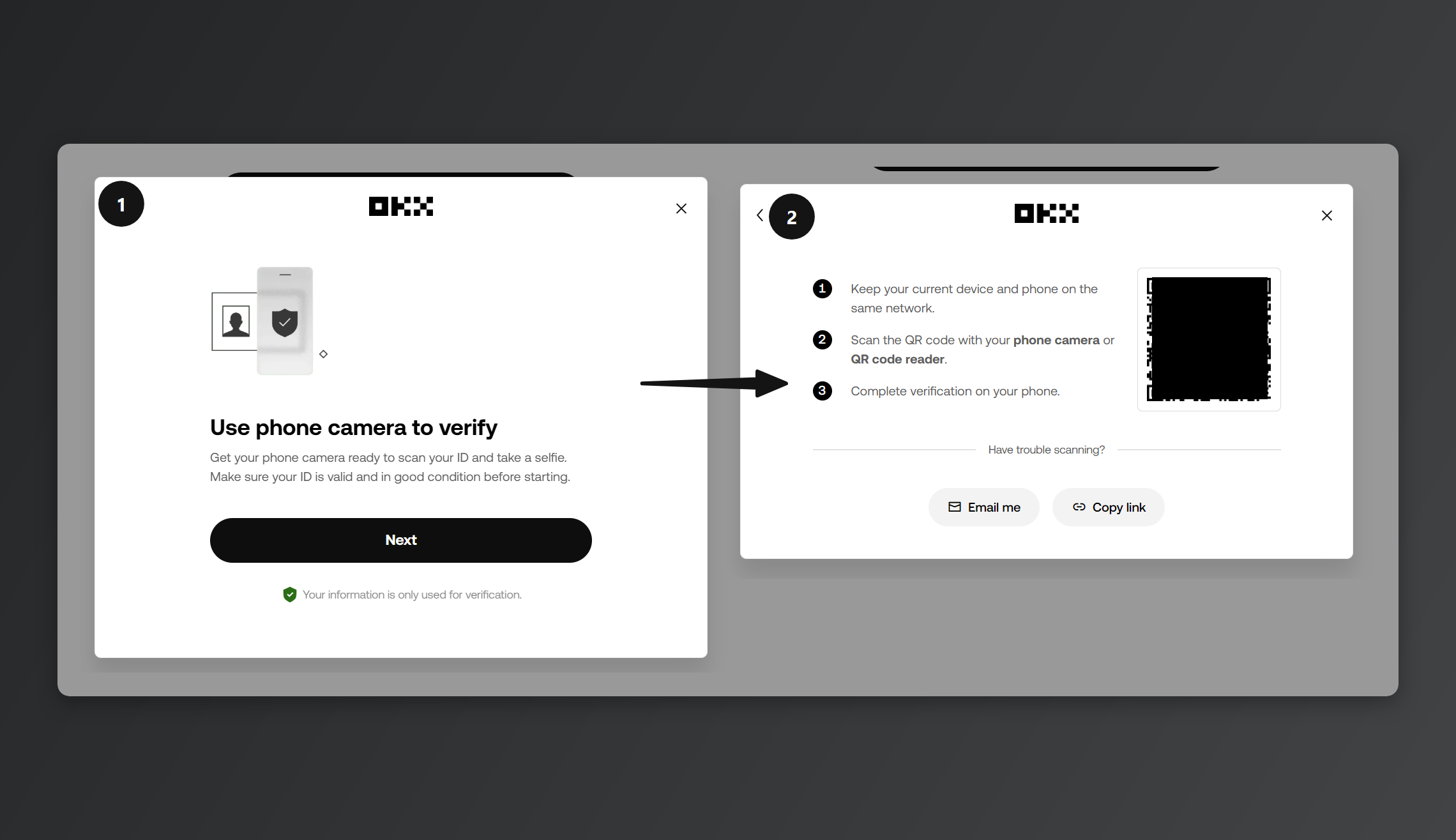
A pop-up like the one above asks you to photograph your ID on your phone. Scan the QR code with your phone, or hit [Copy link] underneath and open that link on your phone to run through the camera steps.
4. Photograph your ID
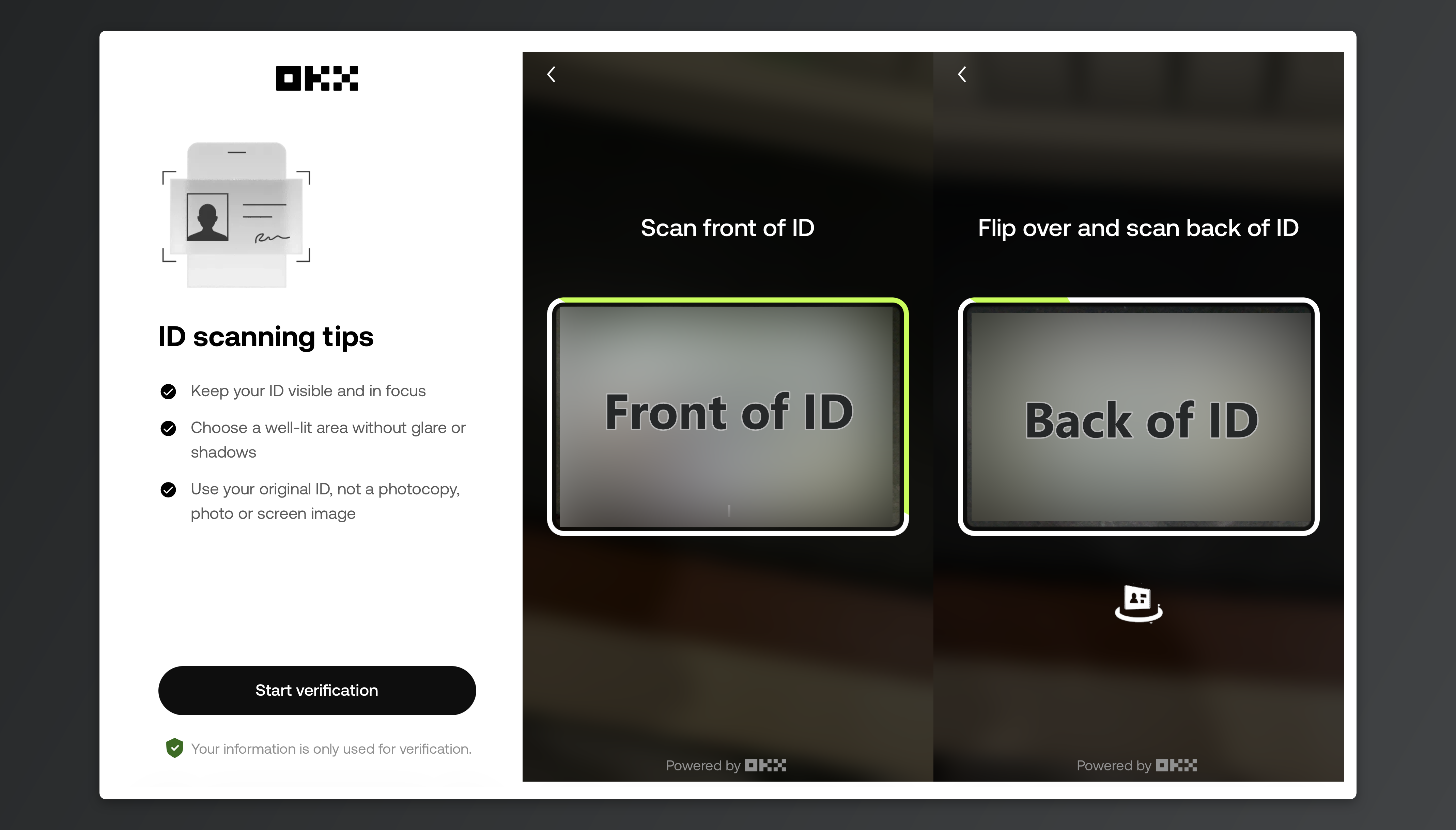
Click [Start verification] and photograph your ID in the order it asks for. With a driver's license, the front comes first, then the back. (For a passport, just the photo page.)
It has to be the physical document, photographed live. Screenshots, photocopies, and photos of photos all get bounced. All four corners need to be in frame, and expired IDs won't pass.
5. Take your selfie
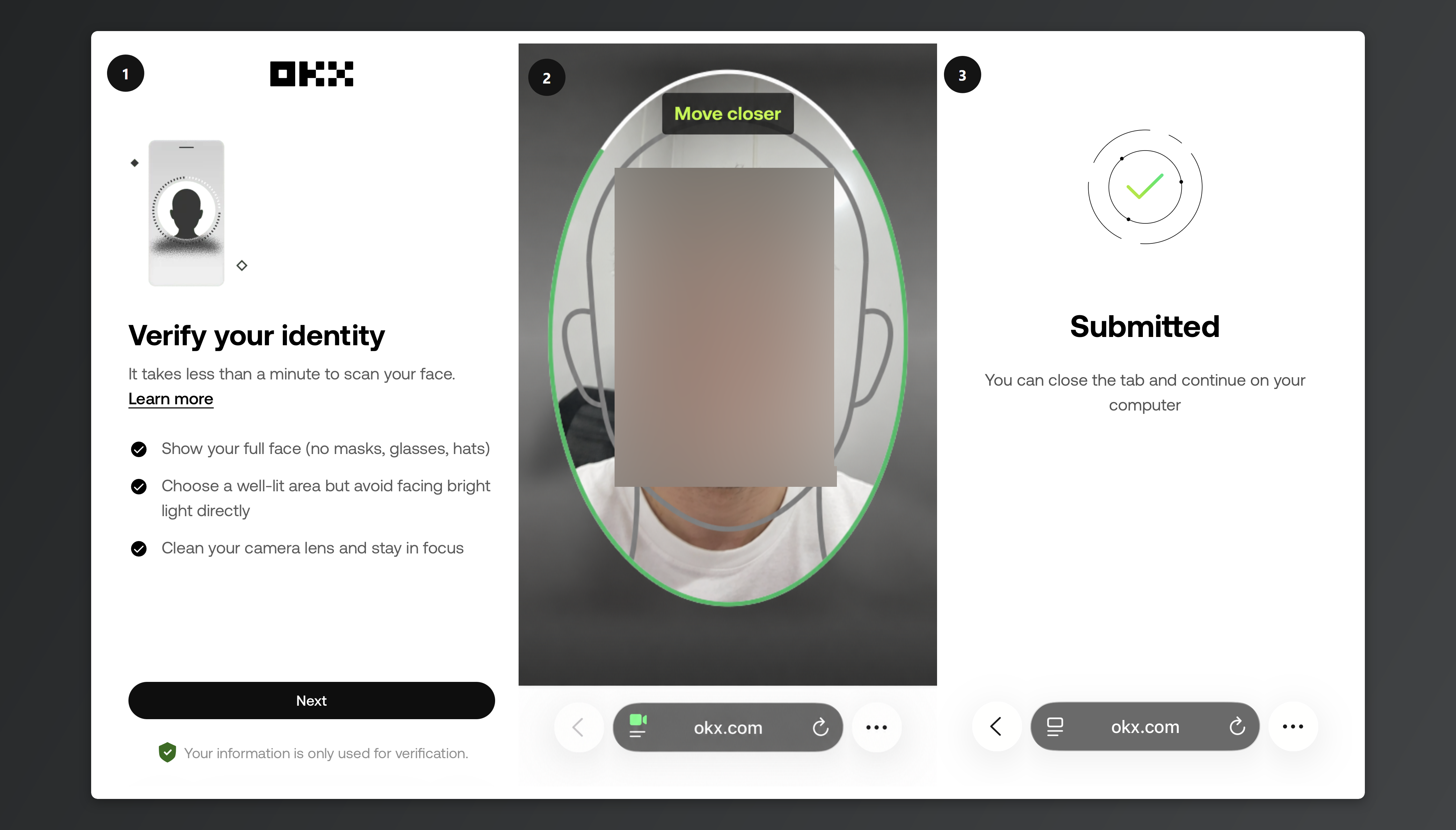
Fit your whole face inside the oval on screen and take the shot. Take off any mask, glasses, or hat, and make sure the flash isn't glaring off your face.
6. Submit
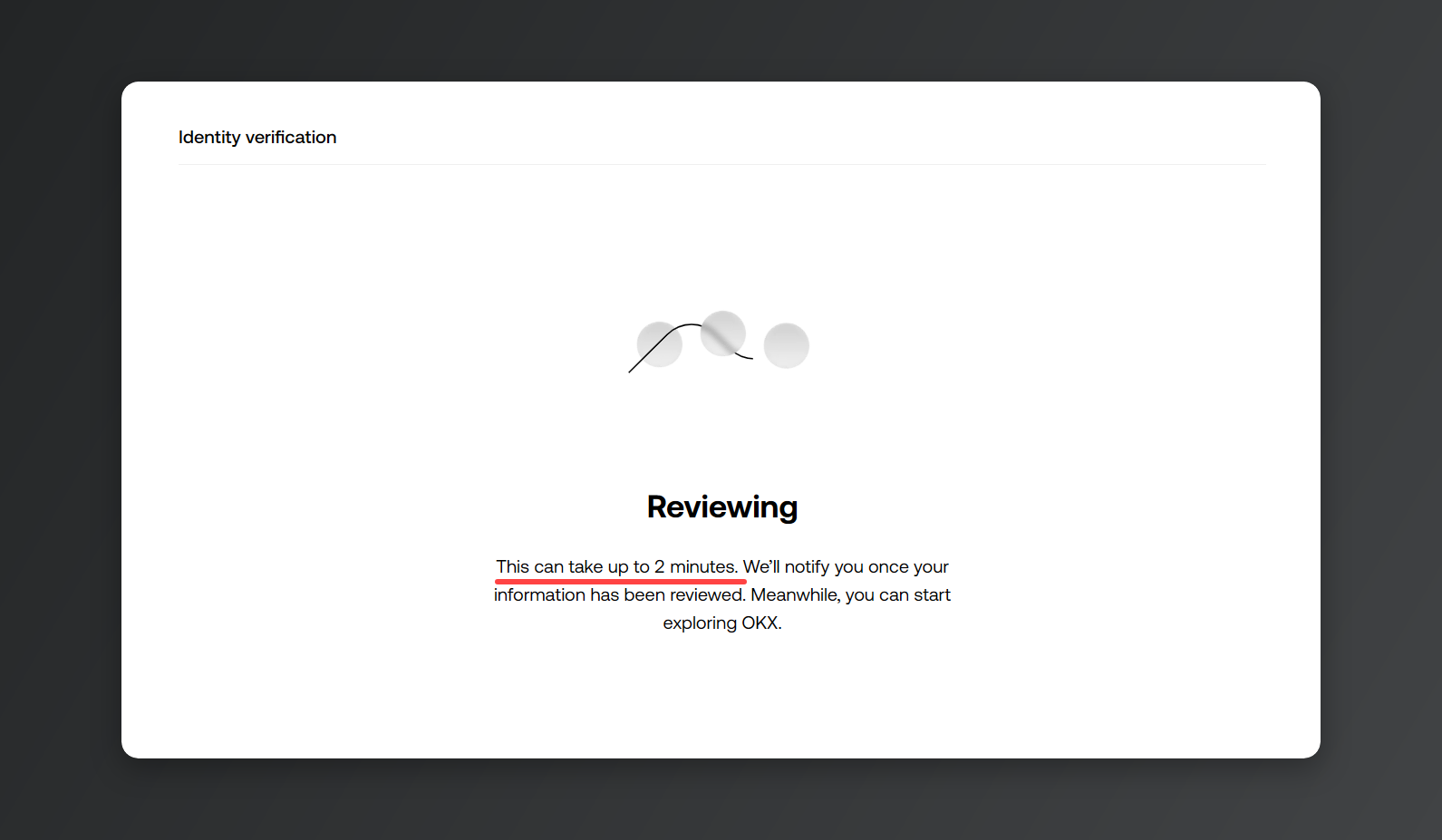
Review usually wraps up within 2~5 minutes. But a finished review doesn't mean your KYC is done yet.
7. Proof of address
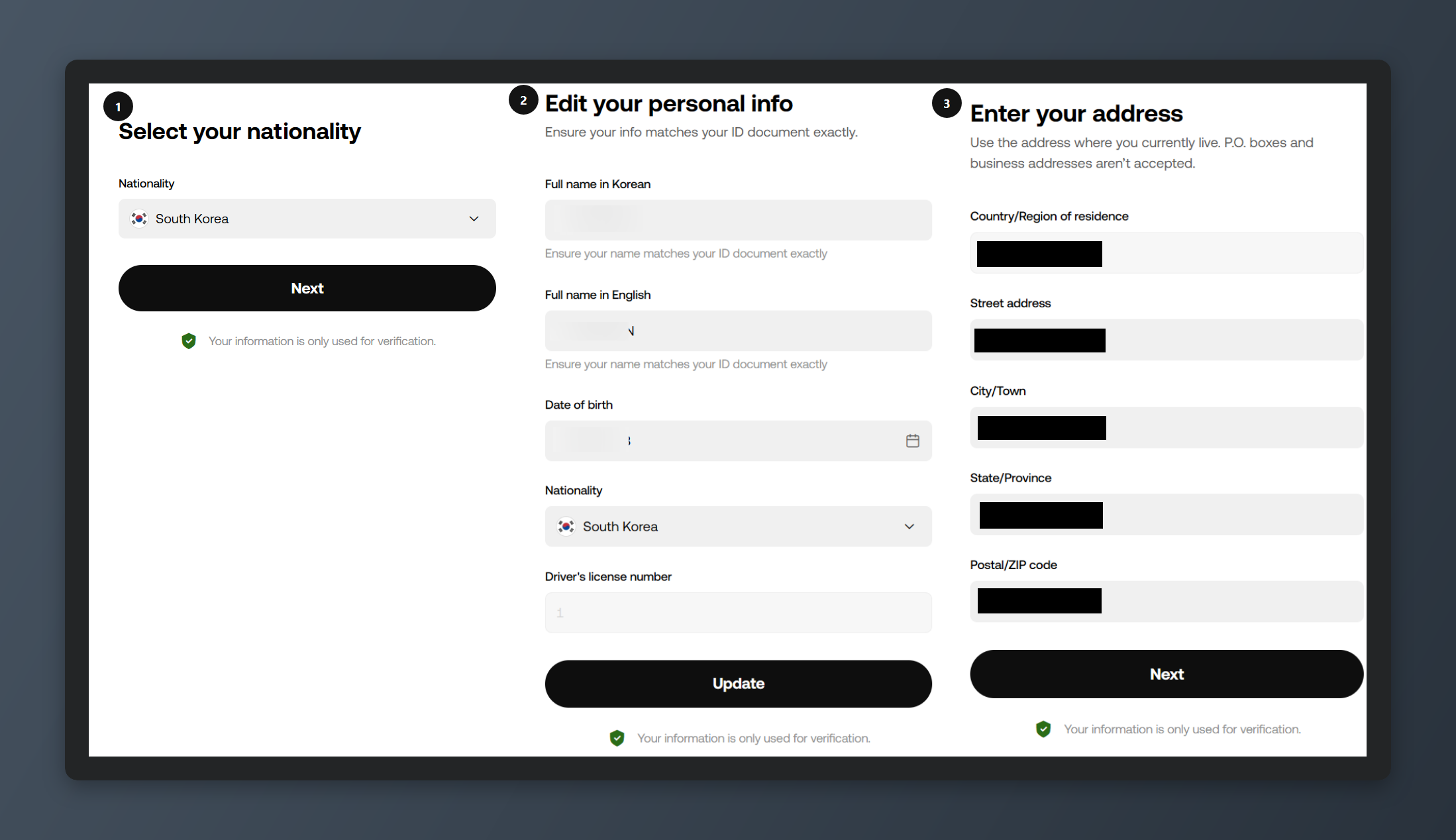
About 5 minutes later you move on to the next stage: proof of address. Fill in your country of residence, your name as it appears on your ID, and your address, and your KYC is complete.
Depending on where you live, this step may not show up at all.
In some countries OKX just cross-checks the details against the ID you submitted and that's it. In others you'll be asked to upload a document. (If you are, upload something that shows your current address — issued within the last 3 months, or 6 months for residents of the European Economic Area (EEA).)
8. KYC verification complete
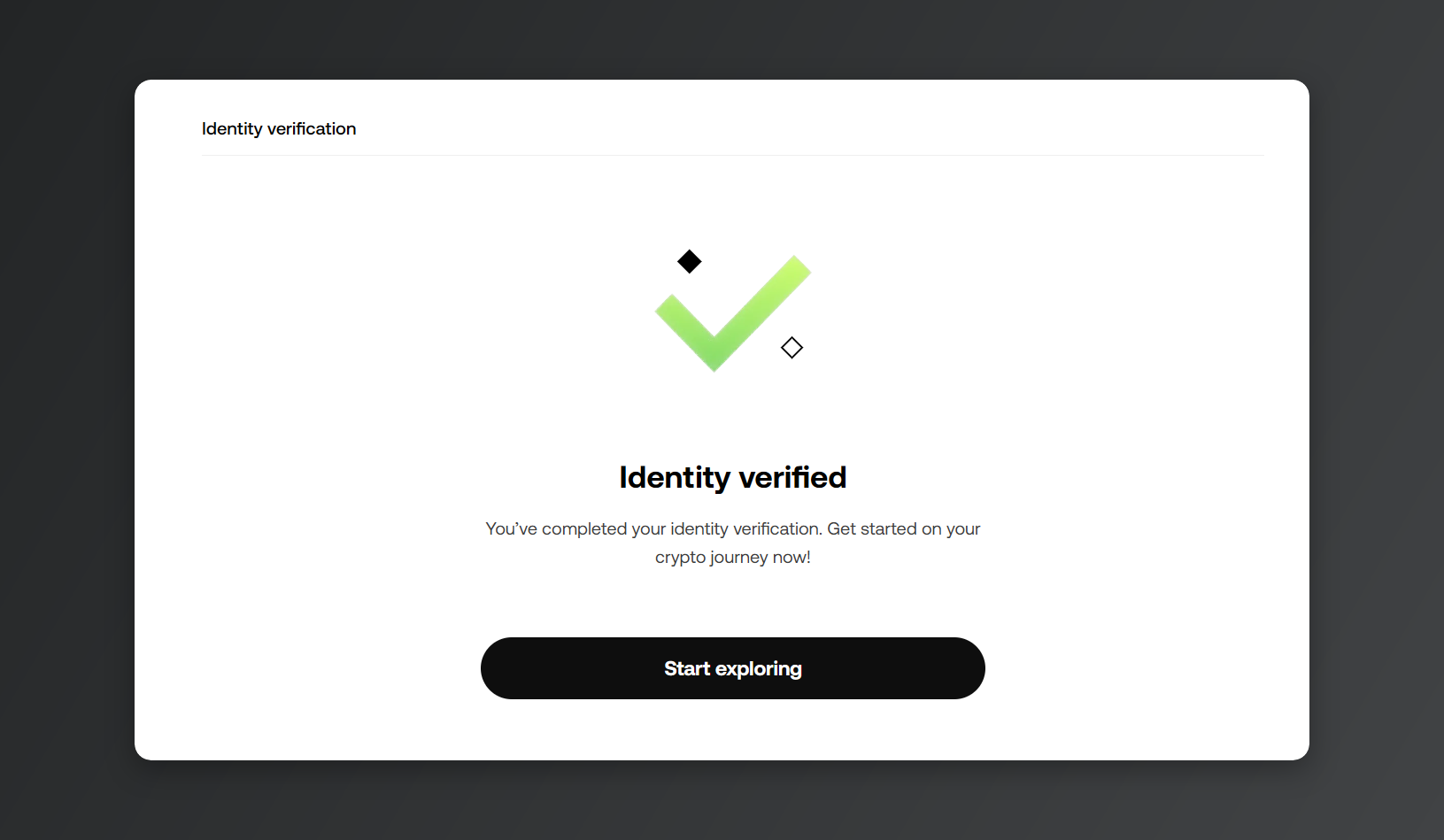
Once every step clears, [Identity verified] shows up and you've got full access to the exchange. Review takes a little longer in some countries. Next up is account security — our [How to set up Google OTP on your OKX account] guide walks you through it.
💡Heads-up: sign up for OKX through Rewardoc.com and the OKX VIP Pass is yours for free. Check out [How to get the OKX VIP Pass for free]!
When OKX sign-up or KYC won't go through
- "Email or phone already registered": each email and number belongs to exactly one account. Use password recovery to get back into the existing one, and if you never created it, contact support.
- Referral link won't open: sign up straight from the app and type the code into [Referral code (optional)] by hand.
- Verification rejected: check the usual culprits — a screenshot instead of a live photo, a cropped corner, glare, glasses still on — then reshoot and resubmit.
- "ID already in use": one document links to one OKX account, and once it's verified you can't swap it out or cancel it. Check whether you opened an OKX account at some point in the past.
※ All images in this post were captured and produced by Rewardoc. Unauthorized reproduction or redistribution is prohibited.