How to Use OKX Exchange: Reading the Spot Screen and Placing Limit & Market Orders
New to OKX? Here's the whole flow — moving USDT into your trading account, reading the spot screen, and placing limit and market orders without second-guessing yourself.

The OKX trading screen looks busy the first time you open it — charts, buttons and numbers everywhere. Strip it down and there are only four areas you actually use: the chart, the order book, the order panel, and your order history.
This guide walks through moving your funds, reading the spot trading screen, and placing an order — in that order.
💡 Worth reading before you place your first OKX trade! 👉 [OKX sign-up and KYC verification, start to finish] 👉 [OKX fees and how the VIP Pass cuts them down]
REWARDOC EXCLUSIVEOKX Signup RewardsSign up through the Rewardoc link and claim your rewardsFee discountSignup bonusGet bonus

1. Move your funds (USDT) to the trading account
1. Open the transfer menu
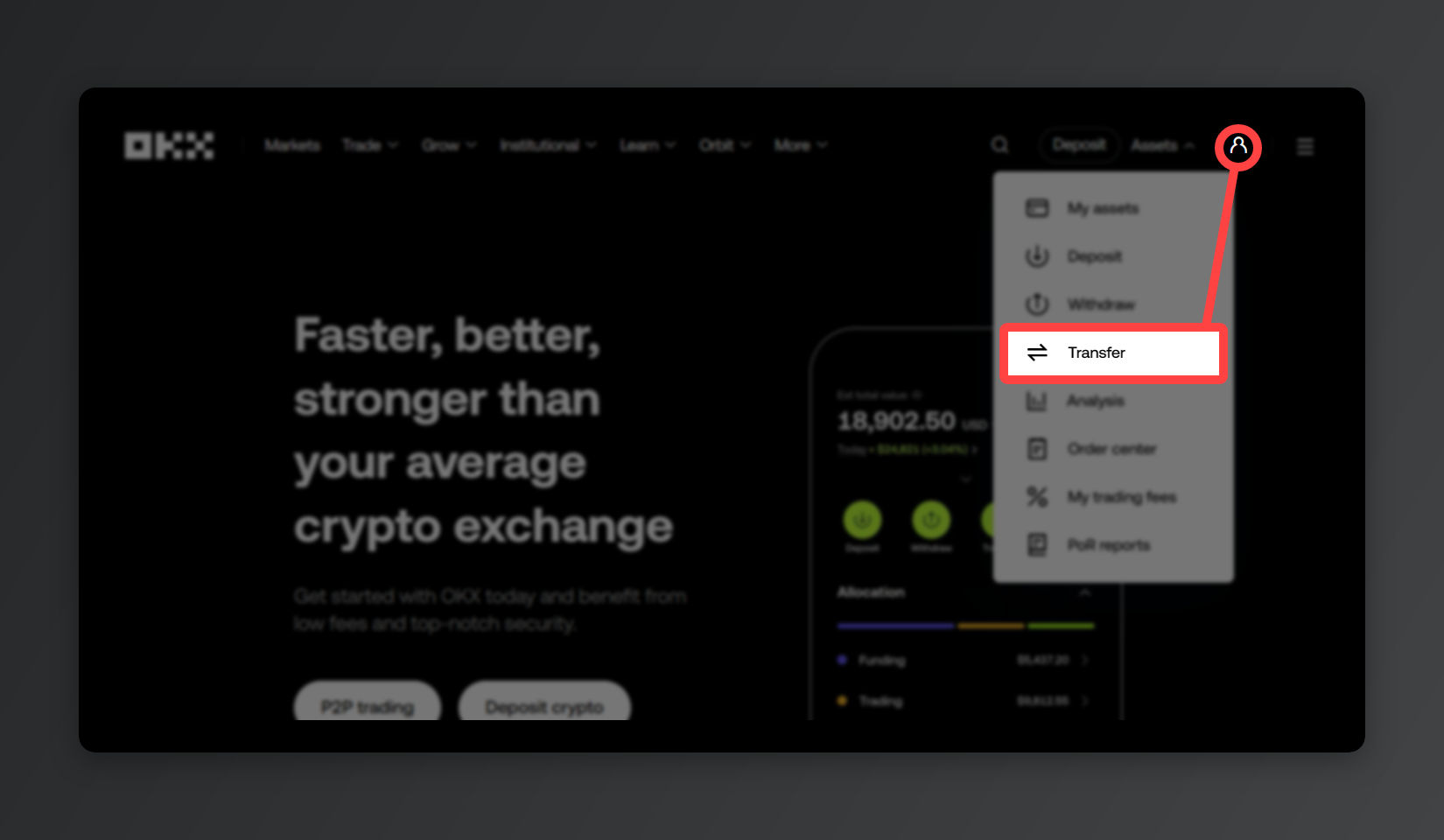
In the OKX app (mobile) or on the web (PC), go to [Assets] → [Transfer].
2. Transfer from funding to trading
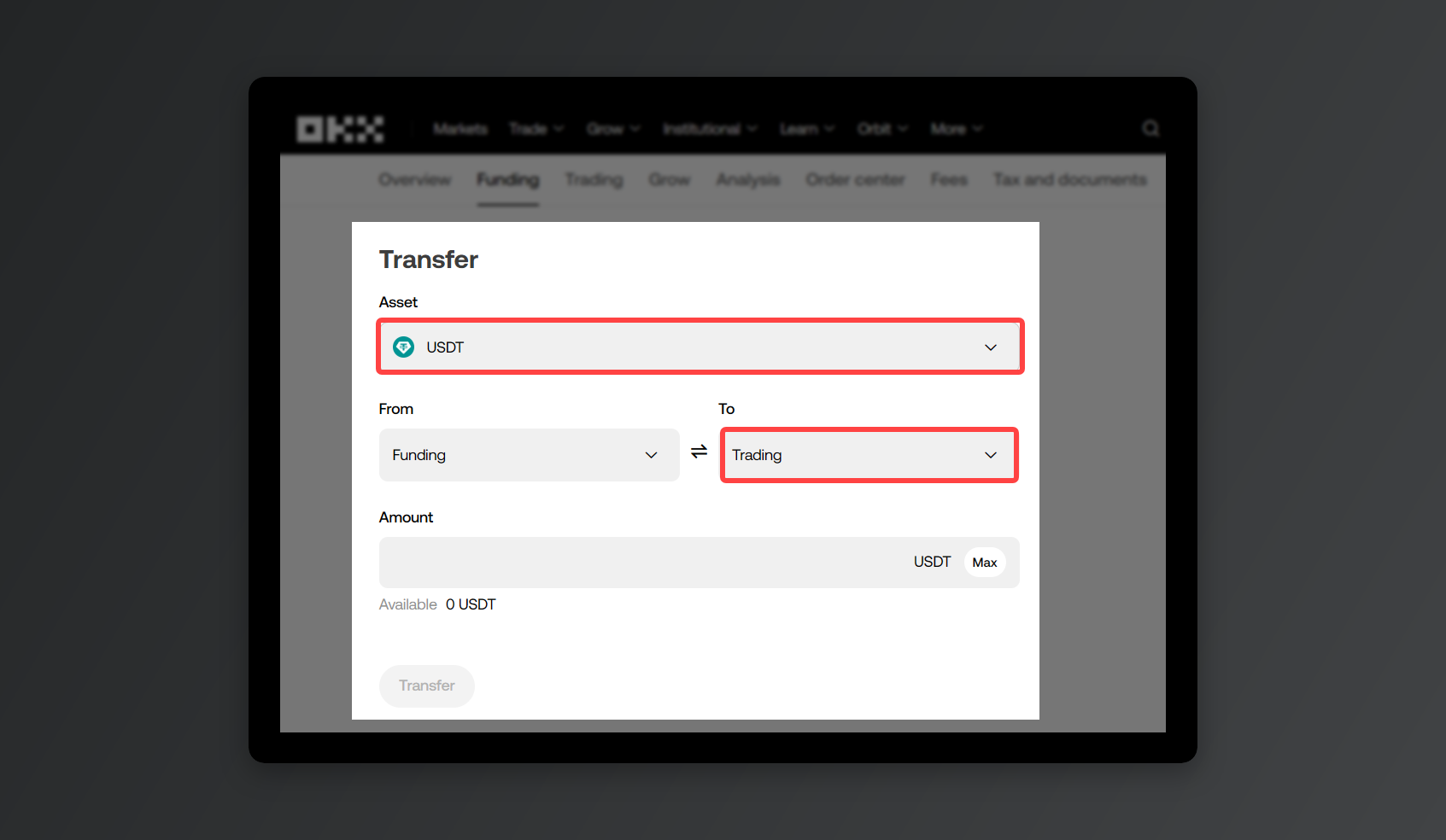
Pick the coin you want to move (USDT, for example), set [Funding] as the source and [Trading] as the destination. Enter an amount, hit [Transfer], and it lands in your trading account right away.
2. Reading the spot trading screen
On the web, the spot screen is under [Trade] → [Spot] in the top menu.
In the app, double-tap [Trade] in the bottom bar, then pick [Spot].
1. Pick a trading pair
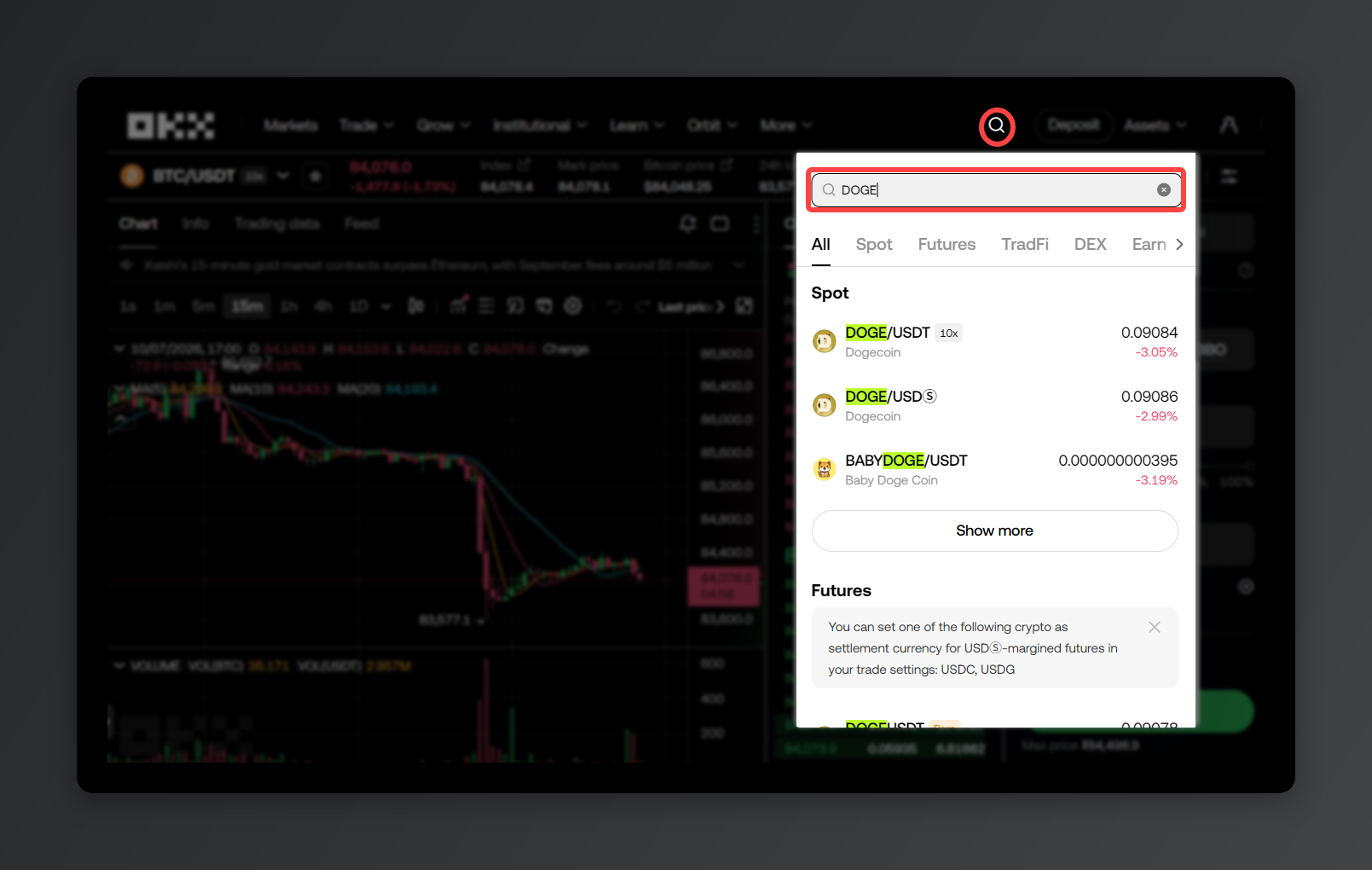
Search for the coin you want to buy. Take DOGE/USDT: the first part, DOGE, is the coin you're trading, and the second, USDT, is what you're paying with. So it's the pair for buying and selling DOGE with USDT.
2. Chart and indicators
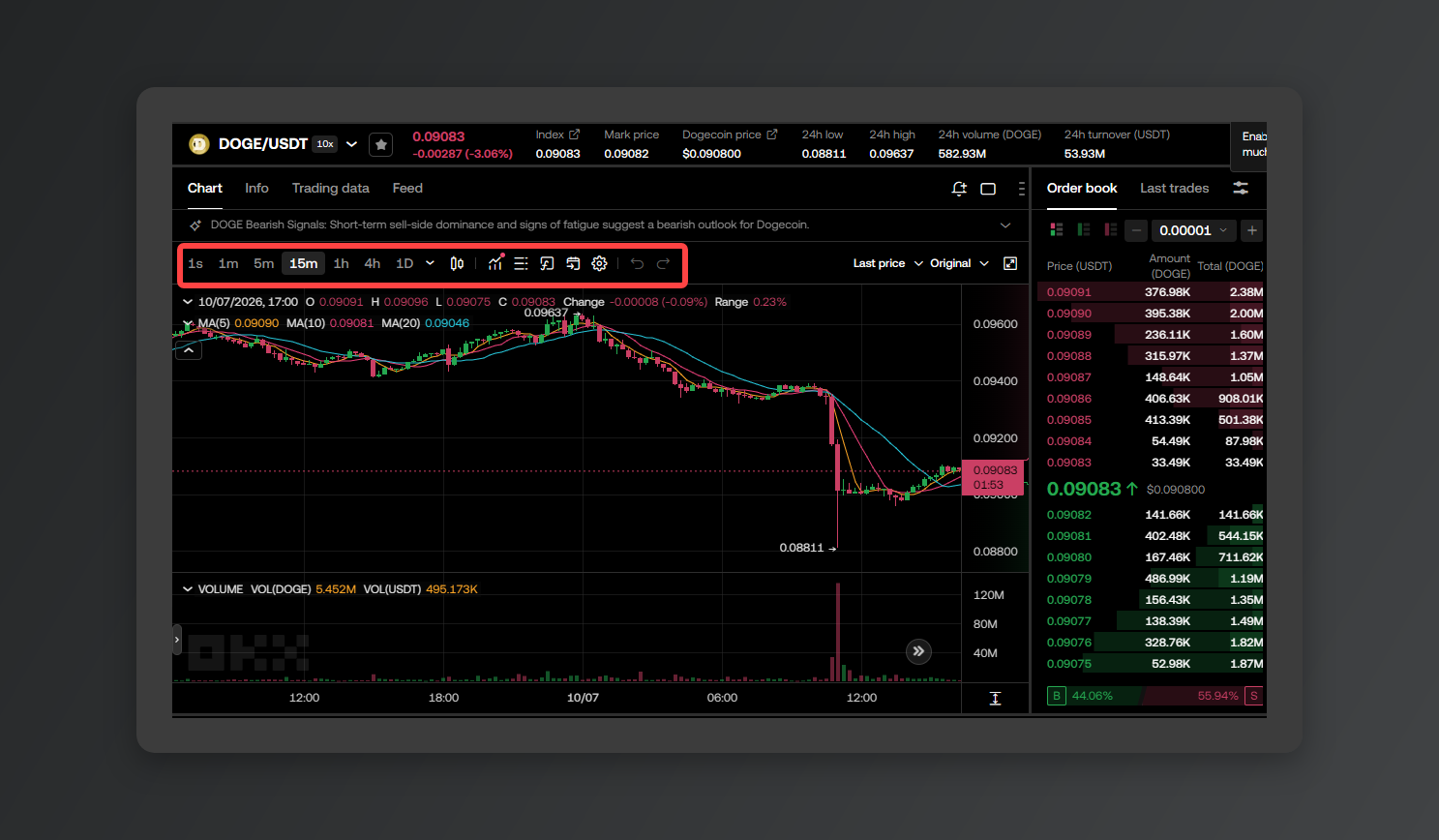
This is where price action shows up as candles (K-line). You can switch the timeframe each candle represents — 1 minute, 1 hour, 1 day — and layer on indicators like moving averages.
3. Order book
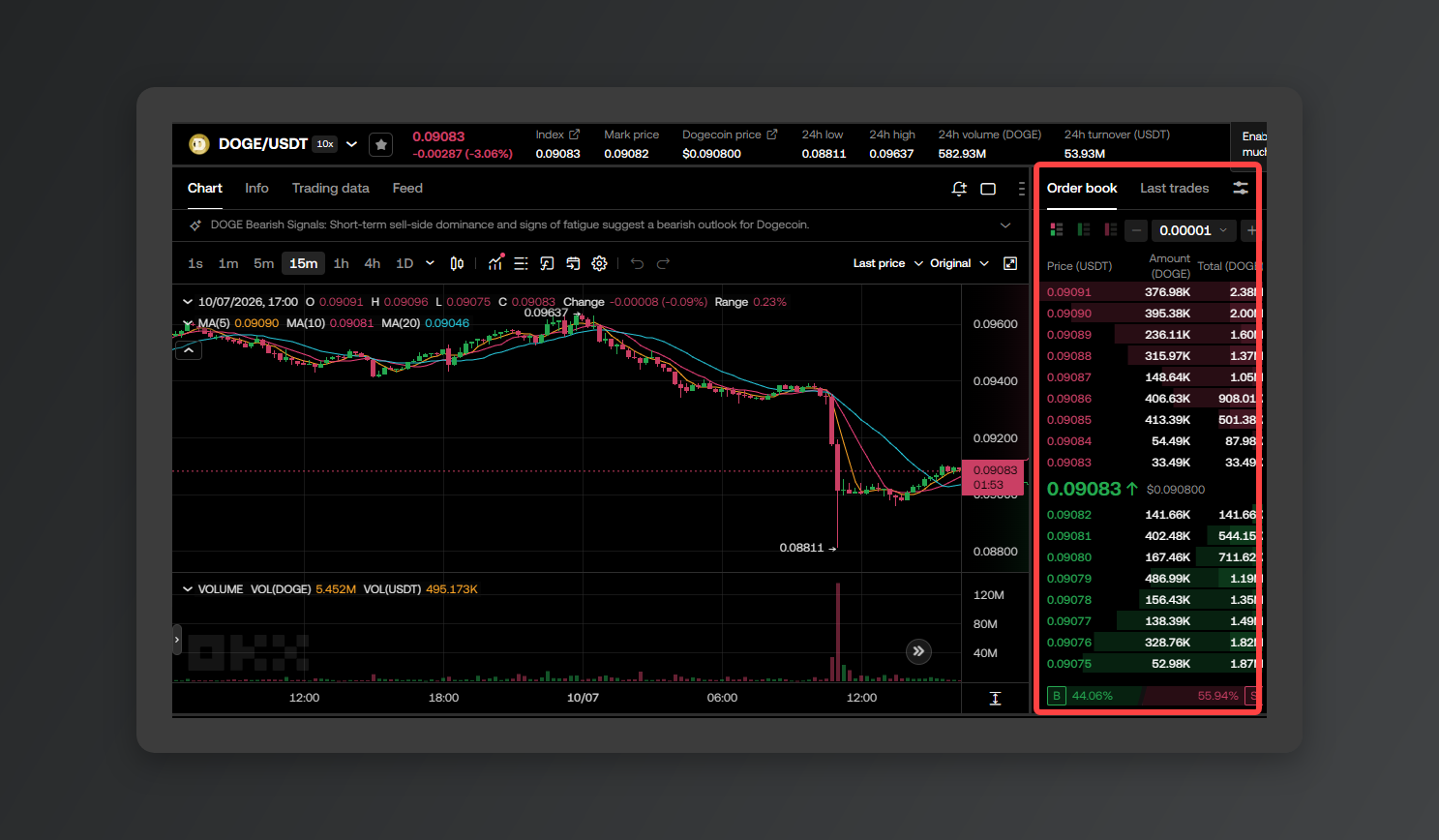
Every order currently resting on the book, stacked by price. Red is sell orders (asks), green is buy orders (bids). The price sitting in the middle, right where red meets green, is the last traded price — what the coin is actually changing hands at.
4. Order panel
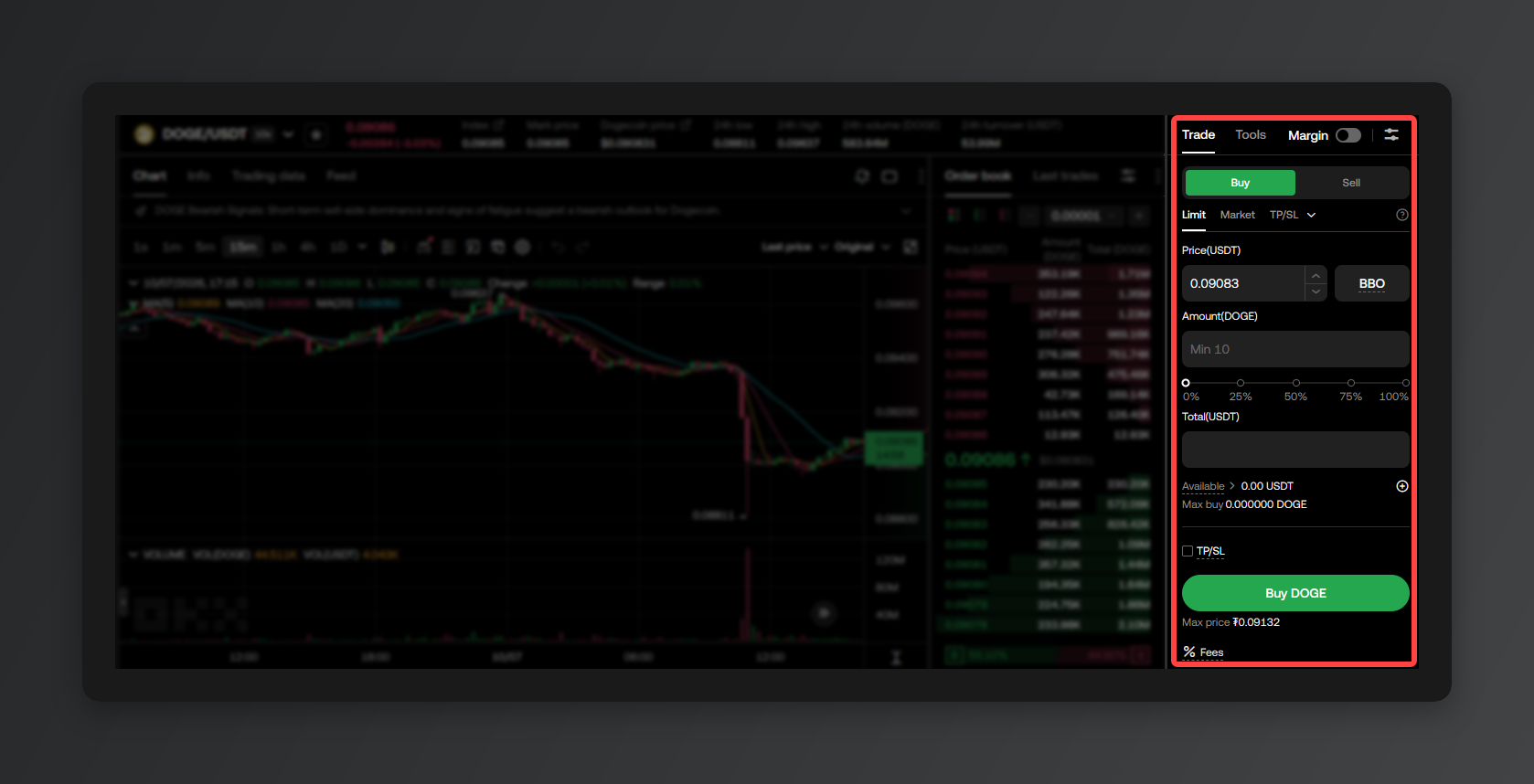
This is where the order actually gets placed. Choose [Buy] or [Sell], pick your order type (limit or market), then fill in price and quantity.
Some accounts have Margin mode switched on by default in the spot trading panel. If you have no intention of trading with borrowed funds, check that the [Margin] toggle is off before you submit anything.
5. Order history
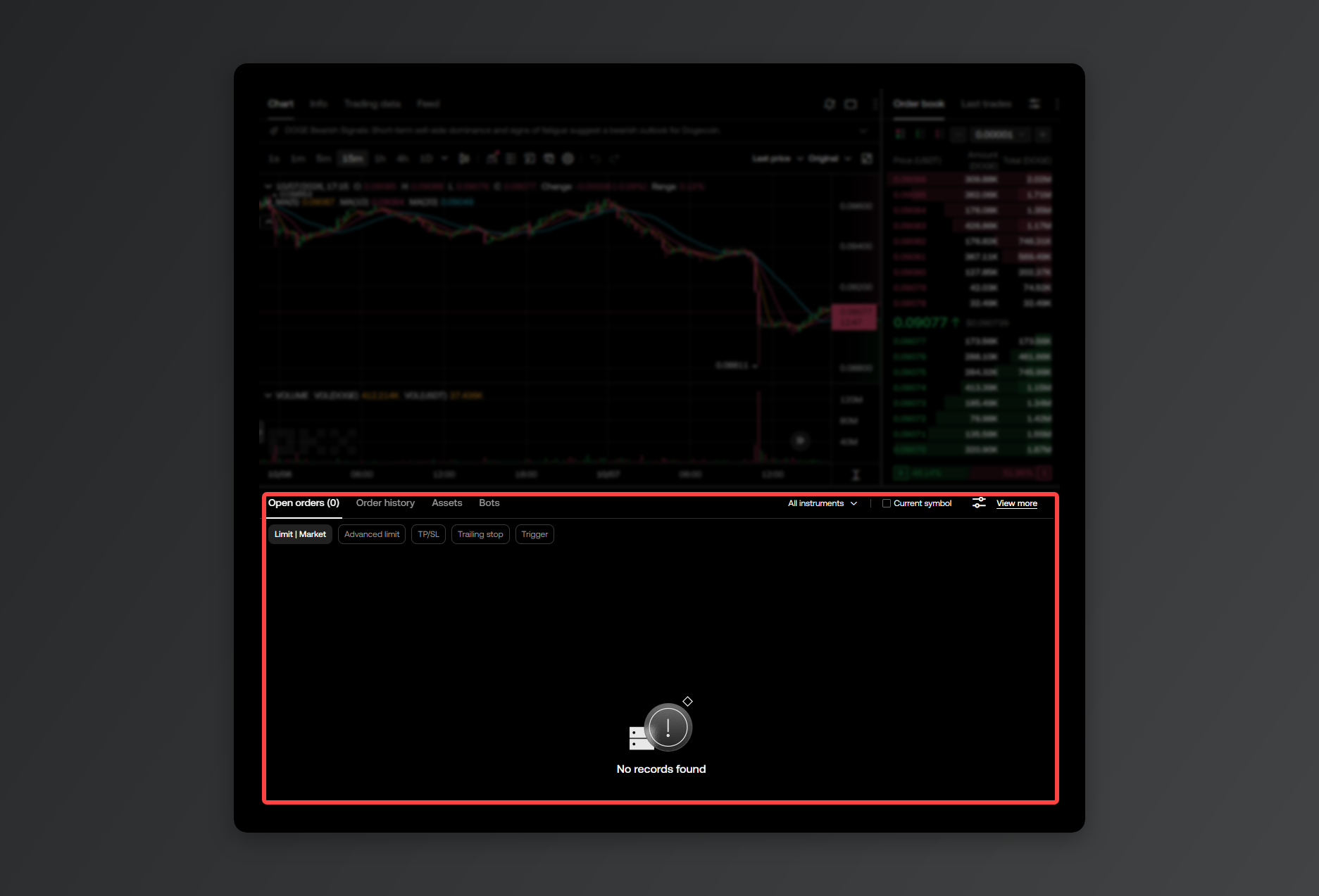
This is where you keep tabs on the orders you've placed. Anything that hasn't filled yet sits under Open orders; anything filled or cancelled shows up under Order history. You can also cancel open orders from here.
3. Placing an order
0. The one thing to understand first: limit vs market
Every trade starts with the same choice between two order types — limit and market. Get the difference straight and you'll know which one fits the moment.
What is a limit order?
- In one line: you name the price you want to buy or sell at, and wait for the market to come to you.
- You trade at exactly the price you picked, so you don't overpay, and the fee (Maker fee) is lower. The catch: if price never reaches your number, the order just sits there unfilled.
What is a market order?
- In one line: fills immediately at the best price currently available on the book. (For when you want in or out right now, price be damned.)
- No waiting — your order is 100% filled the moment you send it. That's exactly what you want when the market's moving fast in either direction and you need in or out now. The trade-off is that volatility can leave you buying a touch higher or selling a touch lower than you expected, and the fee (Taker fee) is slightly above the limit-order rate.
1. Limit order
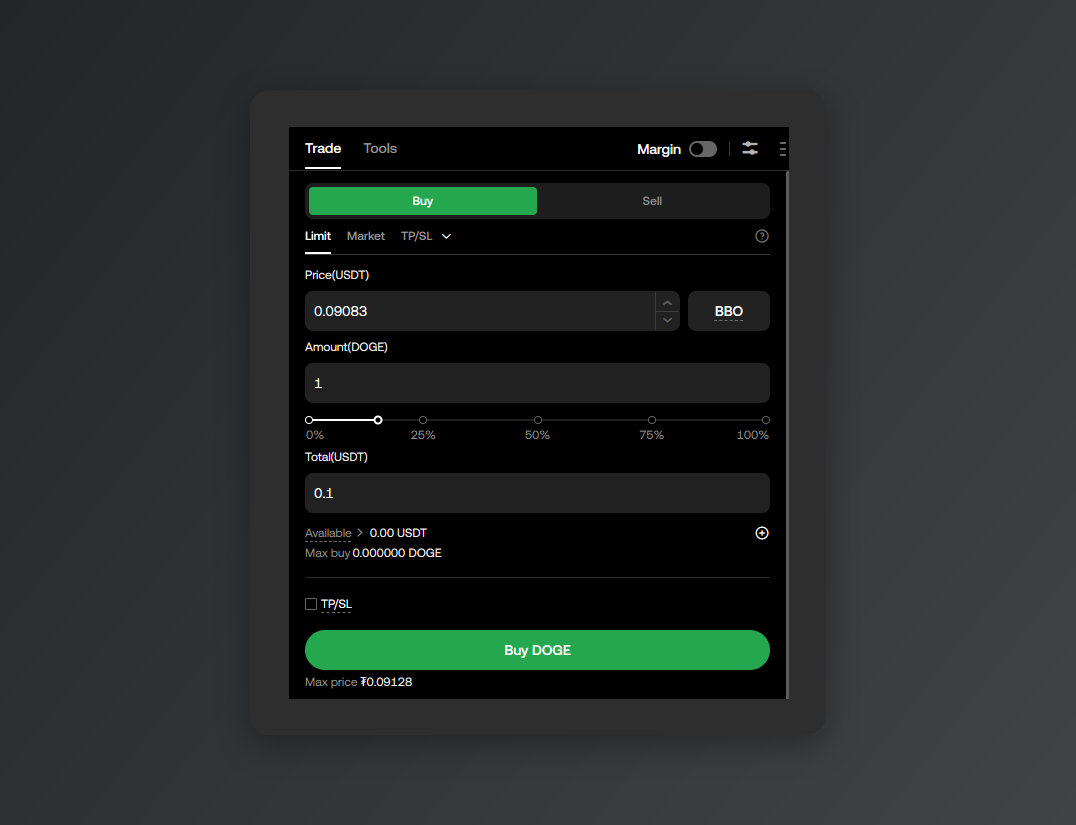
Select [Limit], enter the price and quantity you want, then hit [Buy]. The order only fills once the market reaches your price — until then it sits there as an open order.
When a resting limit order like this eventually fills, you pay the cheaper Maker fee instead of the taker rate.
2. Market order
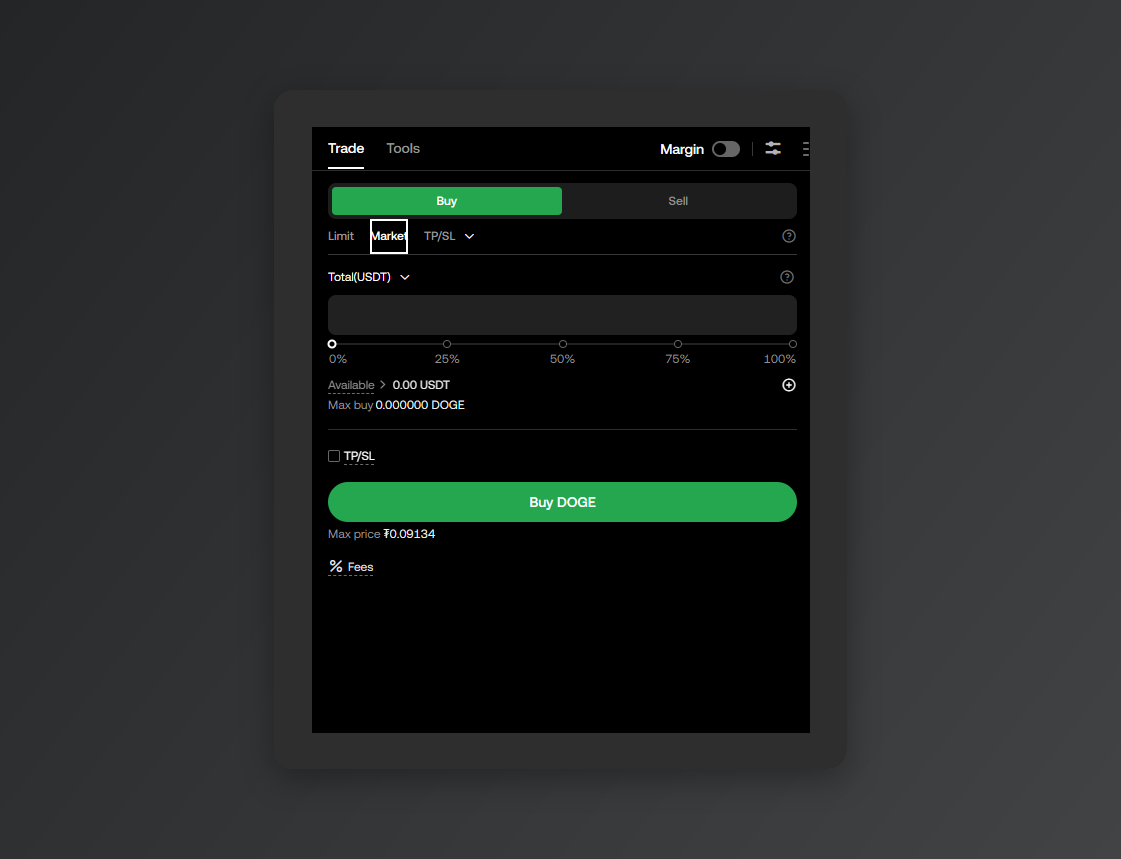
Pick [Market] and the price field disappears — you only enter a quantity (or an amount to spend). The moment you submit, it fills at the best available price on the order book.
You skip the waiting, but you pay the Taker fee, which runs slightly higher than the maker rate on a limit order.
3. Attaching take profit and stop loss (TP/SL)
Think of TP (Take Profit) and SL (Stop Loss) as a safety net for when you've bought a coin and can't sit watching the market — they close the trade for you at prices you set in advance.
Hit your target and the position sells automatically, locking in the gain. Hit the worst loss you're willing to stomach and the sell order goes out regardless, cutting the loss before it snowballs.
In the app, enter your quantity on a limit order and check [Advanced (TP/SL)] to set both a take profit and a stop loss price. Once your buy order fills, price touching either level sends out a sell order automatically. Whichever one triggers, the other gets cancelled.
If you'd rather skip the trading screen entirely and just swap at the price shown, use [Convert]. It exchanges instantly at the displayed rate, with no fees and no slippage.
When OKX trades won't go through
- Your balance shows 0 in the order panel: the coin is sitting in your funding account. Move it over via [Assets] → [Transfer].
- Nothing happens when you press the order button: every coin has a minimum order size. Bump up the quantity and try again.
- Your limit order isn't filling: price hasn't reached your number yet. Cancel it under Open orders and re-enter at a different price.
- You sold a coin but can't find the money to withdraw: sale proceeds stay in the trading account. Move them back to the funding account first, then withdraw.
※ This article is for informational purposes only and is not investment advice. Crypto trading carries the risk of losing your capital, and every decision — along with its outcome — is yours alone.
※ The images in this post were captured and produced by Rewardoc (rewardoc.com). Unauthorized copying or redistribution is prohibited.