How to Get a 25% Trading Fee Discount on Binance Using BNB
Here's how to knock an extra 25% off your Binance trading fees by paying with BNB. A fee-saving walkthrough simple enough for complete beginners.

There's a moment a few months into using Binance where you open your fee history for the first time and your face changes. Each individual trade only takes a dollar or two, so you never feel it going out — but stacked up, the number is real. Futures especially, since notional value scales with your leverage, and the fee scales right along with it.
The thing is, you can cut those fees with a single toggle. All you do is change a setting so fees get paid in BNB, Binance's own coin. You'd be surprised how many people trade for years without ever switching it on. This guide covers everything from buying BNB to getting the discount applied on both spot and futures. The whole thing takes under 5 minutes.
💡 Quick note before you start!
- No Binance account yet? 👉 [How to sign up for Binance]
- New user bonus + fee discount campaign 👉 [Check the Binance signup bonuses]
How much can you actually save?
| Type | Base fee (standard tier) | Account with 20% fee discount | With BNB payment on top |
|---|---|---|---|
| Spot | 0.1% | 0.08% | 0.06% |
| USD-M futures (maker) | 0.02% | 0.016% | 0.014% |
| USD-M futures (taker) | 0.05% | 0.04% | 0.036% |
Spot gets up to 25% off and USD-M futures up to 10%, but there's something worth flagging here. If you opened your account through an event link or a referral code that gave you a 20% trading fee discount, the BNB discount layers on top of that. It's not an either-or setup — these are two separate discounts, so they stack.
Three things to know before you start
First, just owning BNB doesn't get you the discount. You have to switch on the setting that pays fees in BNB. Most people wondering "why are my fees still the same?" have a BNB balance sitting there with the toggle off.
Second, spot fees come out of the BNB in your spot wallet, and futures fees come out of the BNB in your futures wallet. The wallets don't talk to each other. Pile up BNB in spot and leave futures empty, and the futures side gets no discount at all. You need a bit in each.
Third, BNB is still a coin. Buy a large amount to save on fees, watch the price drop, and your unrealized loss can easily exceed everything you saved. Keep your fee-payment stash exactly that — small. It depends on your volume, but topping up roughly a month's worth of fees and buying more when it runs low is plenty.
1. Converting USDT to BNB
To get the spot and futures fee discount, you first need to hold BNB. So the first step is converting the USDT or other assets you're holding into BNB.
1-1. Opening Convert
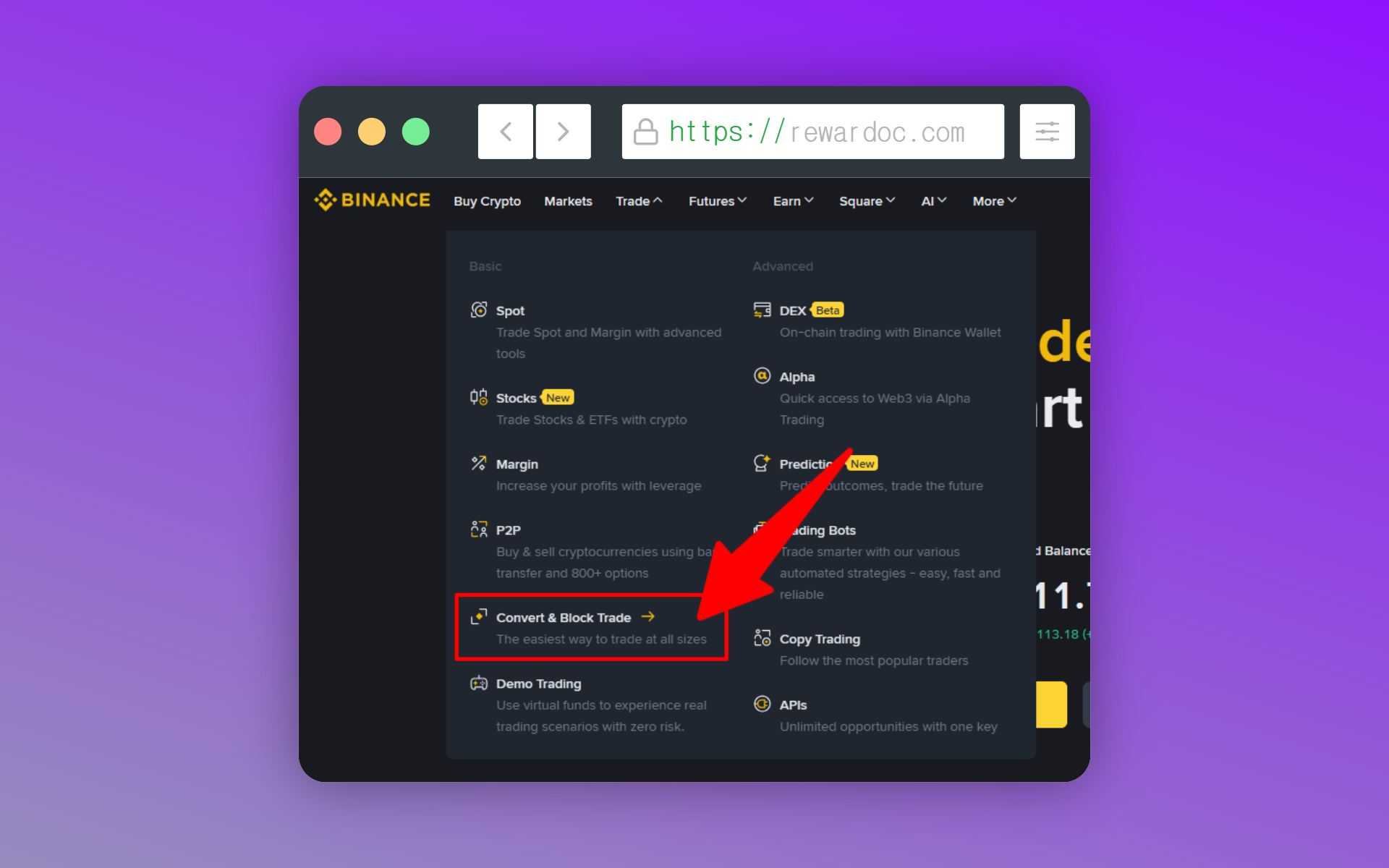
From the top menu [Trade], select [Convert]. This swaps USDT straight into BNB without you touching the order book. It's meant for small swaps like exchanging currency, so just using [Convert] is fine.
1-2. Picking the coins and amount
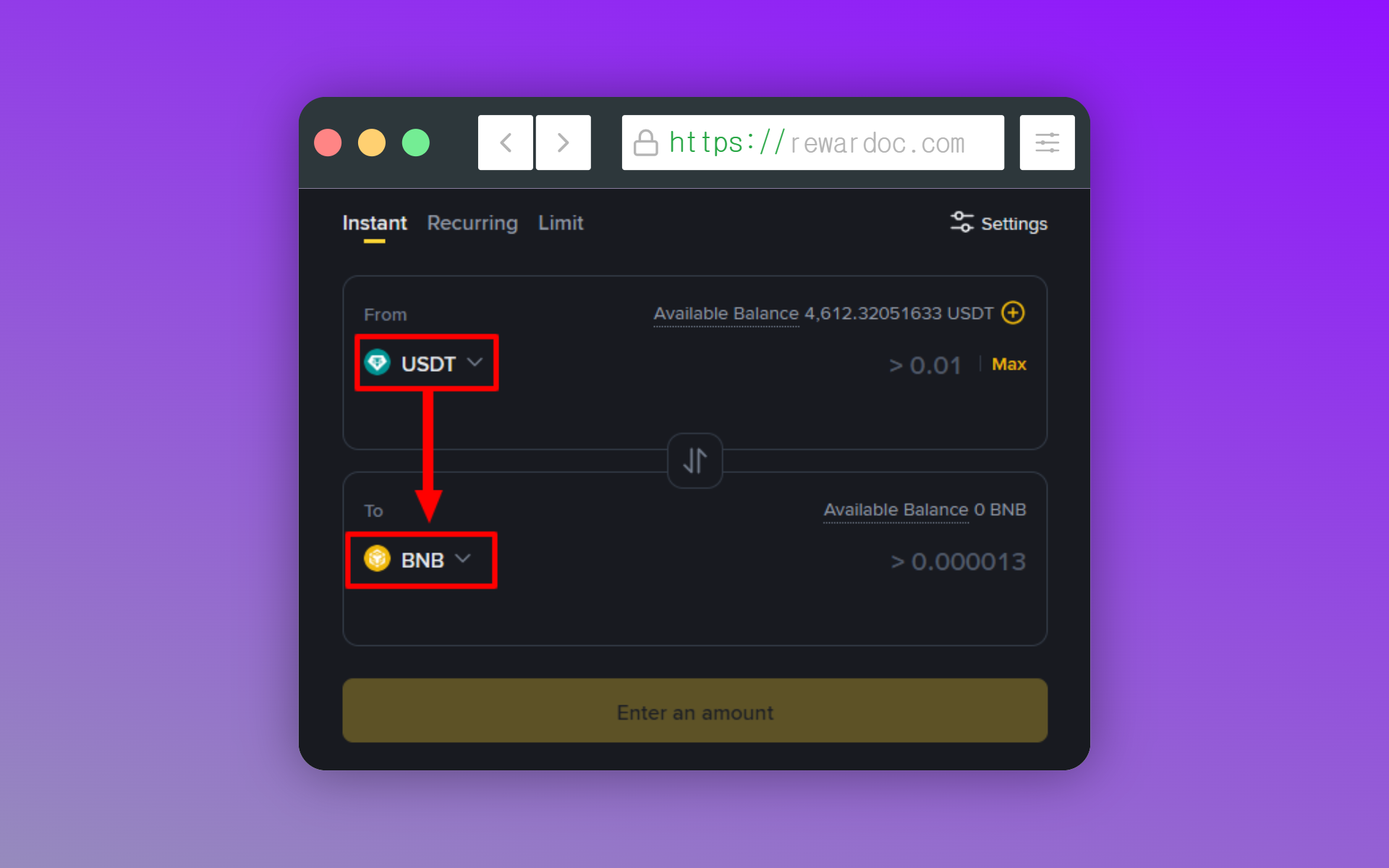
Set From to [USDT], To to [BNB], and enter an amount. If you trade in small size, $20 to $30 worth is plenty. This is for paying fees, not investing.
1-3. Running the conversion
Check the amount, click [Convert], and the BNB lands in your spot wallet. If you trade heavy volume, buying BNB/USDT with a limit order on the spot order book works out slightly better than Convert. Convert is convenient, but there's a bit of spread baked in.
2. Moving BNB to your futures account
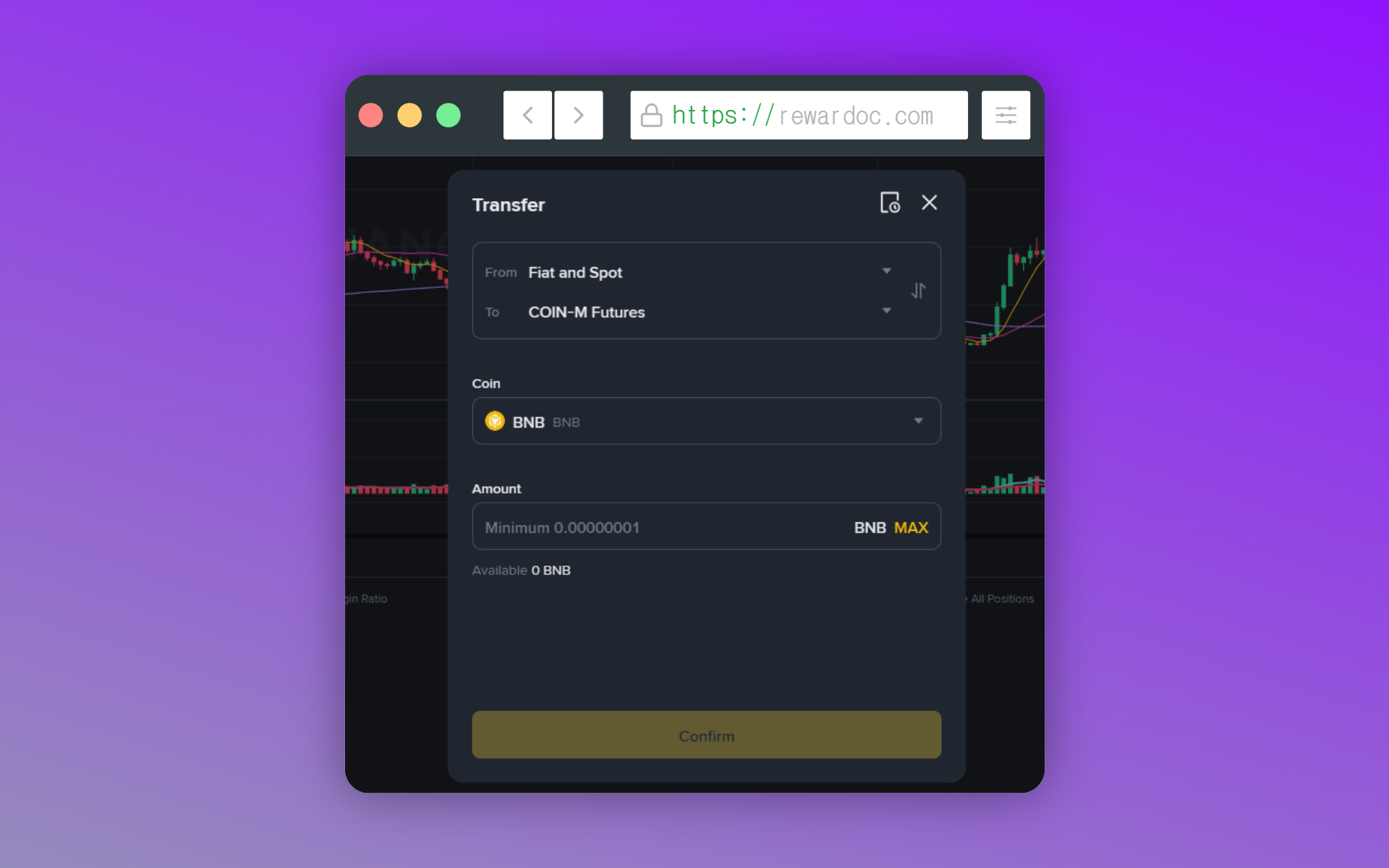
On the futures trading screen, hit [Transfer], set From to [Spot] and To to [USD-M Futures], switch the coin to [BNB], and enter how much you want to move. Then hit [Confirm] to send the BNB across. If you only want to save on spot trading fees, leave it in the spot wallet — no transfer needed.
3. Turning on the spot and futures fee discount
3-1. Opening the fee settings page
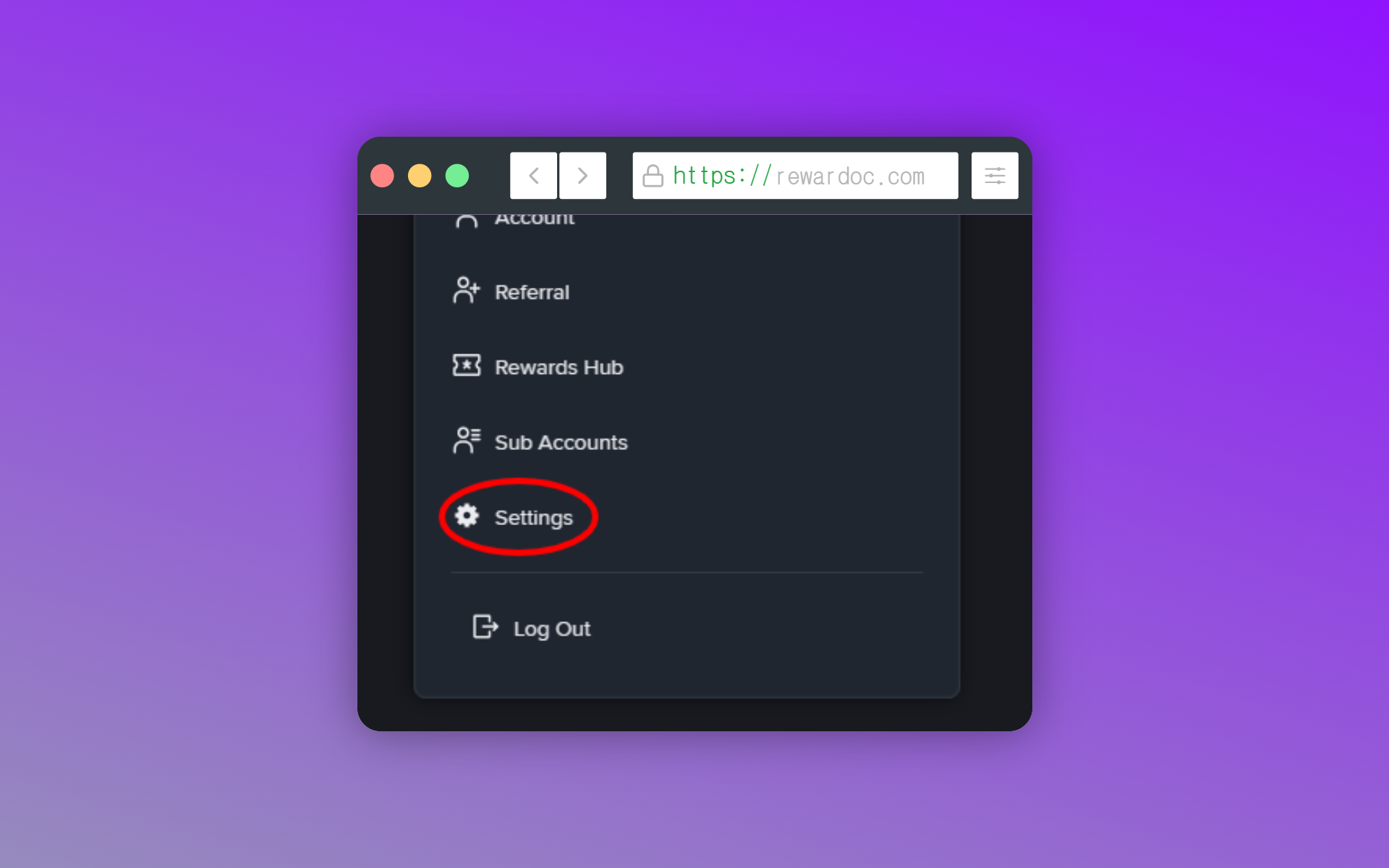
Hover over the profile icon at the top right and go into [Settings]. On the mobile app, the same item lives under settings via the profile icon at the top left.
3-2. Flipping the BNB discount toggles
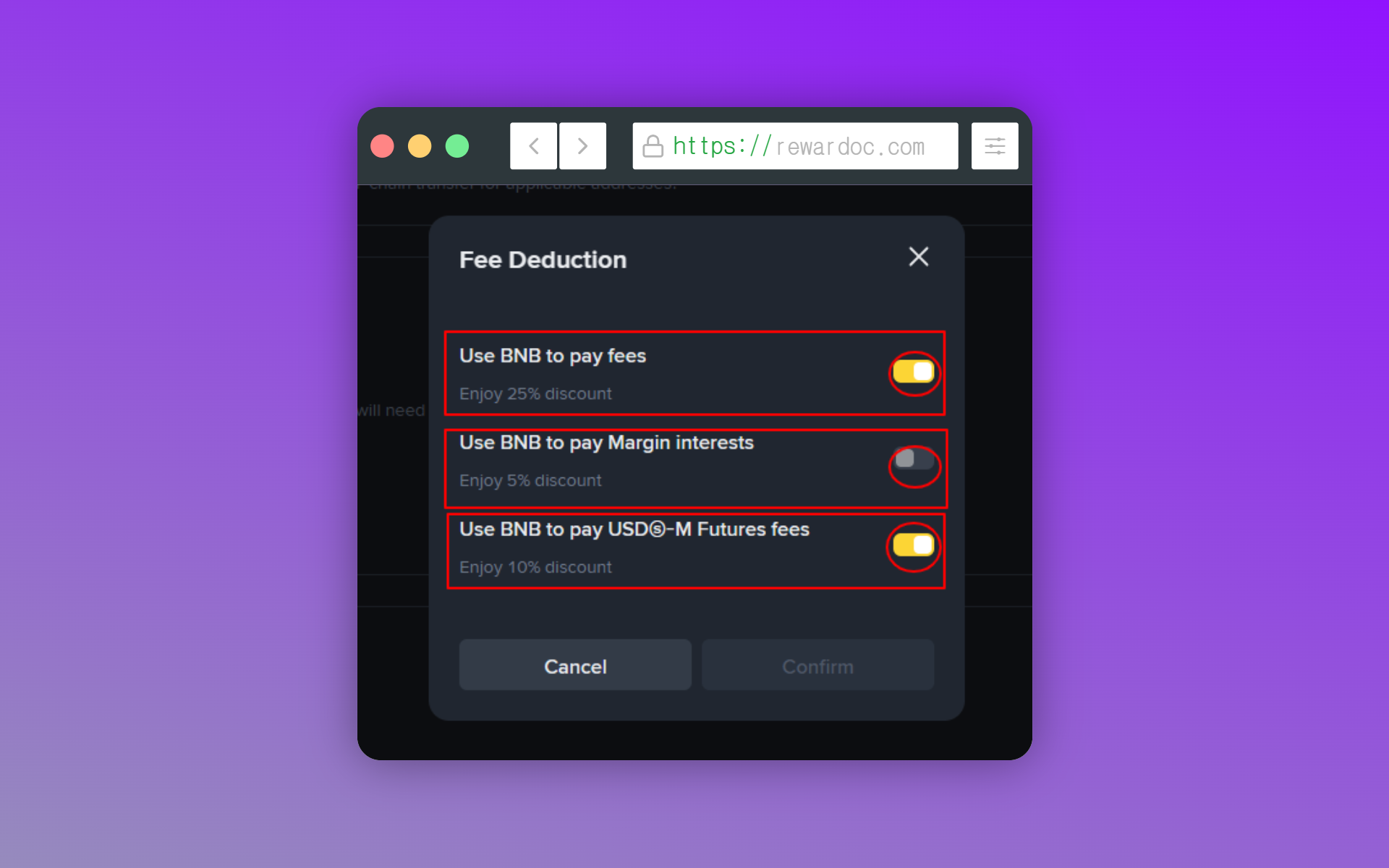
Scroll down a little and you'll see the [Trade] section. Go into the settings screen for [Fee Deduction], turn on all three of [Use BNB to pay fee], [Use BNB to pay Margin interests], and [Use BNB to pay USDⓈ-M Futures fees] and that's it. Click [Confirm] to save. Both spot and futures now have the BNB fee discount running properly.
If [Use BNB to pay Margin interests] won't activate, it's because there's no BNB in your margin wallet, or not enough of it.
3-3. Confirming it's applied
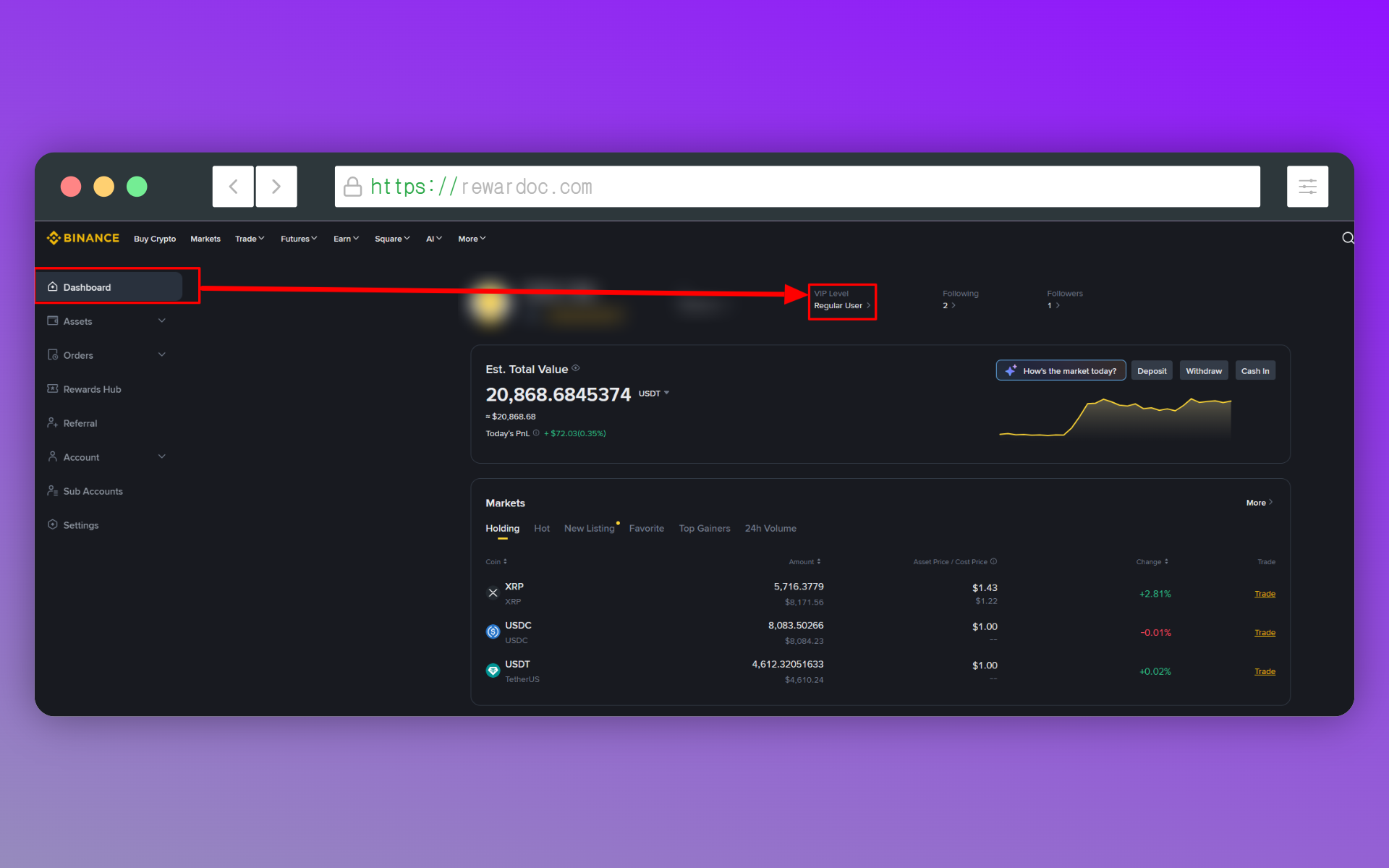
On desktop, go to the [Dashboard] page from the left menu, then over to the [VIP Level] page.
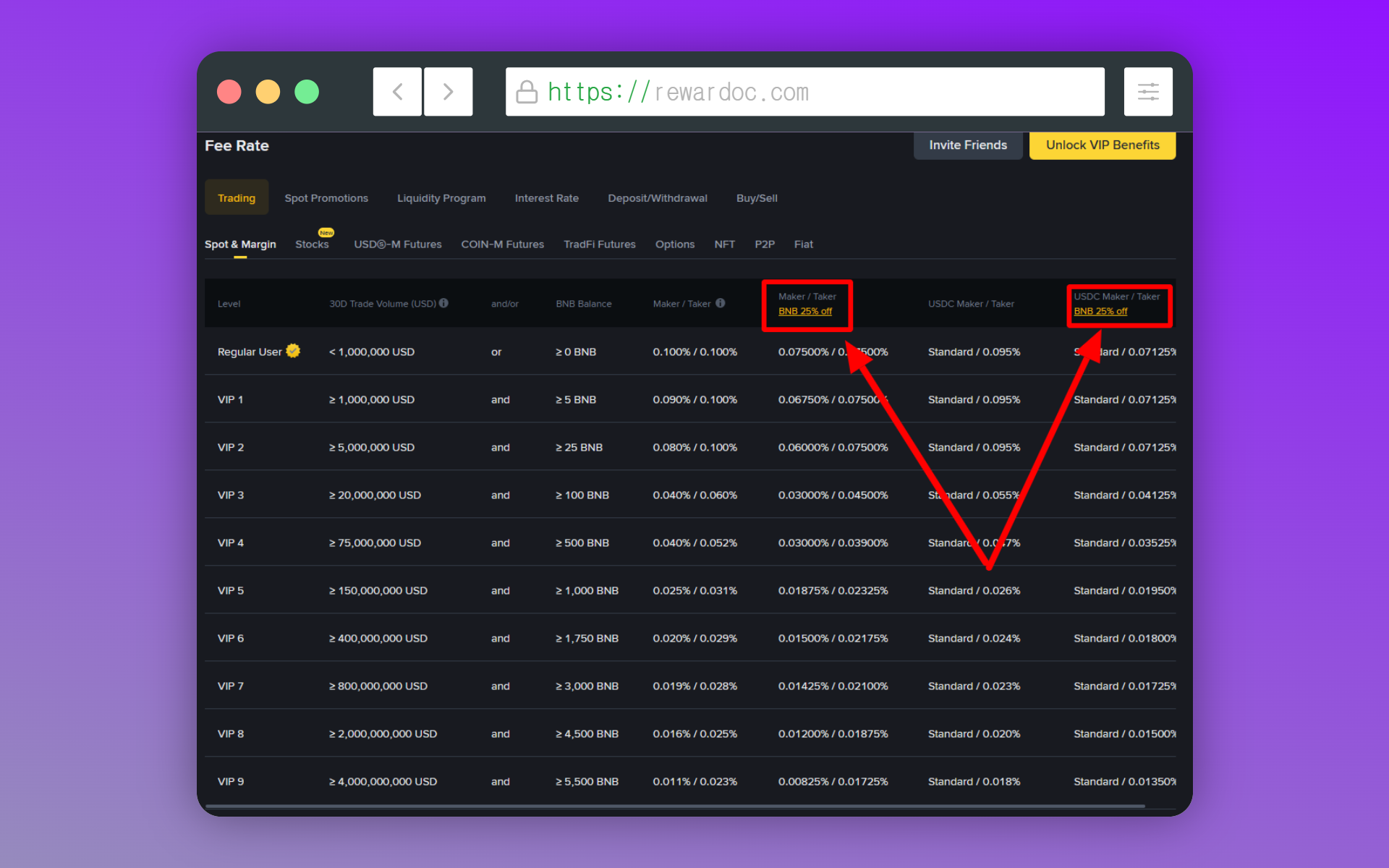
Look at the fee rate table lower on that page and confirm the post-BNB rates are showing. The mobile app is the same — [Dashboard] then [VIP Level].
Wrapping up
To recap: buy a small amount of BNB, flip the spot toggle, move some to the futures wallet, flip the futures toggle. Four steps. Set it once and from then on it's just an occasional balance check.
The more often you trade, the more this setting is worth. Flip that around: if you've been trading without it this whole time, that's money you've been leaking. Spend five minutes on it today.
If you're wondering how futures trading works on Binance, the [How to trade Binance futures] post walks through it step by step, from deposit to trade.
- BNB parked in yield products won't be used for fees. Anything you've deposited into Earn or staking is locked, so it can't be spent on payments. Fee-payment BNB has to sit loose in the wallet.
- The referral discount from signup and the BNB fee payment discount are different kinds of discount, so they apply together. That said, the referral discount is partly locked in at the moment your account is created, so it's often hard to attach later. That's a before-you-sign-up item.