How to Check Your Binance PnL (Spot and Futures in One Place)
Tired of hunting down your spot and futures returns separately on Binance? Here's how to see your total PnL across both on mobile and desktop, and break your results down by period — quickly and accurately.

So where do you actually look on Binance to see what your return is, and how much you've won or lost so far? The assets page only shows balances, and trade history only gives you fill-by-fill records. Frustrating. There's a separate analysis screen that breaks it all out for you.
Here's how to check real-time PnL, lifetime PnL, and day-by-day results for spot and futures.
Checking real-time and lifetime futures PnL
1. Real-time futures PnL
If you're holding a position right now, it's sitting in the [Positions] tab at the bottom of the futures order screen.
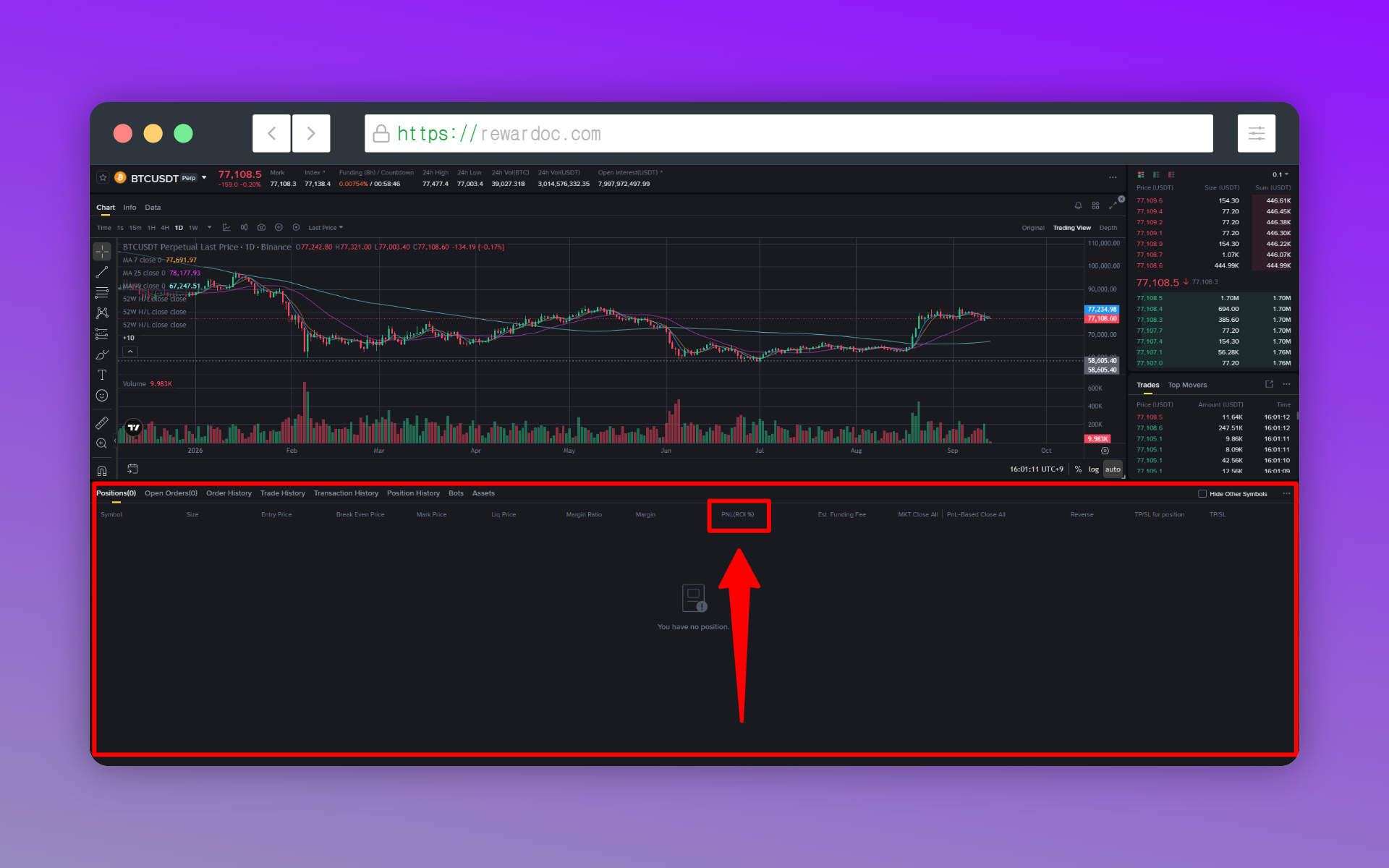
PNL is your profit or loss in dollar terms, and the ROI (or ROE) next to it is your return. (It's measured against the margin you put into that position, not your whole account balance.)
2. Lifetime futures PnL
To see how much your whole account has made or lost so far, not just your open positions, head to the analysis page.
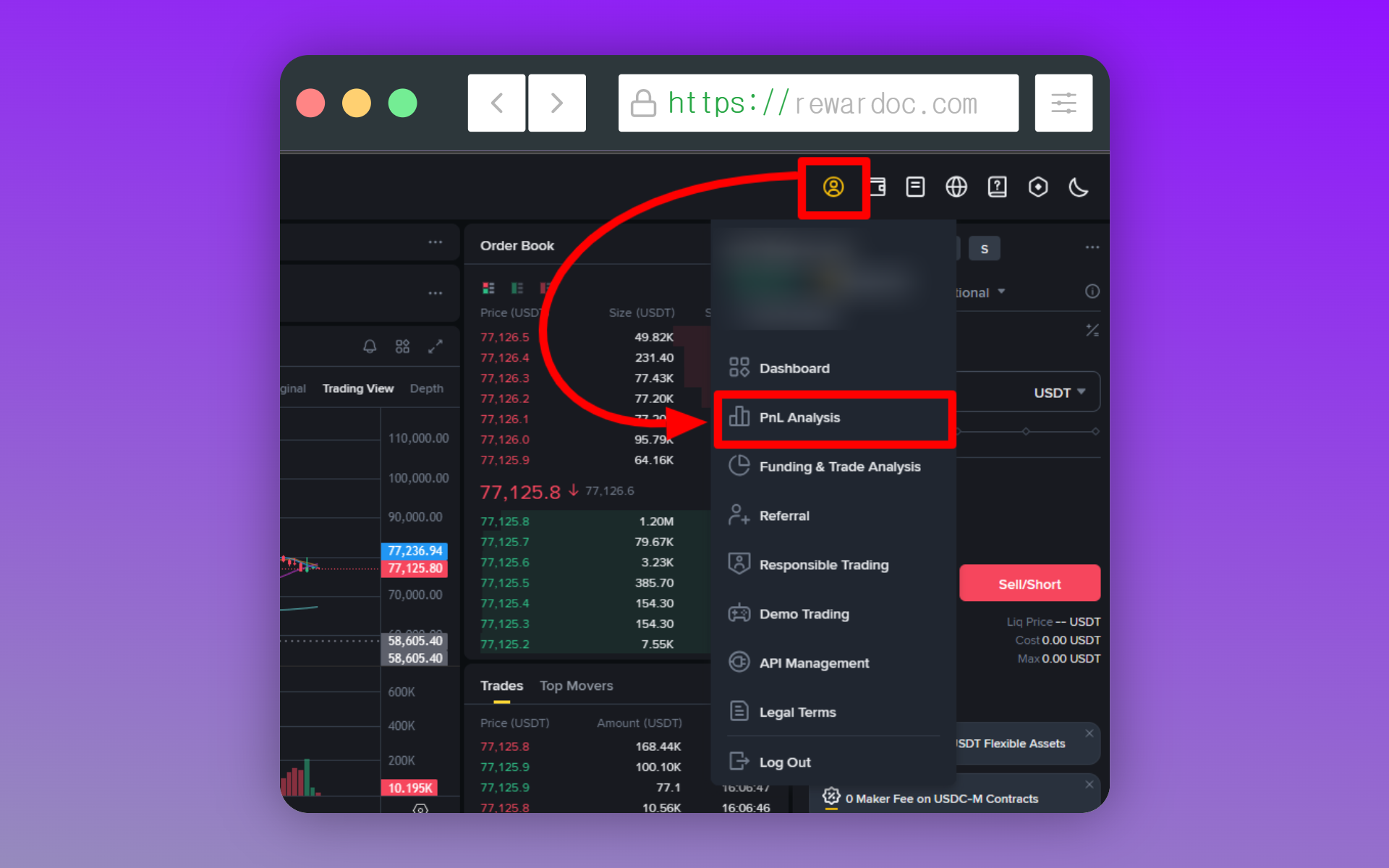
On the USDⓈ-M or COIN-M futures screen, hover over your profile icon and the [Futures PNL Analysis] menu appears. Open it and you'll get your PnL in dollars and percent by period, plus your balance curve, all on one screen.
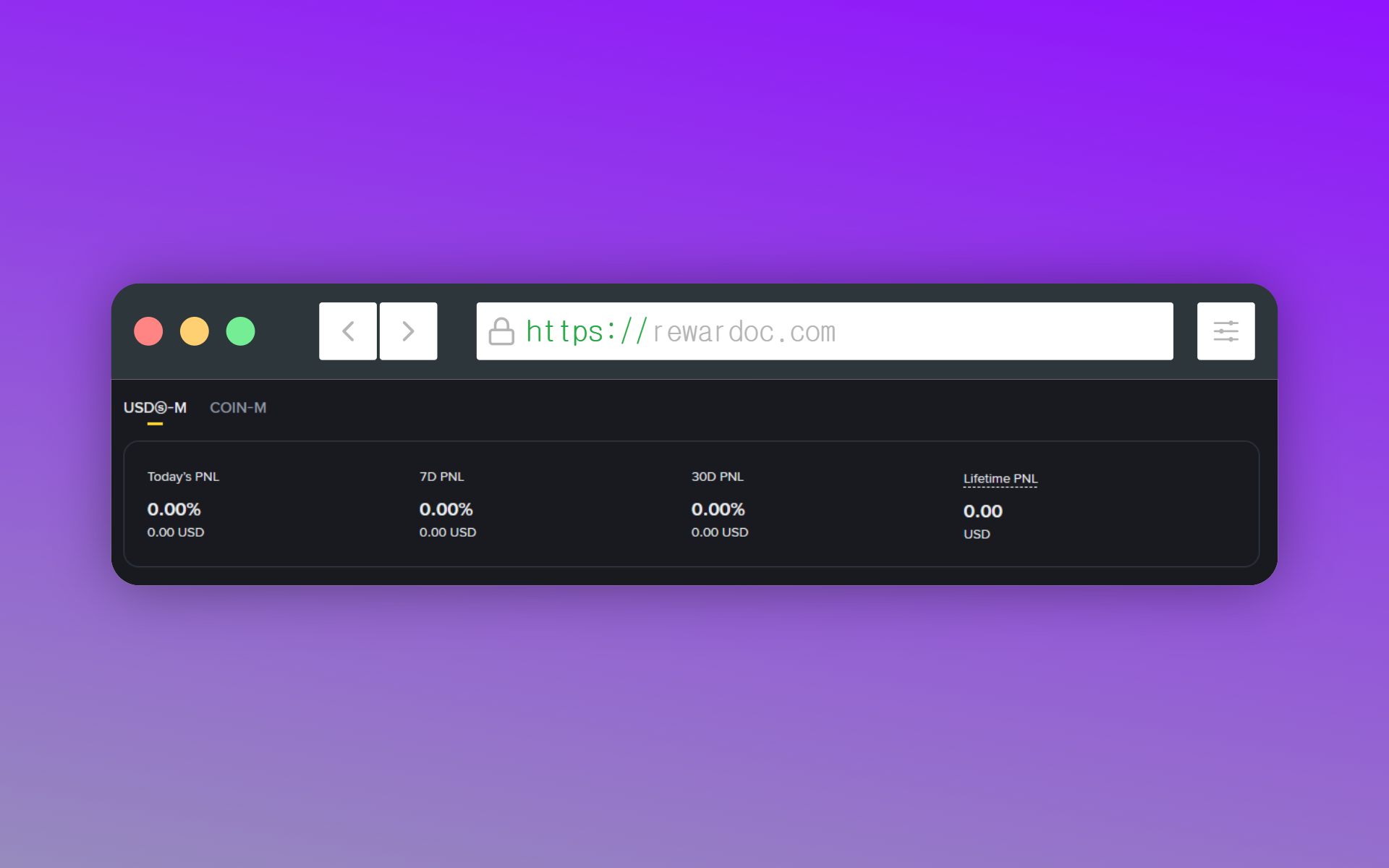
[Today's PNL] covers today, [7D PNL] the last 7 days, [30D PNL] the last 30 days, and [Lifetime PNL] your cumulative result since the day you opened the account.
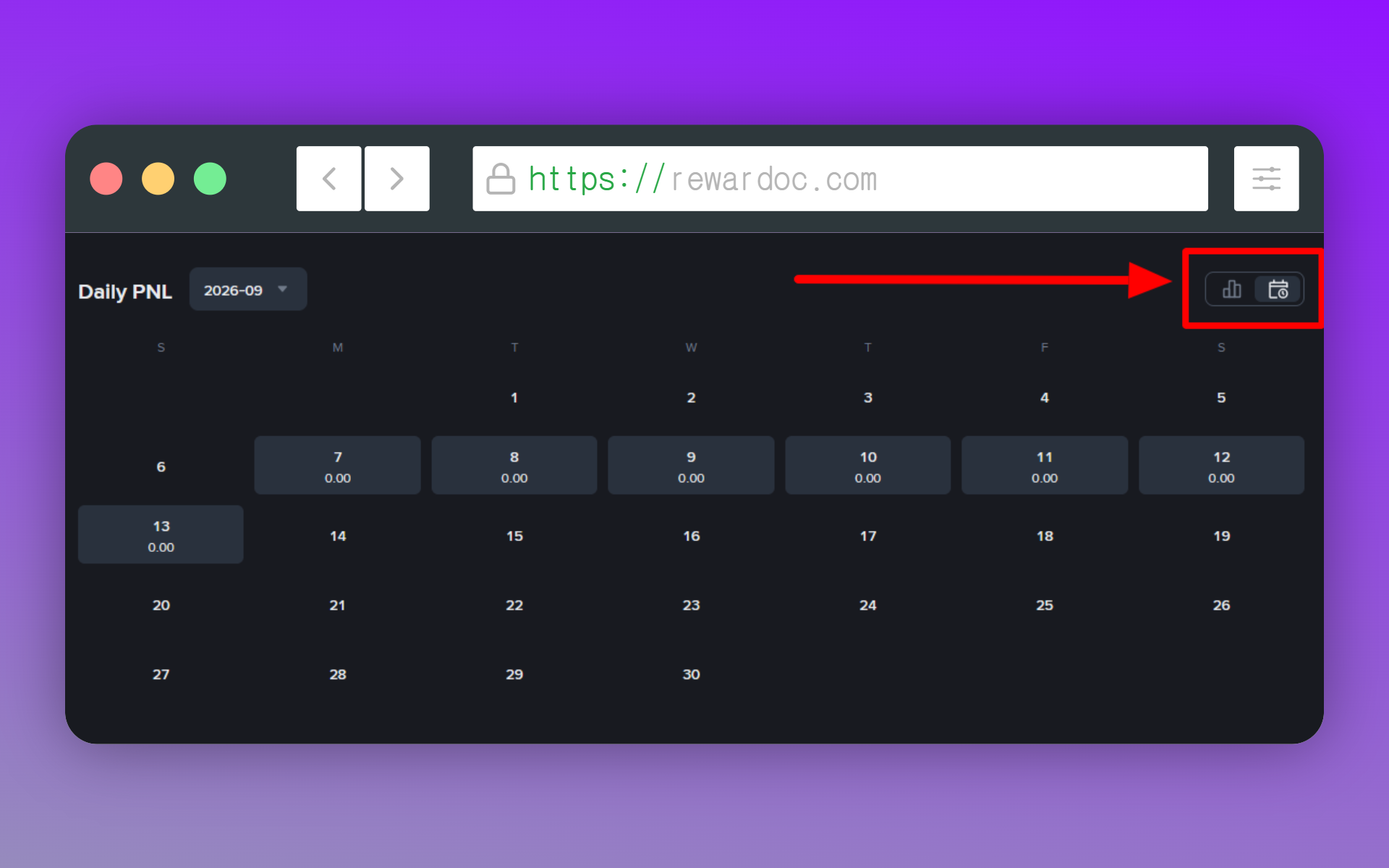
Hit the calendar icon in your futures wallet to switch to calendar view, and you can see which days went green or red across the whole month — no checking daily PNL over and over and adding it up yourself. (Click a date and you'll get that day's cumulative PnL, volume, and other details.)
Checking spot PnL
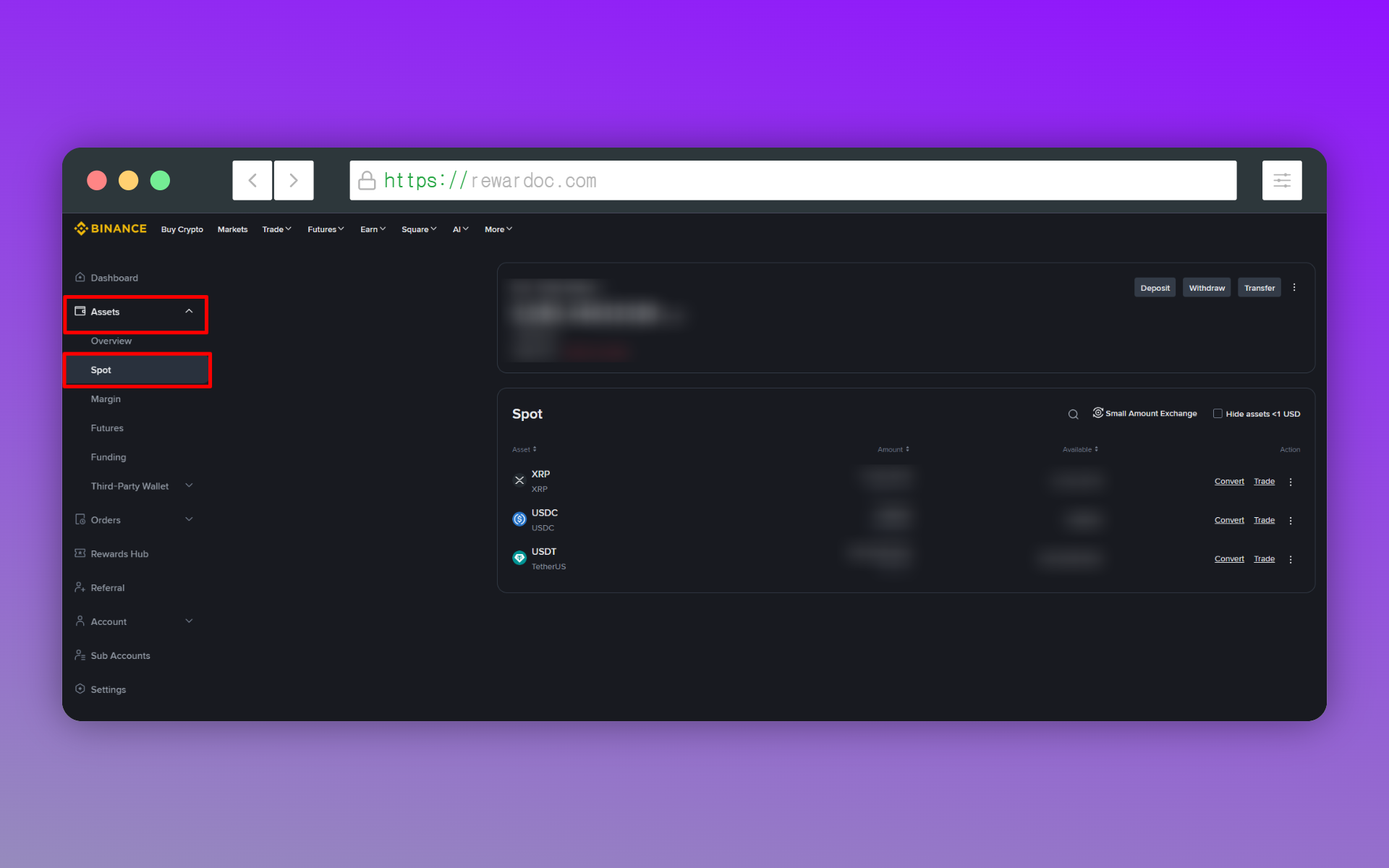
For spot, click [Assets] under your profile icon on the Binance homepage, then open [Spot] on the left. On the app, go to [Wallets] → [Spot] and tap the same arrow.
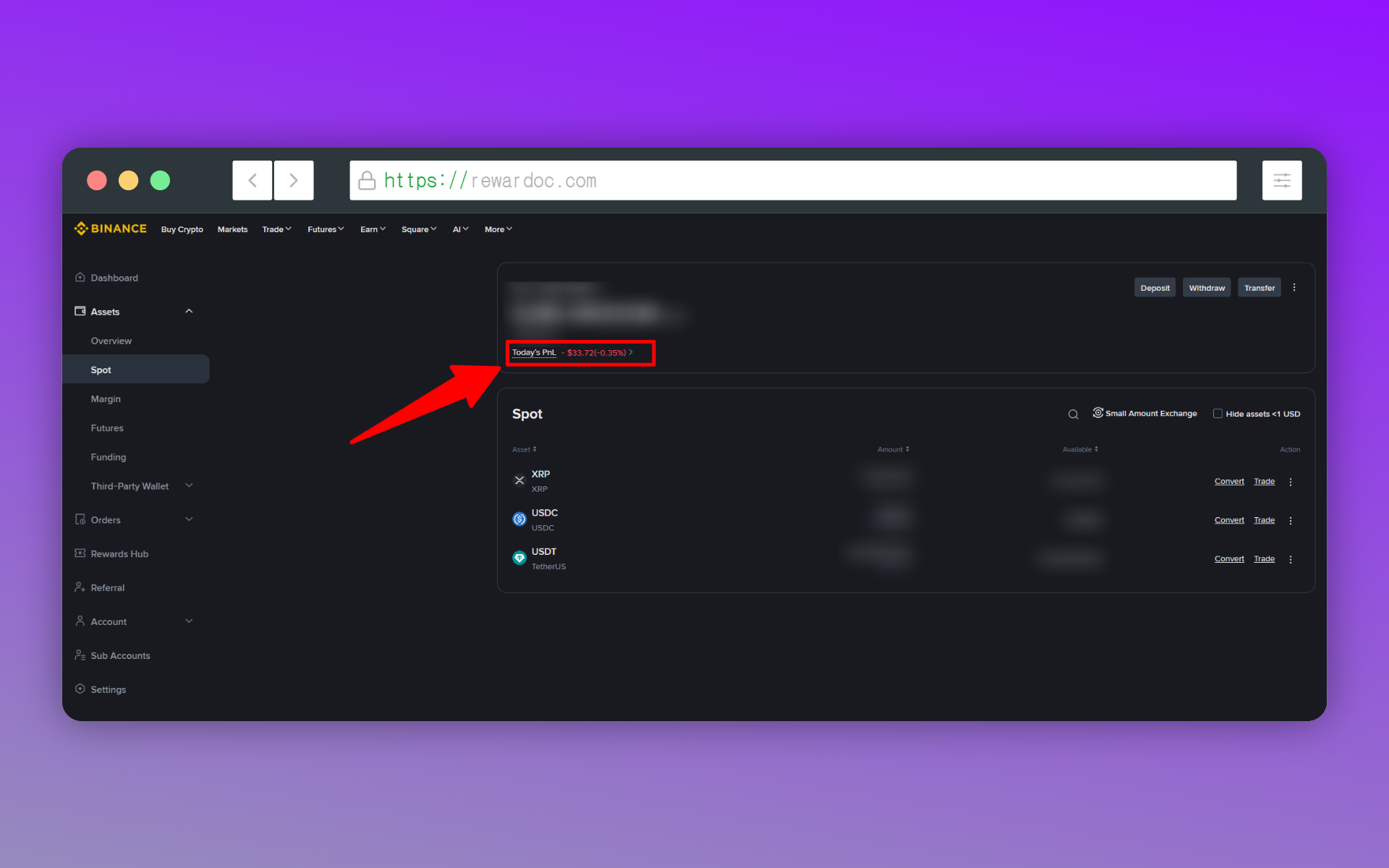
Click [Today's PnL] on that page and you'll see your profit and loss, your asset curve, and how your holdings are weighted. Want to look at just one coin? Click it in the asset list and you'll get the PnL breakdown for that coin alone.
When PnL won't load, or the numbers look off
Sometimes PnL won't show up at all, or it doesn't match what you calculated yourself. This usually comes down to when Binance resets the daily PNL — in other words, a time zone gap.
Binance runs its systems on UTC. That won't line up with your local clock, so the "today" you have in your head and the day the system is counting are two different windows. A given trade can end up filed under the previous or the next day's PNL, and that's where the discrepancy creeps in.
On top of that, 00:00 to 02:00 UTC every day is the settlement and maintenance window. The system is updating the previous day's PnL data during those hours, so daily PNL may not display properly or may look temporarily missing. When you need an exact number, skip the PNL stats screen and go straight to your Transaction History around the 00:00 UTC line — that's the most reliable way.
If you need precise figures for something like a tax filing, I've covered downloading your records in [How to check and export your trade history]. And if you're wondering about fees, pick it up from [How to check the fees you're actually paying on Binance].