How to Use Binance Demo Trading: Practice Spot & Futures Risk-Free
Binance retired Futures Mock Trading and the futures testnet. Here's where the new Demo Trading lives on desktop and mobile, how to reset your virtual balance, and what to do when it won't load.
Want to test the waters before putting real money on the line? Here's how Binance Demo Trading works. Since August 2025, Binance has been shutting down Futures Mock Trading and the futures testnet in stages (source: Binance official announcement), and the replacement is a single Demo Trading environment that covers both spot and futures.
Both the URL and the menu paths have changed, so this guide walks through where Demo Trading actually lives on desktop and in the app right now, how to reset your virtual funds, and how to get back to live trading when you're done.
💡 Before you start!
- No Binance account yet? 👉 [How to sign up for Binance + KYC verification]
- Sign-up bonus + fee discount offers 👉 [Check your Binance sign-up bonus]
1. Opening Demo Trading on Desktop
1-1. Go to the Demo Trading page
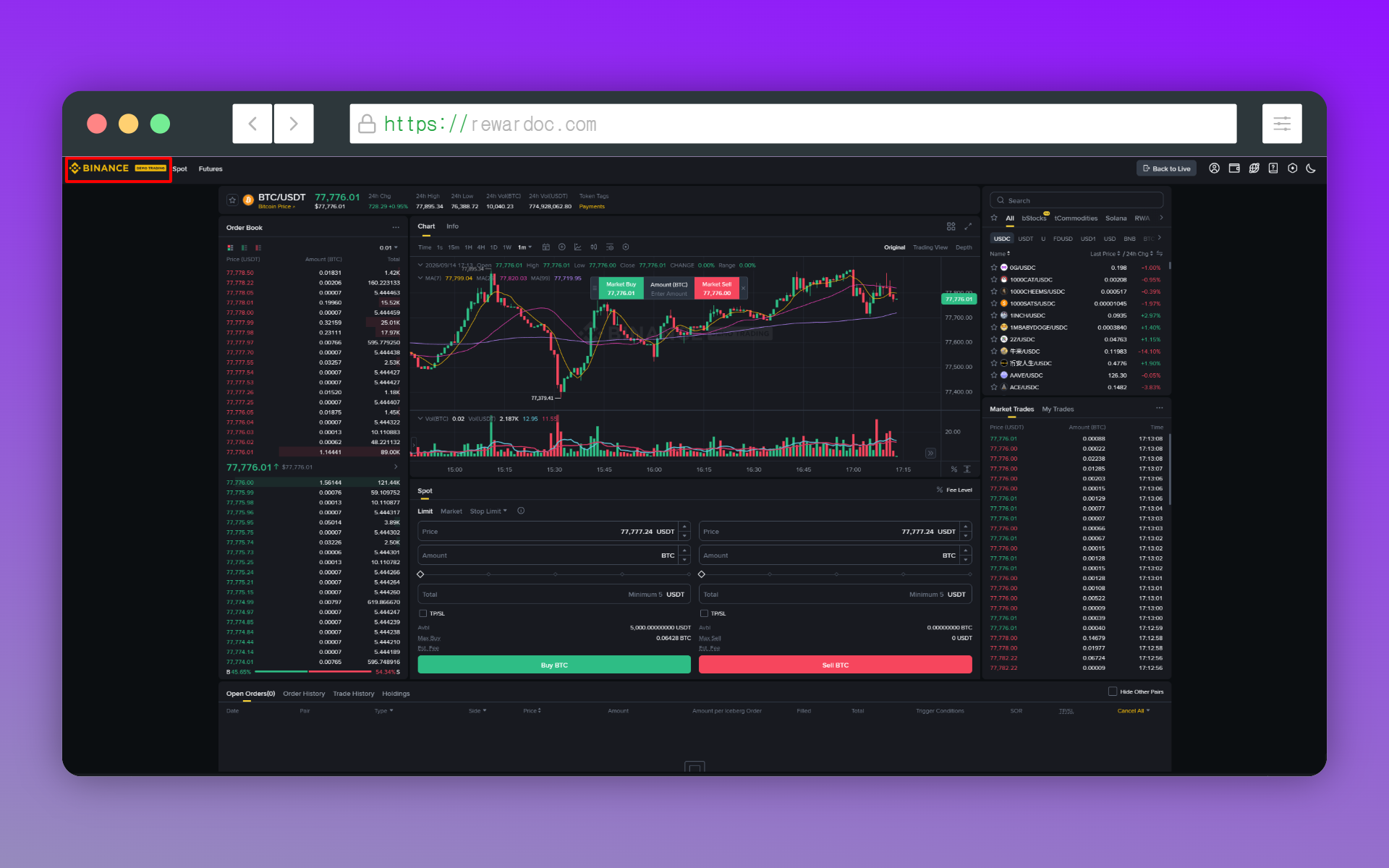
From the Binance homepage, head to [Trade] - [Demo Trading] in the top menu.
You can also jump straight to [Demo Trading] and log in with your existing Binance account. (For spot, go to [Spot]; for futures, [Futures].)
1-2. Hit [Start Demo Trading]
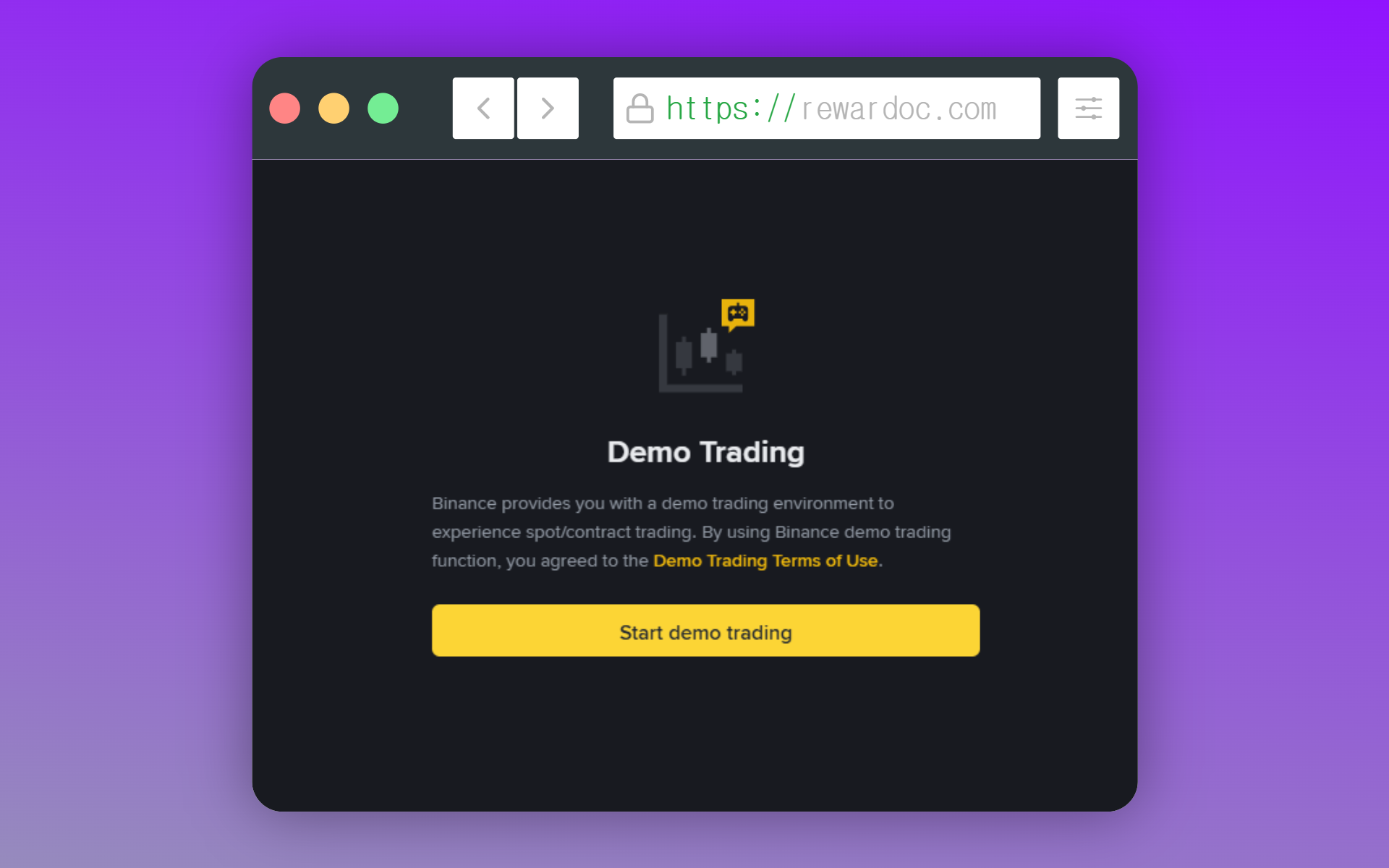
Click [Start Demo Trading] and you'll land in the demo interface.
If a login screen pops up instead, you don't have an account yet. Demo mode isn't a no-signup sandbox — you need a Binance account first. Start with the [Binance sign-up guide] if you're not registered.
2. Opening Demo Trading in the App
2-1. Tap [More Services]
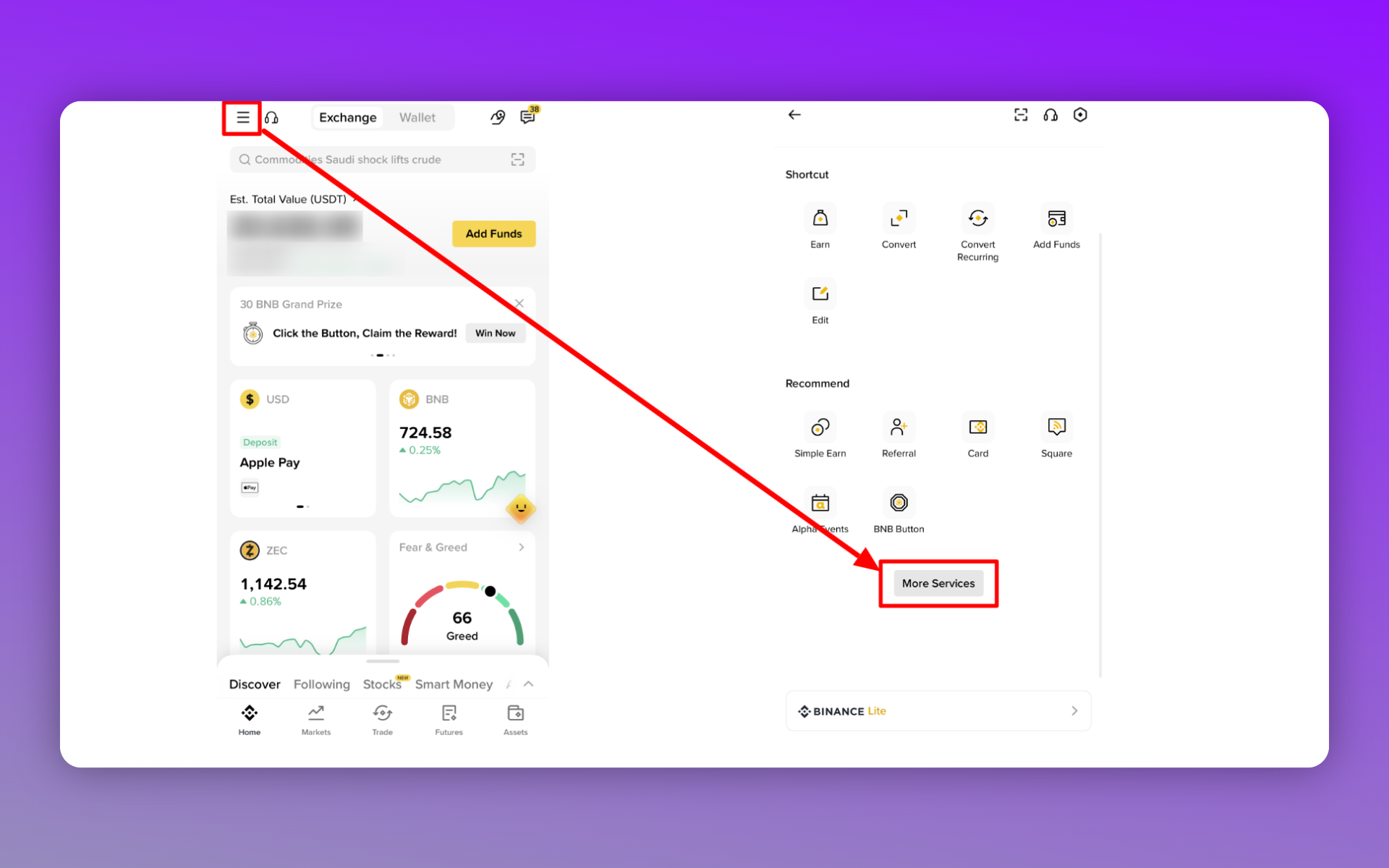
Log into the app, tap the menu icon (≡), then tap [More Services].
2-2. Tap [Demo Trading]
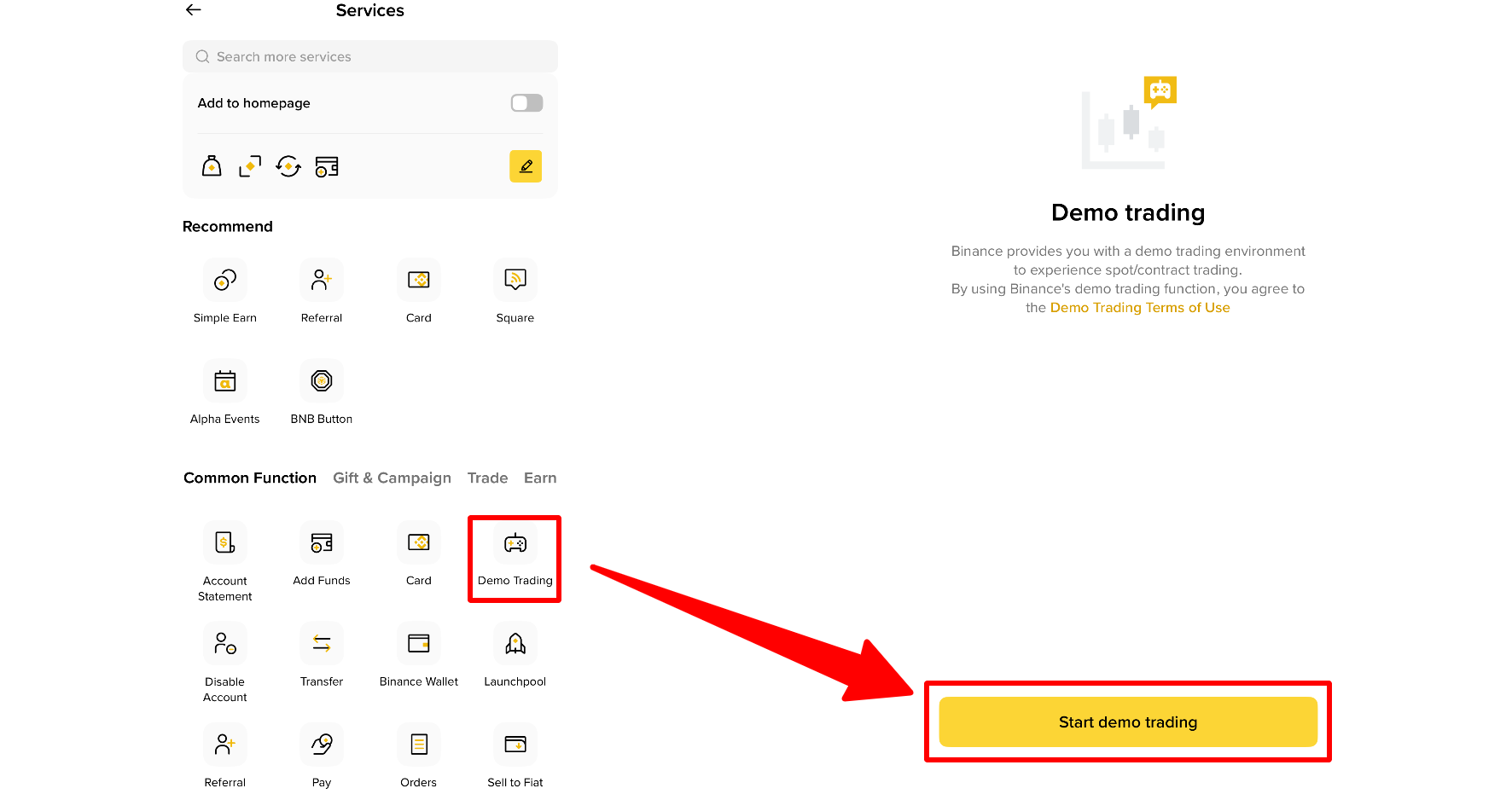
Scroll down to the [Common Function] section and tap [Demo Trading]. Same as desktop: tap [Start Demo Trading] and you're in.
※ On some accounts, [Common Function] shows up right away without tapping [More Services].
If you don't see it at all, your app version is probably the culprit. On older builds, the feature is sometimes still missing after the revamp.
There's a shortcut from the trading screen too.
For spot: [Trade] - [...] - [Demo Trading]. For futures: [Futures] - [...] - [Demo Trading]. The three-dot icon sits in the top right of the screen.
3. What You Get in Demo Trading
1. The layout
The demo environment has three tabs: [Markets], [Trade], and [Assets].
[Markets] is where you browse Spot along with USDⓈ-M and COIN-M futures.
[Trade] is where you place practice orders and manage positions.
[Assets] handles the virtual balances for both your spot and futures accounts. Leverage adjustment, limit orders, stop-loss and take-profit — almost everything from the live interface is here, and this is also where you reset your demo funds.
2. Resetting your virtual funds
You get roughly 10,000 USDT each for spot and futures. Blown through it? Head to [Assets], pick the account, and hit [Reset] to start over.
※ Spot and futures reset separately. Use the [Spot] and [Futures] toggle at the top to choose which one you're resetting. Resetting one leaves the other balance untouched.
When Demo Trading Doesn't Show Up
- No [Demo Trading] anywhere in the menu: Demo Trading is only available in certain countries and regions. Depending on the country registered on your account, the option simply won't appear.
- Missing only in the app: Some app versions dropped the feature during the revamp. Update to the latest version, then check [More] - [Common Function] again.
- testnet.binancefuture.com won't load: That's the old futures testnet address. Access has been shutting down in stages since the August 2025 announcement — use demo.binance.com instead.
- Nothing happens when you hit [Reset]: You've got open orders sitting on that account. Cancel them all, then try again.
If you've opened the futures order panel in demo mode and you're not sure how it differs from margin trading, read [the difference between Binance margin and futures trading] first — it'll make a lot more sense.