How to Set Up Binance OTP (2FA) and Back It Up Properly
A detailed walkthrough of setting up OTP (2FA) on Binance, plus the backup steps that save you when a phone gets lost or replaced. Practical security tips for protecting your crypto using Google Authenticator.

This piece follows on from [How to register on Binance and what the signup bonuses are]. Once your Binance account is open, the very first thing on the list is security setup. Nothing else comes before it.
Think of OTP as a second lock on top of your email and password — one that only opens with a device physically in your hands. Even if someone walks off with your password, without that OTP code they can't lay a finger on your funds.
But learning "how to connect it" and then rushing through the setup is how people end up locked out of their own accounts after losing or replacing a phone. The whole thing hinges on saving the backup key (Setup Key) and the QR code somewhere safe during the linking process.
So this guide covers more than the connection steps — it goes into how to store the backup key and what you absolutely need to watch out for, in as much detail as I can. (Still at the signup stage? See [How to sign up for Binance].) (Need recovery rather than setup? Head to [OTP recovery guide].)
Setting up two-factor authentication (OTP) on Binance
1. Install an authenticator app
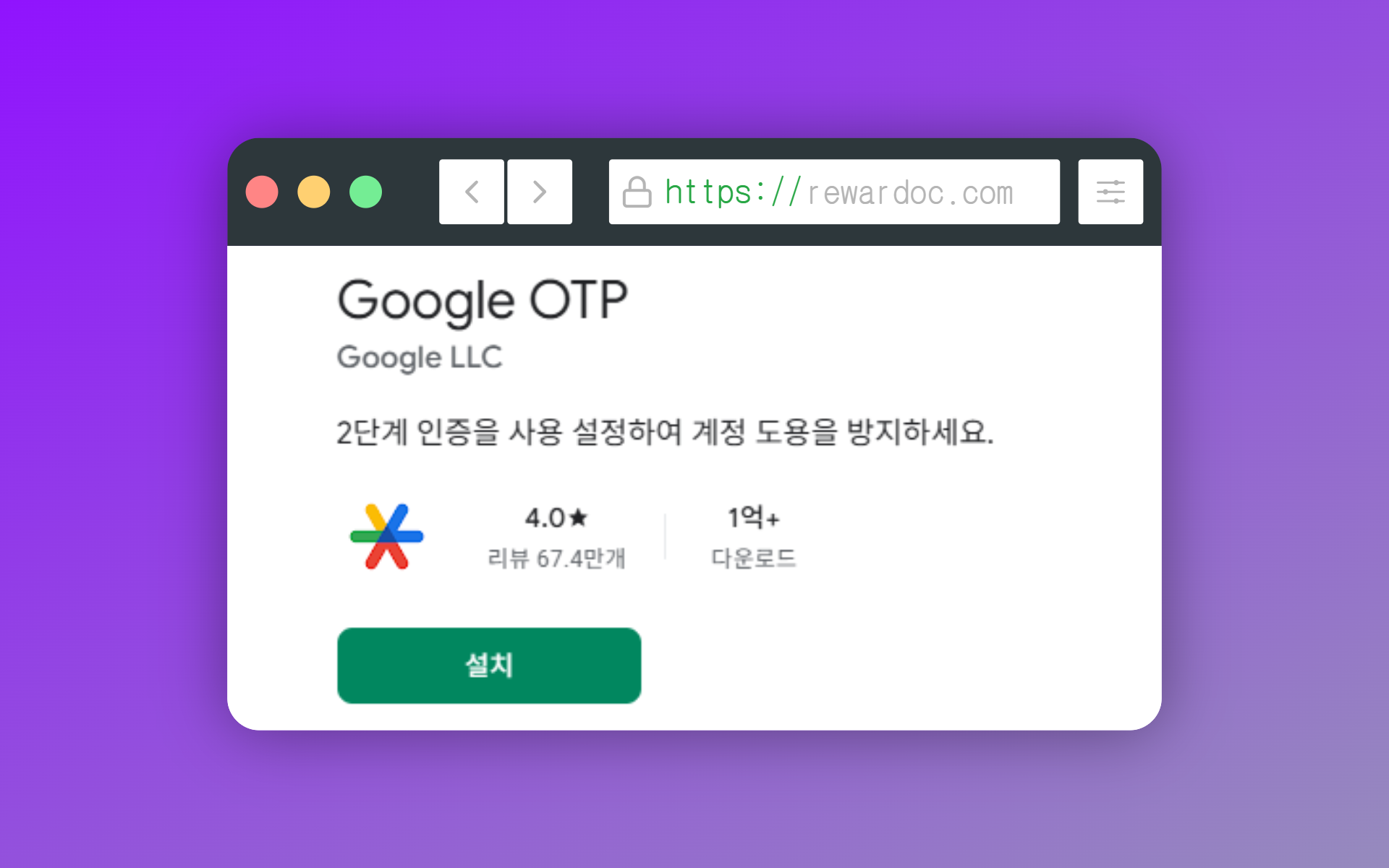
Install Google Authenticator. OTP is a 6-digit one-time code that regenerates every 30 seconds, and this app is what generates it. Other authenticator apps work too, but most people run Google Authenticator. You'll end up using the same app across your other exchanges anyway, so keeping everything in one place makes it easier to manage.
2. Open the security menu
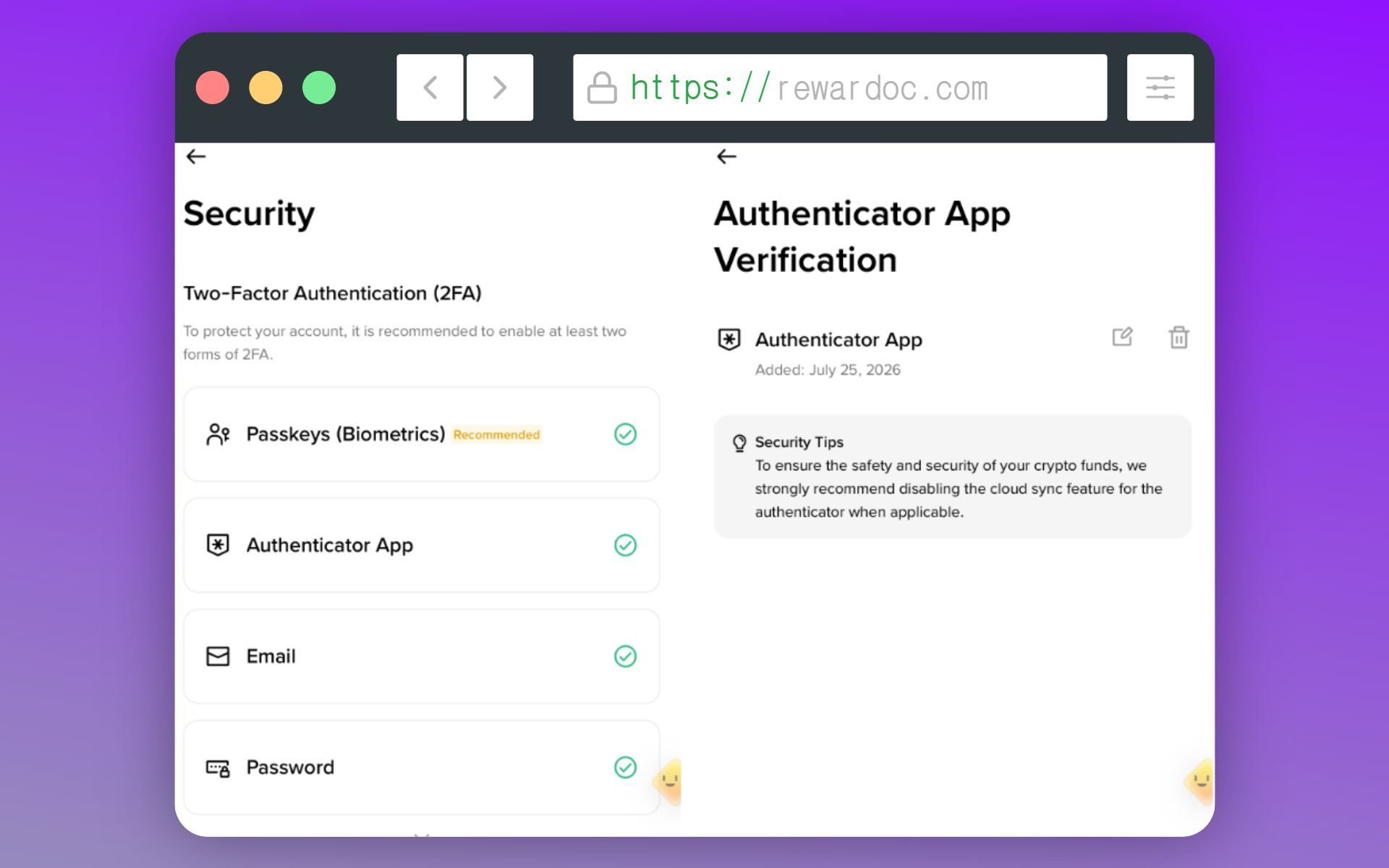
In the Binance app, tap the menu icon in the top left, then the profile icon, then go into [Security].
(Mine already has OTP set up so everything shows as checked, but just follow the steps below in order.)
3. Enable the authenticator app
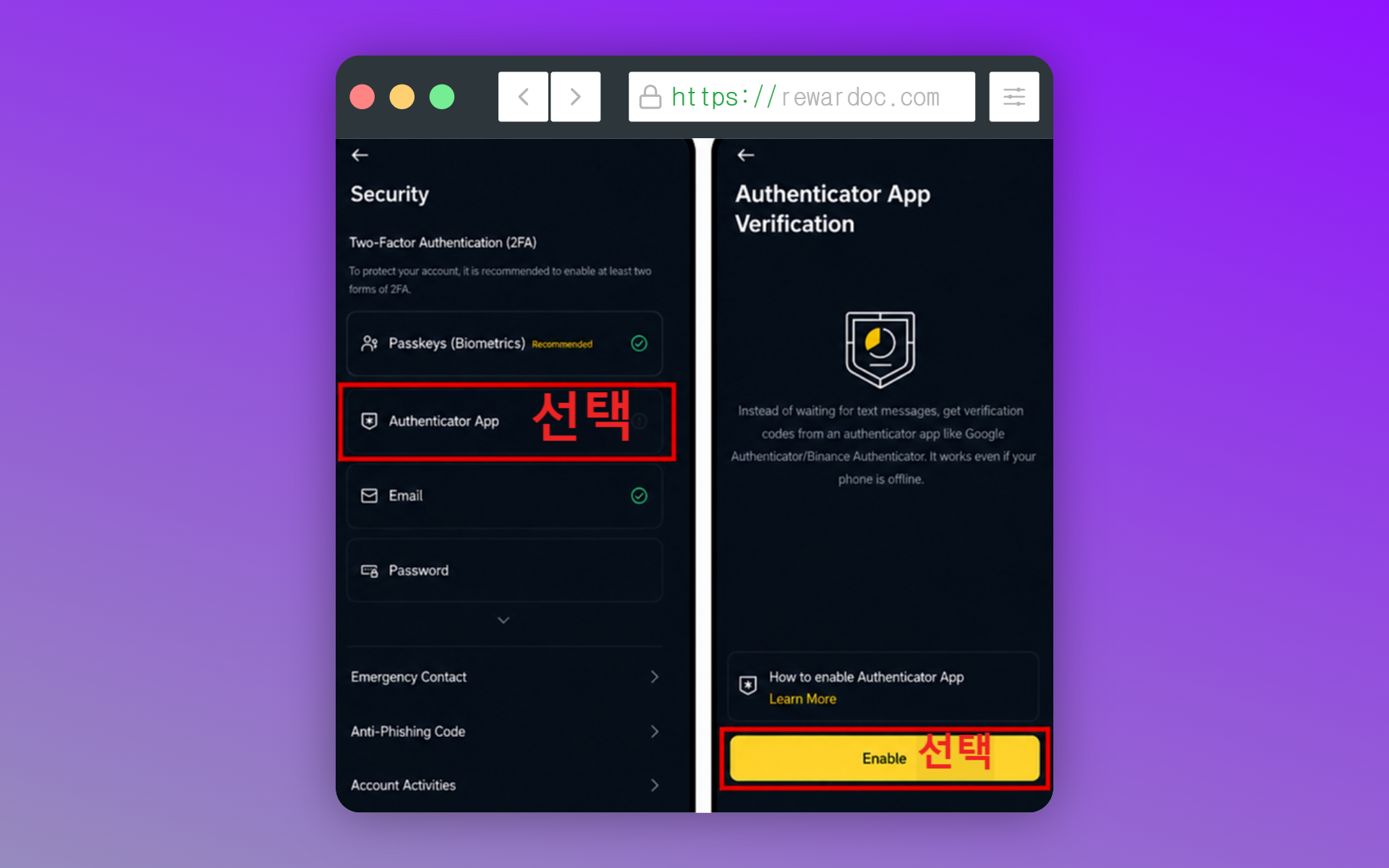
Find [Authenticator App] and tap [Enable]. That switches on the OTP security setup.
4. Copy the OTP setup key (important)
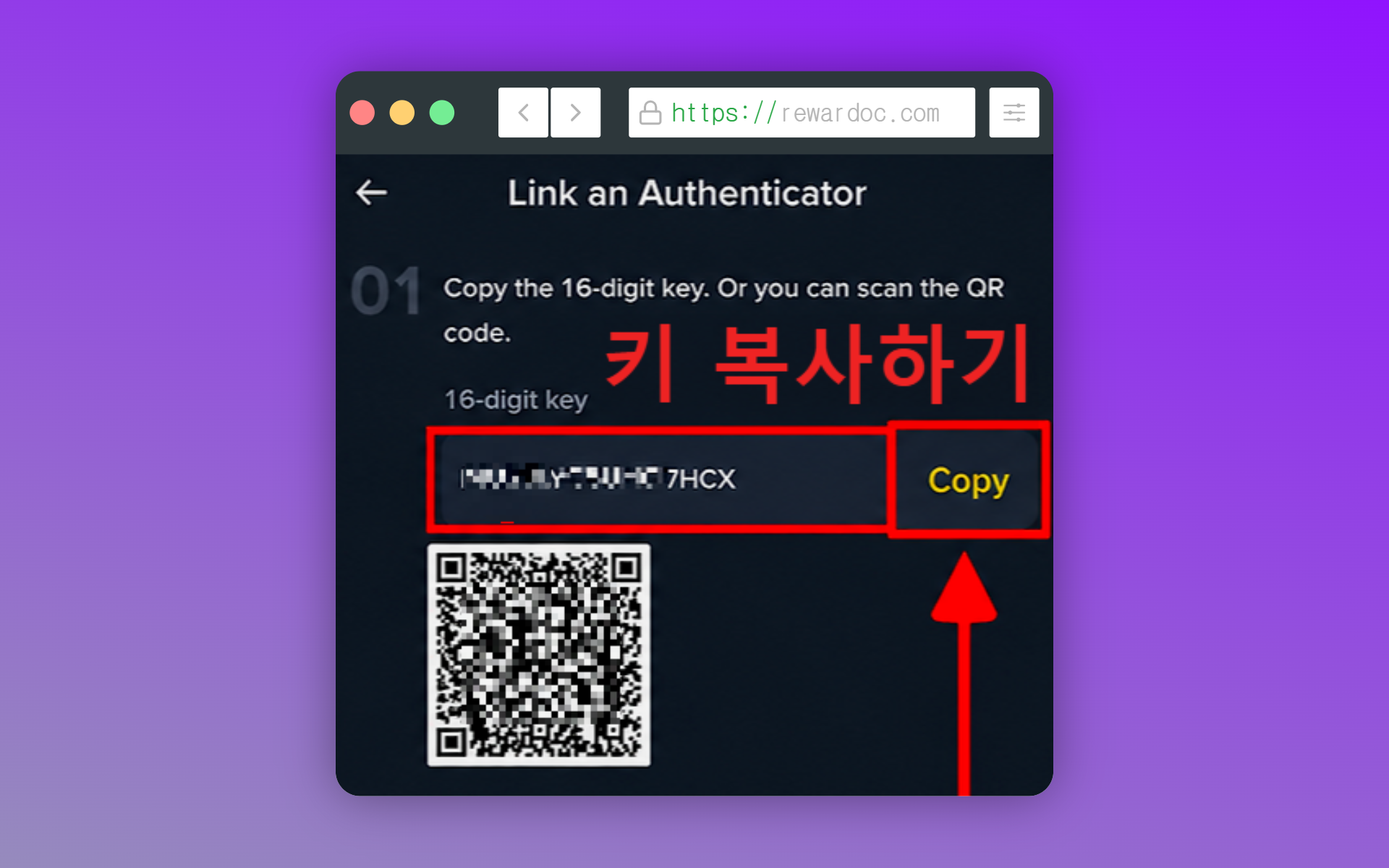
A 16-character key appears. This is the key Binance issues, and you register it in the Google Authenticator app you just installed.
Save this key somewhere, and write it on paper as well while you're at it. A screenshot alone disappears along with the phone. If you're thinking of putting it in the cloud, that cloud account itself needs two-factor authentication on it, or it's pointless. Otherwise you're leaving the key sitting right next to the lock.
With this key in hand, you can restore your authenticator app after losing your phone or switching to a new one. Without it, you're going through a support-driven recovery process that takes days.
And don't post the screenshot as-is on a blog — mask the key before capturing the image at this step.
5. Register the key in Google Authenticator
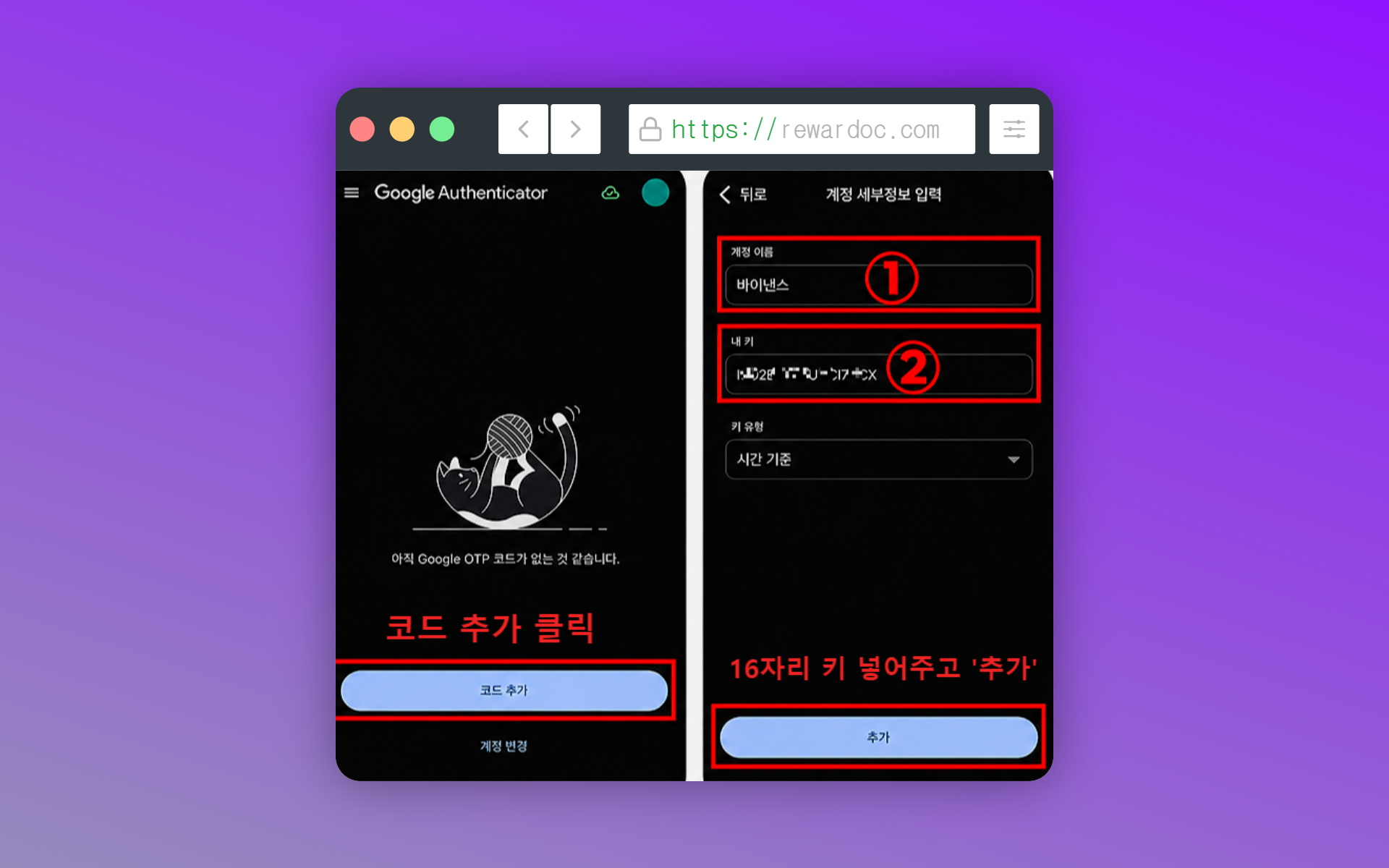
Open Google Authenticator, tap the [+] button at the bottom, choose the setup key option, and paste in the key you copied. If the QR code is on screen, scanning it works just as well. Once it registers, a 6-digit number (the OTP code) starts appearing.
6. Enter the code to link it
Go back to Binance and enter the 6 digits from your authenticator app. It asks for an email verification code at the same time, so check your inbox once more. If the number is about to roll over, wait for the next code and use that one.
That's OTP setup done. Return to the security settings screen and confirm the [Authenticator App] entry has flipped to enabled. That's everything.
From here on, logging into Binance means pulling a code from the app. If the code errors out even when you've entered it correctly, or you change phones or lose your device and can't complete OTP verification, see [How to fix Binance OTP errors and recover a lost authenticator].